AI Makeup Try On
Upload a photo and see how a full glam or natural makeup look would sit on your own face.
What the AI Makeup Try On does
Deciding on a makeup look for a wedding, a night out, or just a photo is easier when you can actually see it on your face first, instead of imagining it from a product swatch. Upload a clear photo and the tool generates a version of you with makeup applied: defined eyes, a chosen lip color, contour, and finish. Type what you want in the instruction box, from a soft natural look to a full glam smoky eye, and the result reflects that request rather than a fixed default. It's built for trying looks before you commit to buying products or booking an artist, not for a step-by-step tutorial on how to apply anything yourself.
See a sample result
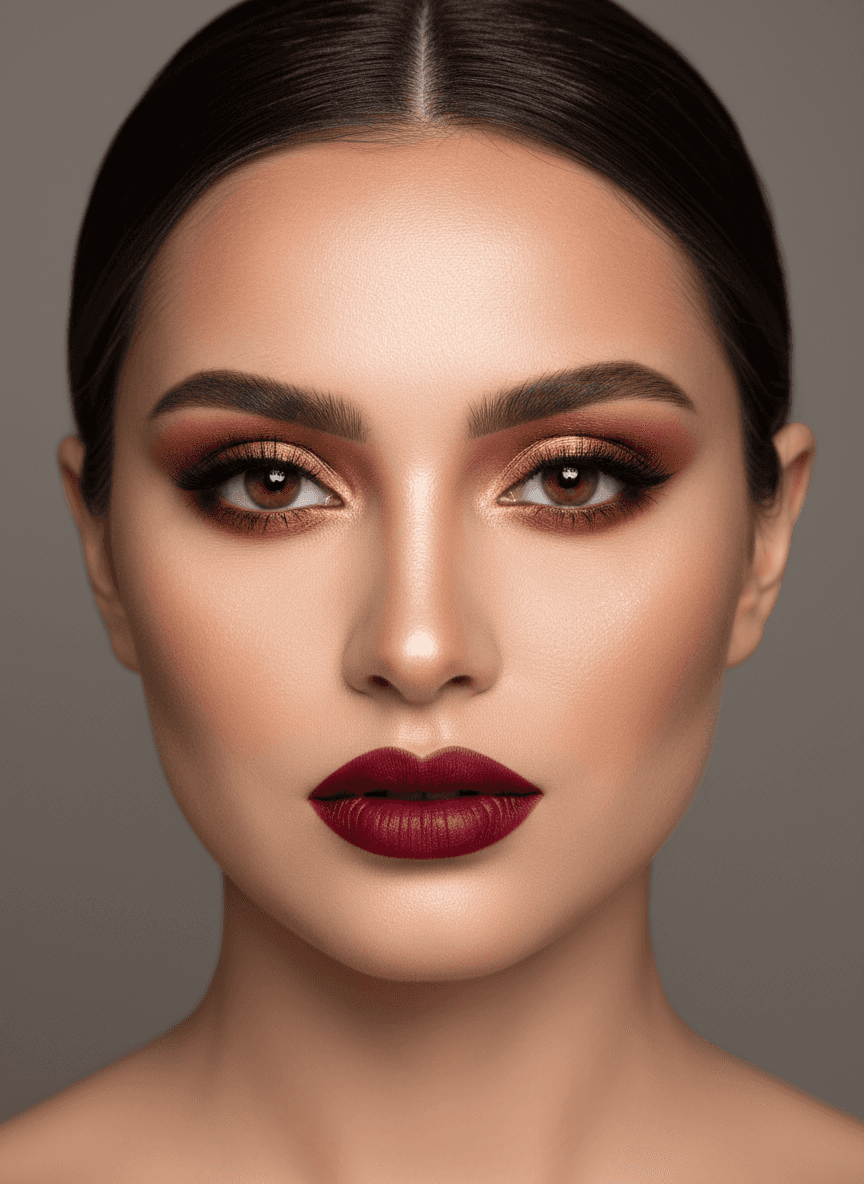
Input: A front-facing selfie of a woman with bare skin and no makeup, hair pulled back loosely, taken in soft, neutral indoor lighting against a plain wall. The result looks similar to the image at the top of this page.
The look applied is a warm glam style: bronze and copper eyeshadow blended across the lid and into a soft smoky edge along the lash line, filled-in defined brows, subtle contour along the cheekbones and jaw, and a matte deep berry-red lip. Skin is evened out with a soft glow finish rather than a flat matte base, and the overall effect reads polished and evening-appropriate rather than daytime natural.
What changed beyond makeup: the skin is airbrushed to a poreless, glowing finish (the default instruction asks for "flawless skin"), the loose hair became a sleek center-parted slick-back, the wall turned into a gray studio backdrop, and the brows and lips look reshaped and fuller. That makes the image look like a beauty ad more than your face with makeup on. Compare it with your original, and add "keep my skin texture, brow shape and hair" to the instruction if you want a more honest preview.
How it works
- 1
Upload a front-facing photo
Use a clear, well-lit photo with your face fully visible and not obscured by hair, sunglasses, or heavy shadow. Neutral lighting gives the most predictable result.
- 2
Describe the look you want
Name a specific style in the instruction, like 'soft everyday makeup with a nude lip' or 'bold smoky eye with a matte red lip.' You can also name individual colors for eyes or lips.
- 3
The AI generates the makeup look
It applies the requested eyeshadow, liner, lip color and contour. By default it also smooths skin to a flawless finish and can tidy hair and background, so ask it to keep your skin texture and background if you want a truer preview.
- 4
Compare, adjust, and try again
If the color or intensity isn't right, run it again with a more specific instruction, like a different shade name or 'more subtle' or 'more dramatic.'
Use cases
Planning makeup for a wedding or event
See a bridal or formal look on your actual face before booking a makeup artist, so you can bring a clear reference instead of a vague description.
Testing a new color before buying
Curious whether a bold lip shade or a specific eyeshadow palette works on you before spending money on it. Try the color virtually first.
Building a look for a photoshoot
Content creators and models can preview a makeup direction ahead of a shoot to communicate the vision to a makeup artist or plan their own application.
Practicing a look before a night out
See how a dramatic smoky eye or a bold lip would look on you before committing the time to apply it yourself.
Comparing natural versus glam for the same face
Run the same photo through with two different instructions, natural and full glam, to decide which direction suits an upcoming occasion.
Tips for better results
- Use a photo with even, front-facing lighting; harsh side shadows can distort how the color and contour render.
- Name a specific lip or eyeshadow color in the instruction rather than a vague style for a more predictable result.
- Keep hair away from your face so the eye and cheek area are fully visible for the AI to work with.
- If the look comes out too intense or too subtle, rerun it with 'more subtle' or 'more dramatic' added to the instruction.
- To compare looks, run the same photo with a different instruction each time; each run uses credits.
Limitations
This is a generated preview, not a real-time mirror or a makeup tutorial. The AI can shift small details like eyebrow shape, skin texture, or lip proportions slightly while applying the look, so always check that your face still looks like you before using the result to plan a purchase or booking. It's a visual estimate of how a look might read in a photo, not a guarantee of how a specific product or shade will actually appear on your skin under different lighting.
Frequently asked questions
Can I try a specific brand's lipstick shade?
You can name a color description, like 'brick red matte lip,' and the AI will apply something close to it. It doesn't have access to exact brand formulas or shade catalogs, so treat the color as an approximation.
Will it change my face shape or features?
It can. The goal is makeup, but the default asks for flawless skin, and generative edits often reshape brows, fill out lips and slim the face. Check the result against your original photo, and name what to keep in the instruction.
Can I try more than one look on the same photo?
Yes, one look per run. Upload the same photo again and change the instruction each time, then compare the results side by side. Each run uses credits.
Does it work with photos that already have makeup on?
It works best starting from a bare or lightly made-up face, since the AI is adding a new look on top of what's there. Heavy existing makeup can blend with the new look in unpredictable ways.
Can it show me how to actually apply the makeup?
No, it generates a finished look rather than step-by-step application instructions. Use the result as a visual reference for yourself or a makeup artist, not a tutorial.
Plans start at $9 a month. See pricing