What the Luxury Lifestyle Generator does
There's a specific look to luxury lifestyle photography: marble floors, a sweeping staircase, city skyline through floor-to-ceiling glass, a designer bag placed just so on a coffee table. This tool takes a photo of you and rebuilds the scene around that aesthetic, generating a high-end interior, elegant clothing, and premium props while keeping the overall likeness of your photo. It's built for fun, mood boards, and creative projects, not for passing off as real: it's a generated image, and treating it as evidence of anything, like actual wealth or possessions, would be misleading to anyone who sees it.
See a sample result
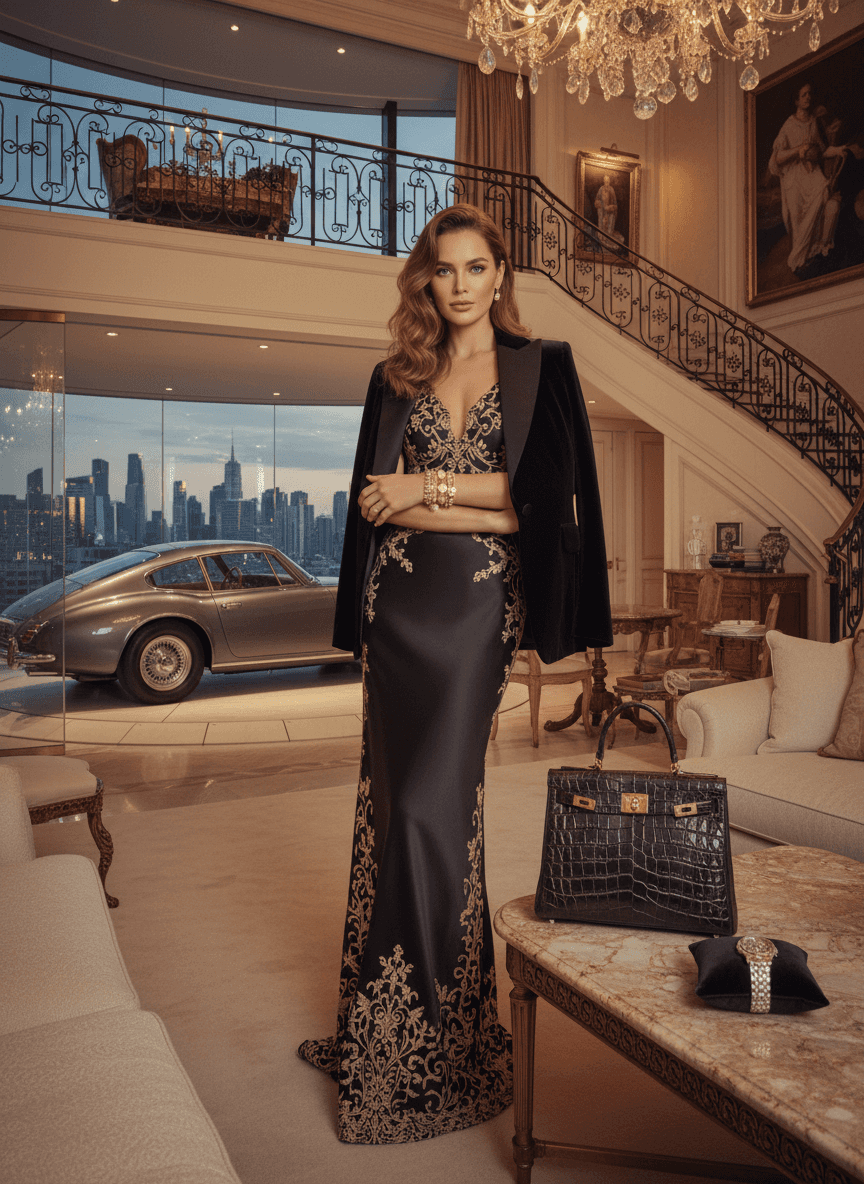
Input: A plain, everyday photo: a woman with long wavy auburn hair standing with her arms crossed, in jeans and a sweater against a bare interior wall, taken on a phone camera in ordinary indoor lighting. The result looks similar to the image at the top of this page.
Scene: A grand, marble-floored living room with a sweeping staircase, an ornate chandelier overhead, and floor-to-ceiling glass showing a dusk skyline, with a classic silver sports coupe parked behind a glass wall as if it's part of the living room. Oil portraits in gilt frames hang on the walls.
Styling: The casual outfit is replaced with a fitted evening gown in dark satin with gold embroidery, with a black velvet blazer draped over the shoulders and stacked gold bracelets at the wrist. The arms-crossed pose carries over from the original.
Props: A black crocodile-textured top-handle handbag and a watch on a small cushion sit on a marble table in the foreground. The bag closely resembles a famous designer model, so don't use the image commercially or imply it's the real thing.
Lighting and mood: Warm, directional light from the chandelier gives the skin an even, polished look, consistent with staged luxury photography rather than a candid shot.
Things to check: Look closely at the hands and jewelry, where generated details can look slightly off, and check any text on the props, like a logo or watch face, since the AI can render text or branding incorrectly. The face usually keeps your overall look but comes out airbrushed and idealized, so compare it with your photo before you share the result.
How it works
- 1
Upload a clear photo of yourself
A front-facing photo with good lighting gives the AI the clearest likeness to carry into the generated scene.
- 2
Edit the instruction to set the scene
The default instruction generates a high-end interior with elegant styling. Edit it to name a specific setting, outfit, or prop, like a penthouse balcony, a particular car, or evening wear in a certain color.
- 3
The AI generates the luxury scene around you
It builds a new background, styling, and lighting suited to a high-end aesthetic, blending your photo into the generated setting.
- 4
Review the result and check the details
Look closely at your face, hands, and any text or logos the AI added, since generative edits can introduce small errors worth catching before you share it.
Use cases
Building a fantasy or vision board
Generate the aspirational scene you're picturing without booking a location or a shoot, just to see what it looks like.
Fun social posts and profile pictures
Create a playful, over-the-top image for a caption or a joke, understanding it's clearly a generated edit rather than a real photo.
Creative and design mockups
Designers or content creators can use the generated aesthetic as a visual reference or placeholder for a luxury-themed project.
Testing a styling or scene idea before a real shoot
See how an outfit color or setting concept might look before committing to renting a location or buying wardrobe pieces.
Tips for better results
- Name a specific setting or outfit in the instruction, like a rooftop terrace or a particular gown color, rather than relying on the default scene alone.
- Use a well-lit, front-facing photo so the AI has a clean likeness to carry into the generated setting.
- Check any text, logos, or watch faces in the result closely, since generated details in small objects are where mistakes tend to show up.
- Treat the result as a creative image, not a photo to present as real; be upfront if you share it that it's AI-generated.
- If the first result doesn't match what you pictured, adjust the instruction with more specific detail and generate again.
Limitations
This is a generative edit, not a real photograph: the interior, props, and styling are invented by the AI and don't reflect anything you actually own or a place you've been. It can change small details unpredictably, especially hands, jewelry, and any text or logos, so check those before sharing. It's meant for fun and creative use, not for presenting fabricated wealth or possessions as genuine to anyone, including on dating profiles, in messages asking for money, or anywhere else it could mislead someone.
Frequently asked questions
Will the result actually look like me?
It usually keeps your overall look, but it's a generated image that smooths skin and can shift features, so check the result before using it anywhere your likeness matters.
Can I choose a specific setting instead of the default one?
Yes, edit the instruction to name the setting, outfit, or props you want, such as a yacht deck or a specific car, and the AI will generate around that description.
Is it okay to use this for a dating profile or to impress someone?
No. It's a generated image meant for fun, not a stand-in for real photos of your life. Presenting it as genuine to someone could mislead them, which isn't what this tool is for.
Can I upload more than one photo?
Yes, the tool uses all your images as references for a single generated result, which is useful if you want to include a specific outfit or prop photo. Say in the instruction what each image is for; credits are charged per image.
Why do the hands or jewelry sometimes look off?
Generative edits are more likely to introduce small errors in complex details like hands, fine jewelry, and text, so it's worth reviewing those areas before you share a result.
Does each generation use up credits?
Yes, each run uses credits, so it's worth refining your instruction with specific detail before generating rather than making many quick attempts.
Plans start at $9 a month. See pricing