Real Estate Photo Enhancer
Brighten and sharpen a property photo so the listing looks its best.
What the Real Estate Photo Enhancer does
A phone photo of a living room often comes out darker or duller than the room actually looks, especially with mixed window and lamp light. This tool takes a real estate photo and improves the lighting, color, and clarity so the space reads the way it does in person: brighter windows, more even exposure, and sharper detail. It's built for agents and hosts who need listing photos to look competitive without hiring a photographer for every showing. It's a generative edit, so it can also tidy, restage or add small things on its own. Listing photos have to show the property buyers will walk into, so compare every result with your original before you publish it.
See a sample result
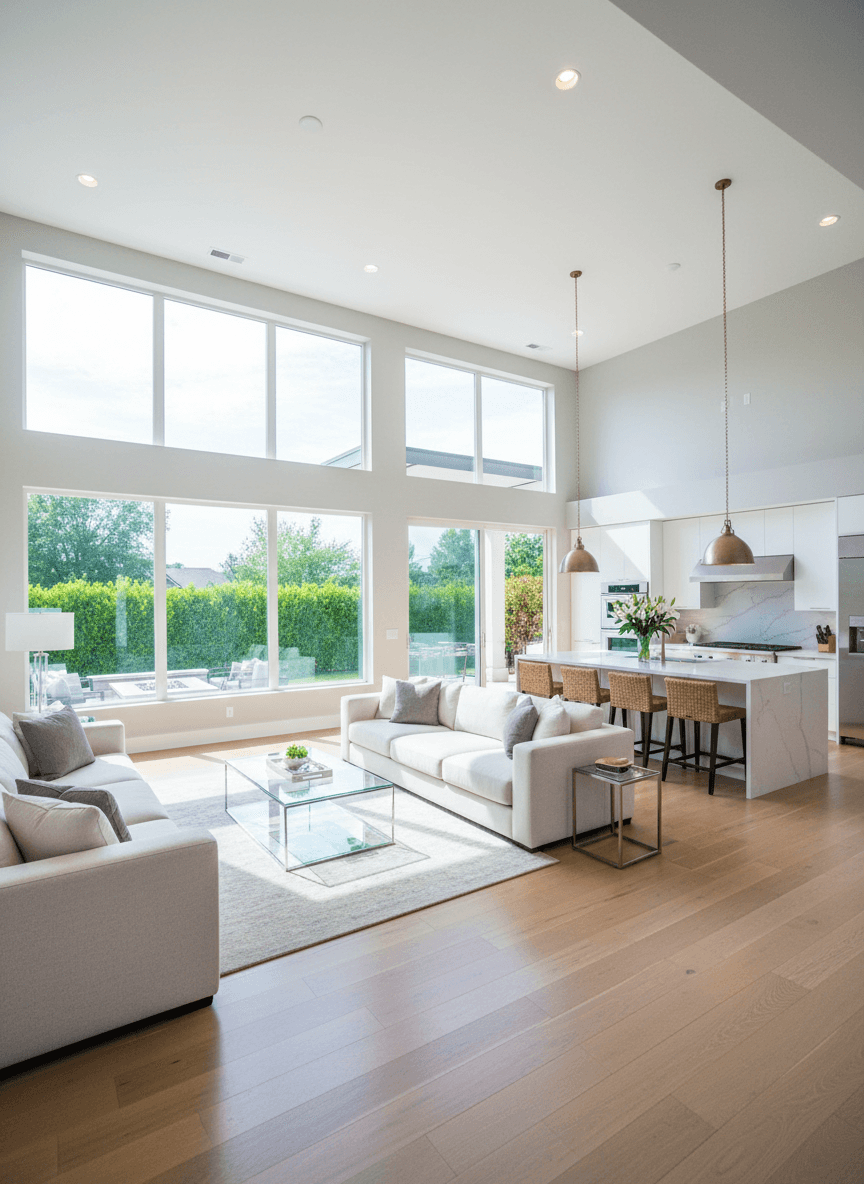
Input: A phone photo of an open-plan living room and kitchen with white sofas, a wood floor, tall windows and two pendant lights over a kitchen island. The windows are blown out to white, the interior looks dim and slightly yellow, and the pendants are off. The result looks similar to the image at the top of this page.
Enhancement applied: brightness and clarity pass
Exposure is balanced so the daylight coming through the tall windows doesn't blow out while the interior stays bright rather than shadowed, a common problem when a single phone exposure has to handle both. Color is corrected to remove any warm or cool cast from mixed window and pendant lighting, so the white sofas and walls read as neutral white rather than yellow or blue-tinted.
Floor and countertop detail is sharpened slightly so the wood grain and stone veining are more visible, and overall contrast is lifted to make the space feel crisper in thumbnail size, which is how most buyers will first see it on a listing site.
What to check: the default instruction asks for an "appealing composition", and the AI sometimes takes that as permission to stage the room. Compare the result with your original for small additions (a vase of flowers on the island, extra cushions, a greener garden outside the windows) and for changed finishes. Remove anything that isn't really there by editing the instruction (for example "only fix lighting and color, change nothing else") and running it again, since a listing photo must show buyers the property they'll see at a showing.
How it works
- 1
Upload a photo of the room or exterior
Shoot from a corner to capture as much of the space as possible, and try to have interior lights on if the room is dim.
- 2
Say what you want emphasized
Use the instruction to note priorities, like brightening a dark corner, correcting a yellow color cast from indoor lighting, or making a cloudy exterior sky look clearer.
- 3
The AI enhances lighting, color, and clarity
It balances exposure between bright windows and dim interiors, corrects color casts, sharpens detail, and makes the space look brighter and more inviting. Because it regenerates the image, it can also nudge small details.
- 4
Compare and download
Check the result against the original for anything altered or added (decor, views, finishes), then use it on the listing only if it still matches the real room.
Use cases
Prepping photos for a new listing
Run each room photo through the tool before uploading to MLS or a listing site so the whole set has consistent, brighter lighting.
Fixing photos shot in mixed lighting
Rooms lit by both windows and lamps often come out with an odd color cast on a phone camera. The tool corrects that without needing a manual white-balance edit.
Improving exterior curb-appeal shots
Enhance a front-of-house photo shot on an overcast day so the sky and landscaping look clearer and more inviting.
Quick turnaround for short-term rental listings
Hosts refreshing a rental listing can enhance existing photos for a better first impression without rescheduling a photo shoot.
Tips for better results
- Turn on interior lights before shooting so the tool has more detail to work with in shadowed corners.
- Shoot straight-on or from a low corner angle rather than a tilted phone angle for a more usable listing photo.
- Mention specific problem areas in the instruction, like a dark hallway or a washed-out window, so the AI focuses there.
- Always compare the enhanced photo side by side with the original before publishing it to a listing.
- Enhance one room photo per run; extra images are merged into a single result, not processed as a batch.
Limitations
Listing photos need to represent the property as it actually is. Use this tool to improve lighting, color, and clarity, not to change the layout, add furniture, or hide real conditions like damage. It's a generative edit, so it can shift details on its own (decor, reflections, the view outside, fine texture); review every result against the original. Many listing platforms and real estate regulations require photos to accurately represent the property; check your local rules and your MLS's photo policy before publishing enhanced images.
Frequently asked questions
Will this remove clutter or furniture from a room?
It isn't meant to, but as a generative edit it sometimes tidies or restages a room on its own. For an accurate listing, tidy the space yourself, shoot it as you want buyers to see it, and reject any result that adds or removes things.
Can it fix a photo that's very dark or blurry?
It can improve exposure and sharpen detail to a point, but a very dark or badly out-of-focus photo has limited information to recover. Reshooting with more light usually gives a better base to enhance.
Is it okay to use enhanced photos on MLS listings?
Enhancements that brighten and correct color are common in real estate photography, but the property must still match what buyers see at a showing. Check your MLS's specific photo policy before publishing.
Can I enhance exterior and interior photos the same way?
Yes, upload either type and use the instruction to note what you want emphasized, like a clearer sky outside or better-balanced light indoors.
Does it change the room's colors, like wall paint?
It shouldn't, but it can. Correcting a color cast shifts how walls look, and a generative edit can drift further than that. If a wall or cabinet reads as a different shade than it really is, add "keep all wall and cabinet colors unchanged" to the instruction and run it again.
How many photos can I process in one run?
One. You can upload multiple images, but they're combined into one result and credits are charged per image. For a full set of listing photos, run each room separately.
Plans start at $9 a month. See pricing