Medieval Aesthetic Photo Generator
Upload a photo and describe the medieval setting; get a period-styled portrait back.
What the Medieval Photo Generator does
There's a particular look to medieval portraiture: heavy fabric or armor, muted candlelit tones, a castle wall or a tavern in the background. The medieval photo generator takes a photo of a person and reworks the clothing, setting, and lighting toward that look, whether you're picturing a knight in plate armor, a peasant at a market stall, or noble dress in front of a stone hall. You describe the specific role and setting in the instruction box, and the AI restyles your photo to match. It can also change your stance and expression, so compare the result with your original. Each run gives one image, and you can run it again with a different setting if the first pass isn't the era or role you pictured.
See a sample result
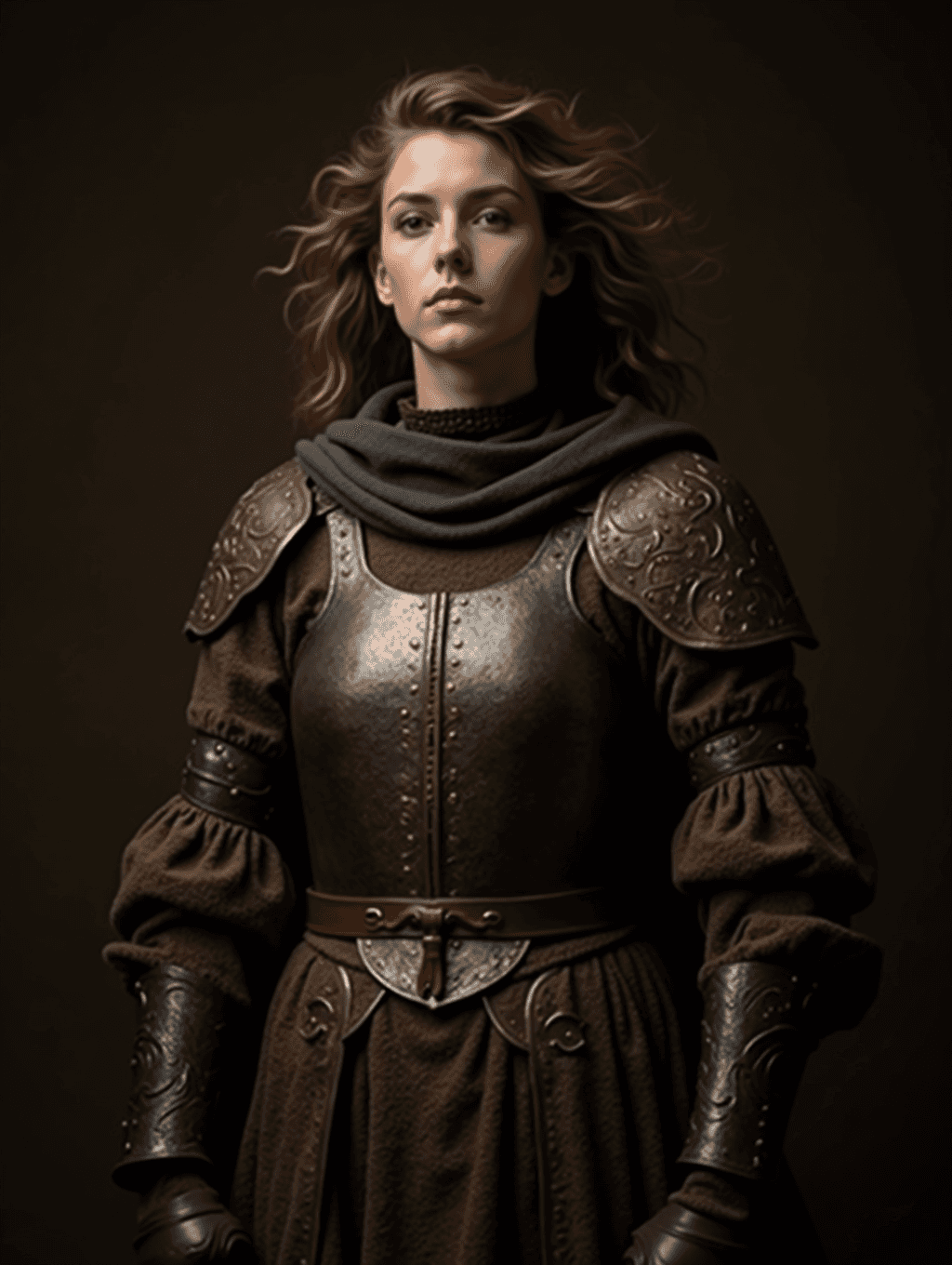
Input: A photo of a woman with wavy, shoulder-length light-brown hair, standing against a plain indoor wall in a hoodie and jeans, framed from the knees up, with the instruction left at its default. The result looks similar to the image at the top of this page.
The result dresses her in a polished steel breastplate with rivets down the center, engraved pauldrons on both shoulders and engraved vambraces on the forearms, worn over a heavy brown wool gown with puffed sleeves. A thick charcoal wool cowl wraps her neck, and a red leather belt with a metal buckle sits at the waist. Her hair is fuller and windswept, and the lighting is low and warm against a dark, plain backdrop, like a painted period portrait.
What to check: the default prompt asks for a castle background, but this result kept a plain dark studio backdrop, so name the setting in the instruction if you want one. The hoodie pose became a formal, square-on stance, and the face was smoothed and given a composed, serious expression. Compare the face with your original before using it as your portrait.
How it works
- 1
Upload a photo with your upper body visible
A photo that shows shoulders and chest, not a tight face crop, gives the AI more space to add clothing and armor details that look right.
- 2
Describe the role and setting you want
Say whether you're picturing armor and a sword, a noble's dress, or plain peasant clothing, and mention a background like a castle courtyard, a great hall, or a village market.
- 3
The AI restyles clothing, setting, and lighting
It replaces your outfit with period-appropriate clothing or armor, adds or adjusts the background toward a medieval setting, and shifts the lighting toward the warmer, more dramatic tones common in period portraiture.
- 4
Download the result
You get one styled image back that follows the shape of your upload. If the armor, clothing, or setting doesn't match what you pictured, refine your instruction and run it again.
Use cases
Fantasy and historical roleplay characters
Use it to generate a visual reference for a tabletop or online roleplay character before committing to a costume or full character sheet.
Renaissance fair or medieval-themed event photos
Preview a knight, noble, or peasant look for an upcoming themed event, or use the styled photo itself as an invite or announcement image.
Historical fiction and worldbuilding references
Writers can turn a real photo into a rough visual for a character description, useful for keeping details consistent across a story.
Novelty portraits and gifts
A medieval-style portrait makes an easy personalized image for a gift or a themed profile picture without booking a costume photo shoot.
Tips for better results
- Name a specific role (knight, noble, peasant, blacksmith) rather than just "medieval," since the outfit changes a lot depending on which one you mean.
- Mention a setting like a castle courtyard, tavern, or battlefield if you want the background to shift along with the clothing.
- Ask for armor by type (plate, chainmail, leather) if you have a specific material or era of armor in mind.
- Use a photo with visible shoulders and chest so the AI has room to add armor or layered clothing convincingly.
- If the lighting looks too modern, ask directly for warmer, candlelit or torch-lit tones in your instruction.
Limitations
This is a generative restyle, not a historically verified costume design. Armor shapes, fabric types, and settings are approximations built for visual effect rather than research-grade accuracy for a particular century or region. The AI can also change small details you didn't ask about, including hands, background objects, or any text in frame, so review the result before using it somewhere those details need to be exact.
Frequently asked questions
Can I choose a specific medieval role, like a knight or a noble?
Yes, name the role directly in the instruction box, such as "a knight in plate armor" or "a noblewoman in a velvet gown," and the AI builds the clothing and setting around that.
Is the armor or clothing historically accurate?
It's a visual approximation aimed at a recognizable medieval look rather than a costume-history reconstruction. Treat it as stylistic, not a reference for accurate period dress.
Will it change the background too?
Yes, if you describe a setting like a castle hall or village market, the AI adjusts the background along with the clothing and lighting.
Can I upload more than one photo?
You can, but uploaded images are combined into one result, not processed as a batch. Use extra images as references (a costume, a castle you like) and run each portrait separately; each run uses credits.
Does it work well on group photos?
It can process more than one person, but results tend to be more consistent on a single, clearly visible subject since the AI restyles clothing and lighting per person.
Why does my result look more modern than I expected?
A short or vague instruction like "medieval" alone can produce a subtler result. Adding specifics about role, armor or clothing type, and setting usually pushes the styling further.
Plans start at $9 a month. See pricing