AI Fashion Editorial Generator
Upload a photo and get it reimagined as a high-fashion magazine editorial.
What the Fashion Editorial Generator does
Editorial fashion photography has a specific look: dramatic lighting, deliberate styling, a pose that reads as art rather than a snapshot. This tool takes a photo you upload and restyles it into that world, applying sophisticated lighting, editorial composition, and a polished, magazine-quality finish inspired by the pages of a high-fashion publication. It works from your existing photo rather than starting from a blank prompt, so the result carries over the general shape and setting while the styling, lighting, and finish shift toward editorial. You can steer the outfit, mood, or setting by editing the instruction, and it accepts more than one photo per run if you want to feed in reference images alongside your subject.
See a sample result
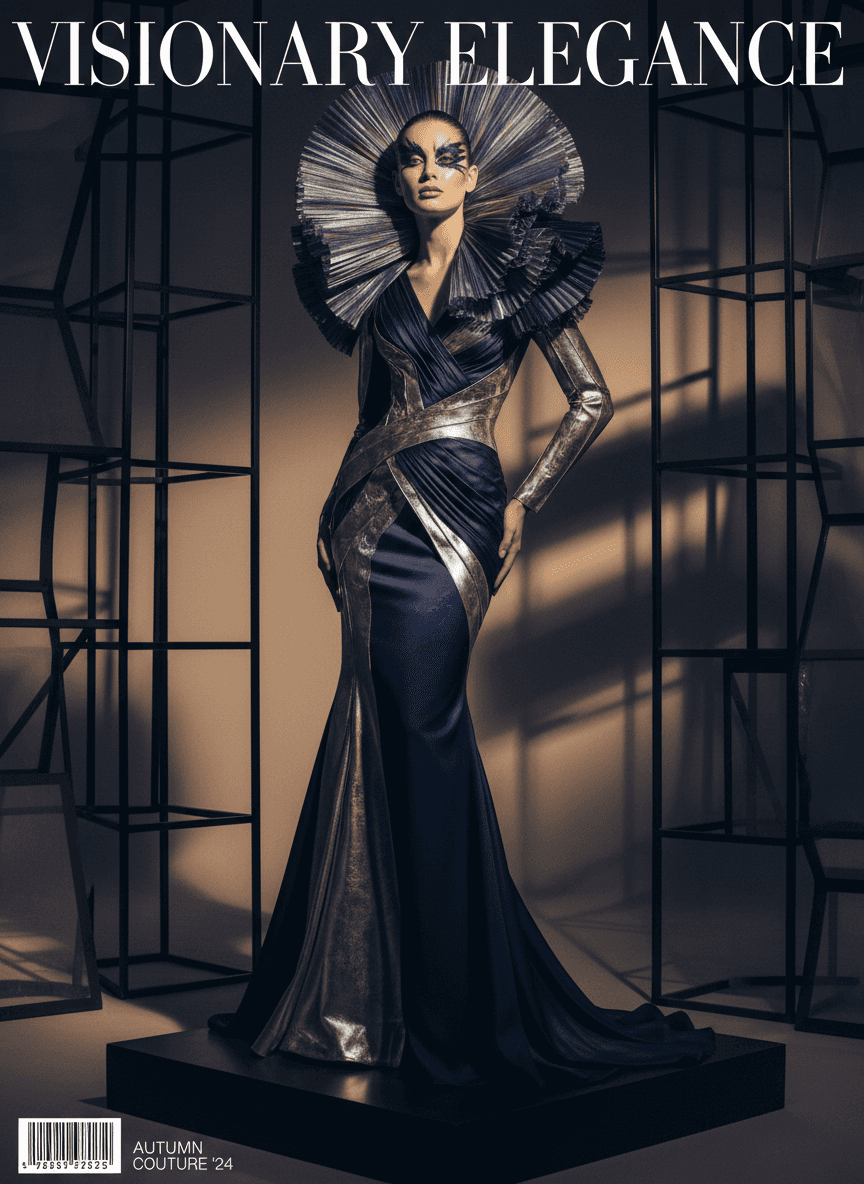
Input: A full-length photo of a woman in a plain navy satin dress, hair pulled back, standing against a bare wall in her living room. The result looks similar to the image at the top of this page.
The default instruction turns the photo into a couture magazine cover. The navy dress comes back as a floor-length gown with metallic silver panels, a huge pleated fan collar frames the head, and the makeup gets a graphic blue eye. The living room is swapped for a dark studio set with black metal cube frames, a low plinth, and hard side light that throws long shadows across the wall.
Things to check:
- Text the AI added on its own. Nothing in the instruction asked for words, but the result has a large masthead ("VISIONARY ELEGANCE"), a barcode and an issue line ("AUTUMN COUTURE '24"). If you want a clean image, add "no text, no logos" to the instruction; if you want a title, put the exact words in quotes and check the spelling.
- Wardrobe and styling are invented. The collar, silver panels and makeup are all generated. Describe the outfit you want kept if it matters.
- The face is idealized. Skin is smoothed and the jaw and cheekbones are sharpened by the lighting and retouching, so compare the face with the original before you share it as yourself.
- Hands and fabric edges can come out slightly off; look at the fingers and where the panels meet.
How it works
- 1
Upload a clear photo of your subject
A well-lit, front-facing or three-quarter photo works best; the tool has more to work with when the pose and framing are already clean rather than obscured or heavily cropped.
- 2
Edit the instruction to guide the style
The default leans into a Vogue-style editorial look, but you can name a specific era, color palette, mood, or setting in the instruction, like 'sixties mod editorial' or 'high-contrast black and white'.
- 3
The AI restyles lighting, styling, and composition
It applies editorial-style lighting and color grading, adjusts the overall composition toward a magazine layout feel, and generates a finished image built from your original photo.
- 4
Review the result closely before using it
Check faces, hands, and any text or logos in the result, since generative edits can introduce small inconsistencies even when the overall styling looks right.
Use cases
Build a portfolio-style shot without a studio
Models, actors, and creators can turn an ordinary photo into an editorial-style image for a portfolio or social post without booking a photographer or studio lighting.
Mock up a magazine cover concept
Add a title and issue line through the instruction to preview a cover concept for a personal project, class assignment, or pitch deck before commissioning real photography.
Explore a styling direction before a real shoot
Stylists and photographers can test how a mood, era, or lighting direction might look on a subject before planning an actual shoot around it.
Create striking profile or cover images
Turn a casual photo into a more dramatic, polished image for a profile picture, banner, or personal branding use where a studio-quality look matters.
Tips for better results
- Name a specific style, era, or color palette in the instruction instead of relying on the default; 'seventies glam' and 'stark black and white' produce noticeably different results.
- Use a photo with good original lighting and a visible face; the tool has more to work with than a dark or heavily cropped shot.
- If you want text like a magazine title, put the exact wording in quotes in the instruction and check the spelling in the result.
- Feed in more than one photo if you want to combine a subject with a specific reference look; the tool accepts multiple images per run.
- Expect the background and wardrobe to be generated, not preserved, so don't rely on this for a shot where the exact outfit or setting needs to stay the same.
Limitations
This is a generative edit, not a retouch: it builds a new styled image inspired by your photo rather than adjusting the original one. Faces can shift subtly in proportion or expression, wardrobe and background are generated rather than kept from the source, and any text added through the instruction can come out misspelled or oddly placed. By default it may add a made-up masthead, barcode or issue line; ask for "no text" if you don't want them. Don't put a real magazine's name or logo on the result, since that implies an affiliation that doesn't exist. Treat the output as a creative concept image, not a guaranteed likeness of the person uploaded or a substitute for a professional photoshoot when accuracy matters.
Frequently asked questions
Will the output look exactly like the magazine style I have in mind?
It gets closer the more specific your instruction is. Naming an era, color palette, or lighting mood (rather than just 'make it editorial') steers the result meaningfully.
Does it keep my face and features accurate?
It usually keeps the overall likeness, but editorial-style lighting and generative styling can shift small details like skin texture, facial proportion, or expression, so check the result closely.
Can I control the outfit shown in the result?
Yes, describe the outfit you want in the instruction. Without specifics, the tool generates styling on its own, which may not resemble what you were originally wearing.
Can I add a magazine title or cover text?
Yes, put the exact text in quotes in the instruction. Generated text can be misspelled or placed oddly, so review it closely before using the image anywhere public.
How many photos can I upload at once?
You can upload more than one image per run, and they're combined into a single generated result rather than processed as separate outputs.
Does each generation use credits?
Yes, each run uses credits, and uploading multiple images in one run is still charged per image, not per generated result.
Plans start at $9 a month. See pricing