Public Speaking Aesthetic Generator
Turn a regular photo into a confident keynote or conference speaker shot.
What the Public Speaking Photo Generator does
A speaker page or a LinkedIn post about an upcoming talk needs a photo that looks like you already belong at that podium, and most people don't have one lying around. This tool takes a photo you have and rebuilds it as a public speaking scene: a stage, a microphone, spotlighting, and a crowd facing you instead of a camera. Upload a clear photo, then use the instruction box to say what kind of venue, audience size, or gesture you want, and the AI generates one styled image back. It suits speaker bios, conference applications, and event promotion pages, though it's a generated scene built from your photo, not a photo from an actual talk you gave.
See a sample result
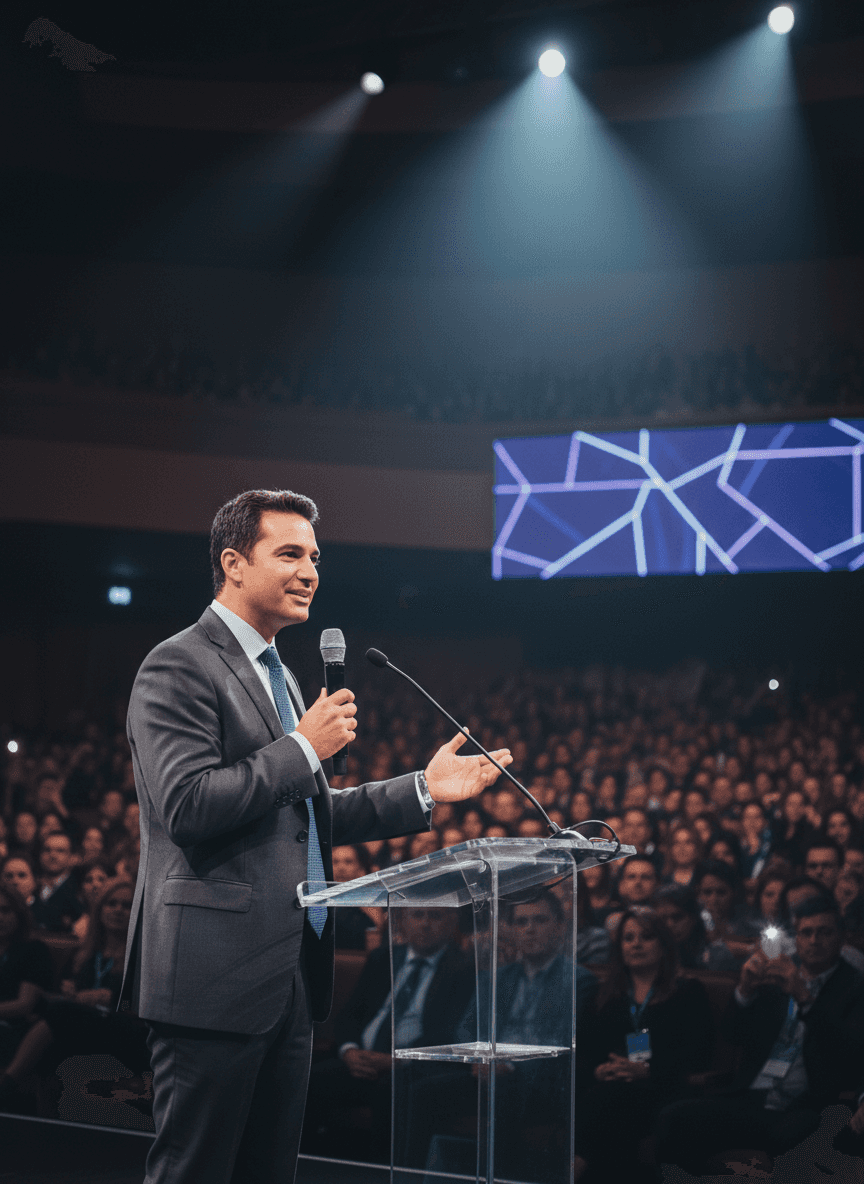
Input: A waist-up photo of a man with short dark hair standing against a home office wall in an open-collar button-up shirt, arms at his sides, in even indoor lighting, with no stage or microphone in frame. The result looks similar to the image at the top of this page.
What changed
The home office wall is replaced with a dark auditorium lit by overhead spotlights, a wide screen off to the right showing an abstract geometric pattern, and a packed seated audience stretching back into soft focus. The subject now holds a handheld microphone at chest height with the other hand open mid-gesture, standing at a clear acrylic podium and turned toward the crowd. The shirt became a gray suit with a blue tie, which the default instruction didn't ask for; name your outfit in the instruction if you want to keep it.
Style notes
- Lighting comes from above and slightly to the side, casting the kind of shadow you see in real conference photography rather than flat studio light
- The audience is rendered in soft focus so the speaker stays the clear subject
- A few phone screens glow in the crowd, a small detail that adds to the live-event feel
- Faces in the front rows are generated people, so check them for smeared features before using the image large
How it works
- 1
Upload a photo with your face and posture visible
A photo from the waist up, facing forward or at a slight angle, gives the AI the most to work with when it builds a standing, presenting pose around you.
- 2
Describe the stage and audience in the instruction
Name the setting you want: a small conference room, a large auditorium, a TED-style red circle on the floor, or a panel table instead of a podium. You can also say how large the crowd should look.
- 3
The AI builds the speaking scene
It adds a podium or open stage, directional stage lighting, a seated or standing audience, and a hand gesture or microphone that reads as mid-sentence rather than posed.
- 4
Check the details before you use it
Look closely at hands, the microphone, and any screen or signage text in the background, since generated crowds and stage graphics are where small errors tend to show up.
Use cases
Speaker bio pages and conference applications
Add a stage-style image to a speaker one-sheet or pitch, as long as it isn't presented as a photo of a talk you actually gave.
Event promotion graphics
Give an organizer a stage-ready image to put on a lineup poster or website before the event photos exist.
Coaching and personal branding
Public speaking coaches and consultants can generate a confident, on-stage image for a website or course page without booking a real event photo shoot.
Practice visualizing the moment
See yourself on a stage before a real talk, which some speakers find useful as a warm-up for how they want to present.
Tips for better results
- Use a photo where your posture is straight and your hands are visible, since the AI adjusts gesture and grip from what it can see.
- Name the audience size in the instruction; 'a packed 2,000-seat auditorium' reads very differently from 'a small boardroom of 12 people.'
- Specify formal or casual: a suit for a keynote stage, or a t-shirt and jeans for a tech meetup talk.
- If you want a specific stage style, like a TED red carpet circle or a panel table with name cards, say so directly in the instruction.
- Review any on-screen text or slide graphics the AI adds behind you, since generated text can be misspelled or nonsensical.
Frequently asked questions
Can I choose the type of event or stage?
Yes, describe it in the instruction box, for example a TED-style stage, a corporate town hall, or a small panel discussion, and the scene follows that.
Will my face still look like me?
It usually keeps your overall look, but it's a generative edit that can smooth or reshape features, so check the face closely afterward, especially around the eyes and mouth.
Can I use this as an actual speaker photo for a conference?
Some organizers accept a styled headshot-style image, but many events specifically ask for a real photo of you speaking, so check the submission rules before relying on a generated one.
Do I need to already be dressed formally in my photo?
No, the tool can add a suit, blazer, or other speaker-appropriate outfit as part of the transformation. A clear, well-lit photo of your face and upper body works best.
Can I upload more than one photo?
Yes, you can add more than one image and describe how each should be used, but they combine into a single result rather than producing separate outputs. Credits are charged per image.
Why does the crowd or background text look strange?
Generated crowds and background signage are the hardest parts of a scene for the AI to render cleanly, so small errors in faces or lettering there are common and worth a second look.
Plans start at $9 a month. See pricing