Pixel Art Generator
Turn a photo into a blocky, retro pixel art portrait with an 8-bit color palette.
What the Pixel Art Generator does
You have a photo you like, and you want the version that looks like it walked out of a 16-bit game instead of a camera roll. The AI redraws it as pixel art: visible square pixels, a limited retro color palette, and the flattened shading you see in old game sprites and portraits. Upload a portrait or a full scene, then use the instruction to name the console era, color mood, or subject detail you want kept. The output is a single generated image, not an editable grid you can tweak pixel by pixel, so it suits profile pictures, game asset mockups, and nostalgic prints rather than production sprite sheets. Each run uses credits and produces one interpretation, so a sharper starting photo generally gives a cleaner pixelated result.
See a sample result
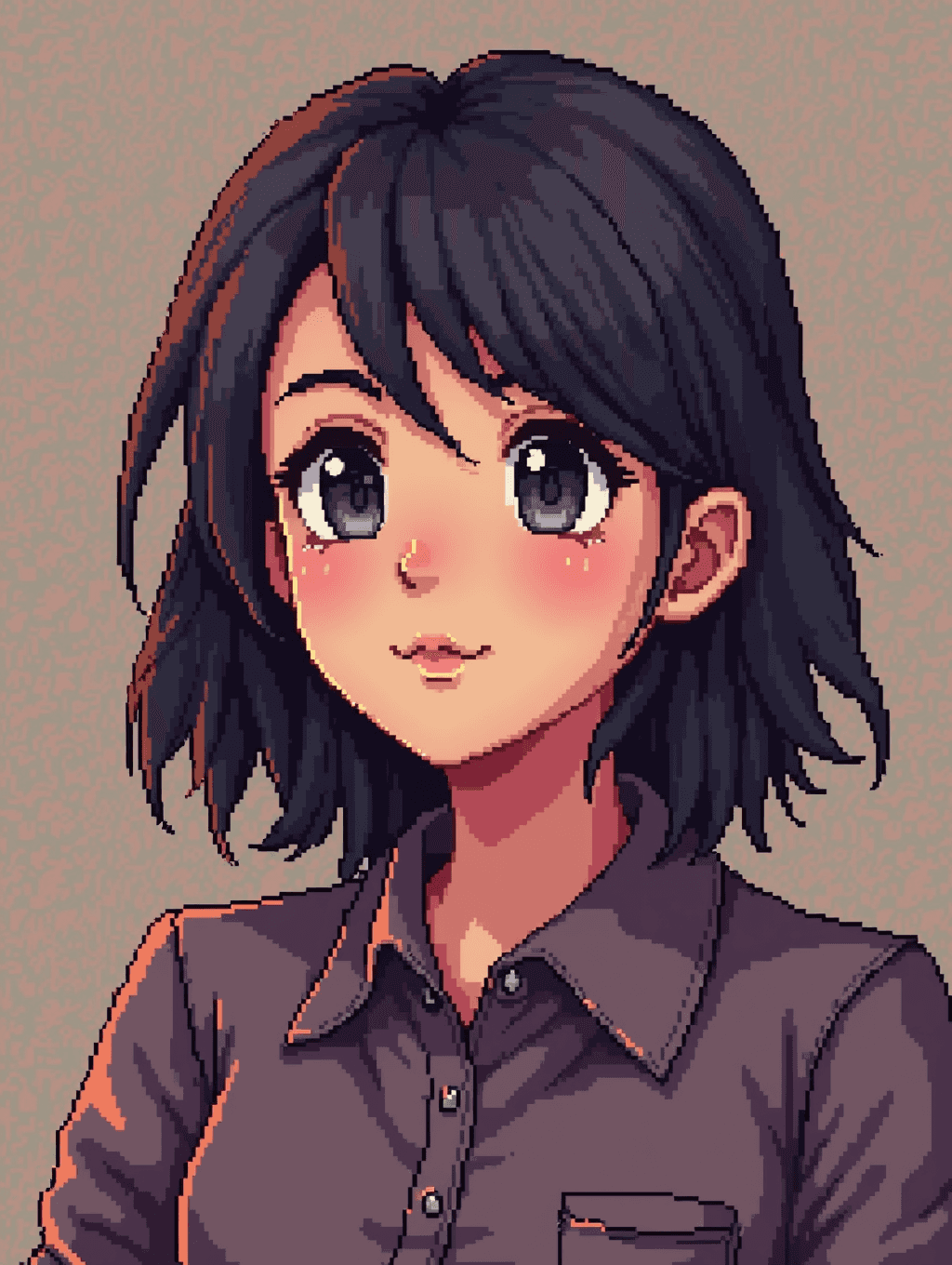
Input: A front-facing portrait photo of a person from the shoulders up, with visible facial detail and a plain background, similar to a phone selfie. The result looks similar to the image at the top of this page.
The result is a pixel art portrait of a young woman with dark hair falling to her shoulders, large shaded eyes with a bright highlight in each, rosy cheek shading, and a mottled brown background typical of retro character art. She wears a buttoned shirt rendered in flat gray and brown blocks with a visible collar and a chest pocket. Every edge in the hair, face, and clothing is built from square pixels rather than smooth lines, and the color palette stays limited to warm browns, skin tones, and soft pinks, close to the look of a role-playing game character portrait. Fine details like individual eyelashes are simplified into a few pixel clusters, which is expected for this style rather than a flaw.
What to check: the AI pushed the face toward an anime look, with oversized eyes and a tiny mouth, so resemblance to the original selfie is loose. If you want a closer likeness, ask for "realistic proportions, keep my face" in the instruction. The pixel grid is also slightly uneven in places, as in most generated pixel art; if you need clean, even pixels for a game, redraw it in a pixel editor.
How it works
- 1
Upload a photo with a clear subject
A portrait or a photo with one clear subject against a simple background pixelates more cleanly than a busy scene, since the AI has to decide which details survive at a lower effective resolution.
- 2
Describe the pixel style you want
Edit the instruction to ask for a specific look: a warmer or cooler palette, a chunkier or finer pixel grid, a particular game era's color range, or a plain versus patterned background.
- 3
The AI generates the pixel art version
The model rebuilds the image with blocky pixel shapes, flattened color bands, and simplified shading instead of photographic detail, aiming for the look of a hand-drawn sprite rather than a filter over the original photo.
- 4
Check the result and refine
Look at the face and any text or logos in the frame, since fine detail is the hardest thing to carry into a pixel style. If the palette or subject reads wrong, adjust the instruction and generate again.
Use cases
Game-style avatars
Make a profile picture that looks like a character portrait from a retro role-playing or platform game, for a gaming account, forum, or Discord server.
Nostalgic gifts and prints
Turn a photo of a person or pet into pixel art for a small print, sticker, or a nod to a specific console generation someone grew up with.
Mockups for indie game ideas
Get a quick visual sense of how a character concept might read in a pixel art game before an artist builds the real sprite sheet.
Themed social posts
Post a pixel art version of a photo for a retro gaming event, a stream overlay, or an 8-bit themed announcement.
Tips for better results
- Start with a photo where the subject is well lit and takes up most of the frame for cleaner pixel edges.
- Name a specific palette in the instruction, like warm sunset tones or a cool blue night scene, for a more distinct look.
- Ask for a plain or patterned background separately from the subject if the busy version pulls focus.
- Avoid photos with small text or logos you care about; pixel style tends to blur or simplify them past recognition.
- Try a tighter head-and-shoulders crop first if a full-body photo comes back too busy or hard to read.
Frequently asked questions
Can I control how big the pixels look?
Yes, describe it in the instruction, for example chunky low-resolution pixels or a finer grid closer to a 16-bit look, and the AI will aim for that density.
Does this create an actual pixel grid I can edit?
No, it generates a finished image styled as pixel art. It is not a vector or grid file you can zoom into and edit pixel by pixel in an art program.
Will it keep my exact color scheme?
It uses your photo as the base but shifts colors toward a flatter, more limited palette typical of retro pixel art, so exact shades usually change somewhat.
Can I turn a full-body or group photo into pixel art?
You can, though a single clear subject against a simpler background tends to produce a sharper, more readable result than a busy group scene.
What resolution does the output come out at?
The output follows the shape of your uploaded photo rather than a fixed pixel-art canvas size, so crop or resize afterward if you need a specific dimension.
Can I use this for a game character sprite?
It works well as a concept reference or portrait, but production sprite sheets with consistent frames still need a dedicated pixel art tool or artist.
Plans start at $9 a month. See pricing