YouTube Thumbnail Generator
Upload a photo and get back a bold, high-contrast thumbnail built to earn a click.
What the YouTube Thumbnail Generator does
A thumbnail has a fraction of a second to earn a click before someone scrolls past it, and a plain photo rarely does that job on its own. This tool takes a photo, usually of you or your subject, and rebuilds it into a thumbnail with bold text, punchy color, and a composition that reads clearly even at a small size. It's built for creators who need a new thumbnail fast, without opening a design program or hiring someone for a one-off graphic. You upload a photo, type the hook into the instruction if you want specific words, and get back a styled image you can crop for a video feed.
See a sample result
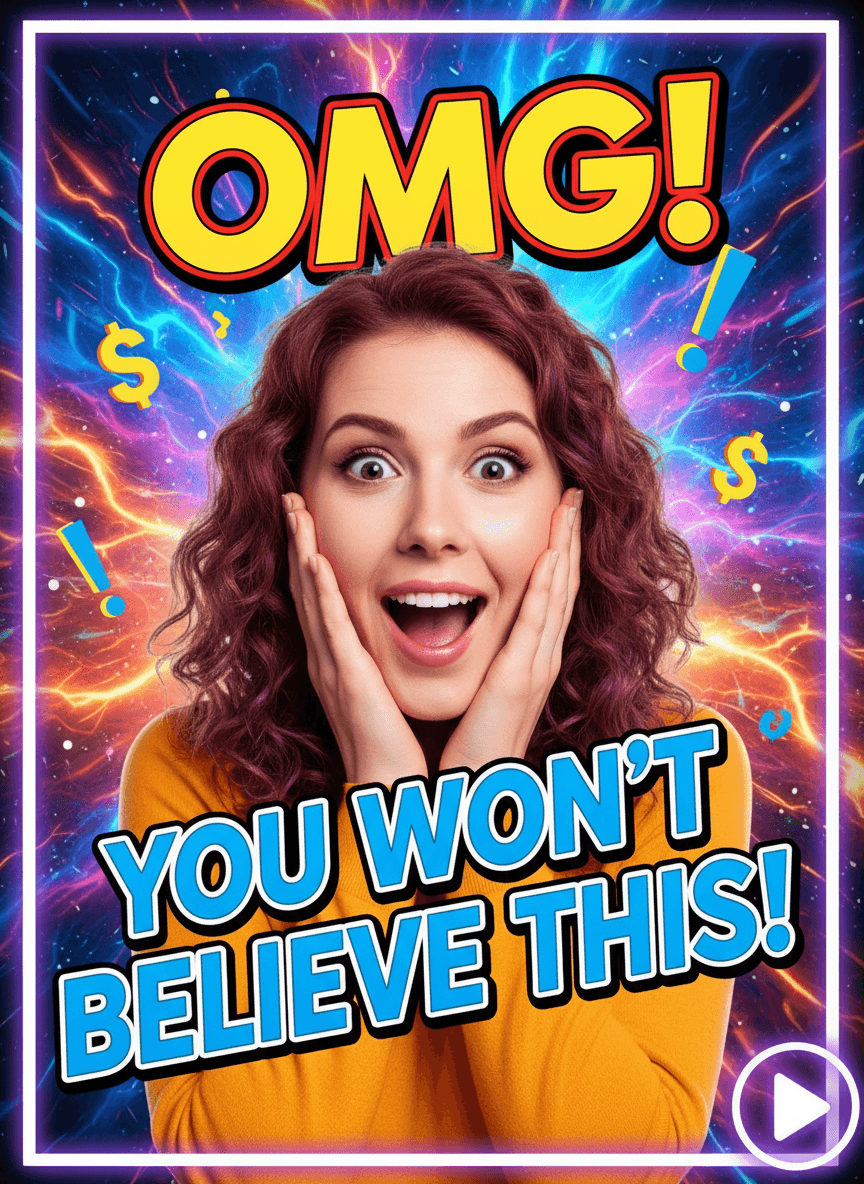
Input: A plain, well-lit portrait-orientation photo of a woman with curly red hair and a mustard sweater, making a surprised, open-mouthed expression with her hands on her cheeks. The result looks similar to the image at the top of this page.
Composition: The subject is cropped tight and centered so her expression reads instantly at a small size, with both hands still visible framing her face for extra emphasis. A thin white border frame was added around the edge of the image to help it pop against YouTube's white and dark themes alike.
Background: The plain background was replaced with a high-energy comic burst pattern in electric blue and purple, radiating outward from behind her head to draw the eye toward the center without competing with her expression.
Text and graphics: Bold yellow "OMG!" text sits above her head in a thick comic-style outline, with a second line, "YOU WON'T BELIEVE THIS!", locked to the bottom in blue. Small dollar-sign and exclamation-point icons are scattered around the frame, and a play-button icon anchors the bottom corner to reinforce it's a video thumbnail.
Result: The plain portrait becomes a high-contrast, curiosity-driven thumbnail. It kept the tall framing of the original photo, which suits Shorts; for a regular video, crop it to 16:9 or start from a landscape photo.
How it works
- 1
Upload a clear photo of your subject
A face, product, or scene works, but a close, well-lit shot with an expressive subject gives the AI the most to work with when building contrast and focus.
- 2
The AI reworks composition and contrast
It crops and repositions the subject for readability at thumbnail size, boosts contrast and saturation, and clears space where text or graphics need to sit.
- 3
Bold text and effects get added
Text overlays, outlines, and small graphic accents are placed to support the hook without covering the subject's face or the main point of interest.
- 4
You get a thumbnail-ready image
Download the result, crop it to 16:9 (1280 x 720 is YouTube's recommended size) if it came out in another shape, and check any text for spelling before you upload.
Use cases
Publishing on a tight schedule
When a video needs to go up now and there's no time for a design pass, a generated thumbnail gets something click-worthy live without delaying the upload.
Testing a new visual style
Creators A/B testing thumbnail styles can generate a few variations from the same photo quickly and see what pulls better click-through before committing to one look.
Channels without a designer
Smaller or solo channels that can't hire a thumbnail artist every episode can keep a consistent, bold look without a recurring design cost.
Repurposing an existing photo
A photo taken for something else, a behind-the-scenes shot or a still from the footage, can be turned into a proper thumbnail instead of shooting something new.
Tips for better results
- Use a photo with a clear, expressive face; a flat or neutral expression gives the thumbnail less to build energy around.
- Keep the subject roughly centered or off to one side in the original photo so there's room left for text and graphics.
- Shoot or pick a well-lit photo, since dark or low-contrast originals limit how bold the final color and contrast can get.
- Generate a couple of versions from the same photo and compare them at thumbnail size, not full screen, before choosing one.
- If your channel has a recurring color scheme or font style, add it to the instruction so the result stays consistent across videos.
- Put the exact headline in quotes in the instruction; generated text can come out misspelled, so read every letter before publishing.
Frequently asked questions
What size does the thumbnail come out in?
The shape usually follows your original photo, so it isn't guaranteed to be 16:9. Start from a landscape photo, or crop the result to 1280 x 720 before uploading it to YouTube.
Can I add my own text instead of the generated text?
Yes. Edit the instruction and put your wording in quotes, for example 'I tried it for 30 days'. The AI draws the letters itself, so short phrases come out cleaner, and you should fix any typo in an image editor.
Does it work with a photo that isn't of a person?
Yes, product shots, screenshots, and scenes all work, though thumbnails built around an expressive face tend to perform best for most channel types.
Will the generated thumbnail match my channel's existing style?
Add your usual color palette, font style, or layout to the instruction, and the result will lean toward it rather than a generic bold look. It won't copy an exact brand font, so expect close rather than identical.
Can I generate more than one thumbnail from the same photo?
Yes. Each run uses credits, and running the same photo again with a different hook or color direction is a quick way to get a few options to compare.
Plans start at $9 a month. See pricing