Ghibli Style Generator
Upload a photo and get it repainted as a soft, hand-drawn anime scene inspired by classic Japanese animation.
What the Ghibli Style Generator does
Some photos feel like they belong in a painted storybook rather than a camera roll. This tool takes a picture you upload and redraws it with the hand-drawn anime look of classic Japanese animation films: soft color washes, rounded linework, dreamy skies, and small nature details worked into the background. It's built for portraits, pets, and outdoor scenes where a painterly, whimsical version adds something a straight photo filter can't. You describe what you want kept or changed in the instruction box, upload your photo, and the AI repaints the whole scene in one pass. The result is inspired by that animation tradition, not a copy of any specific studio's characters or films, and it works best when you treat it as a new illustration rather than an edit.
See a sample result
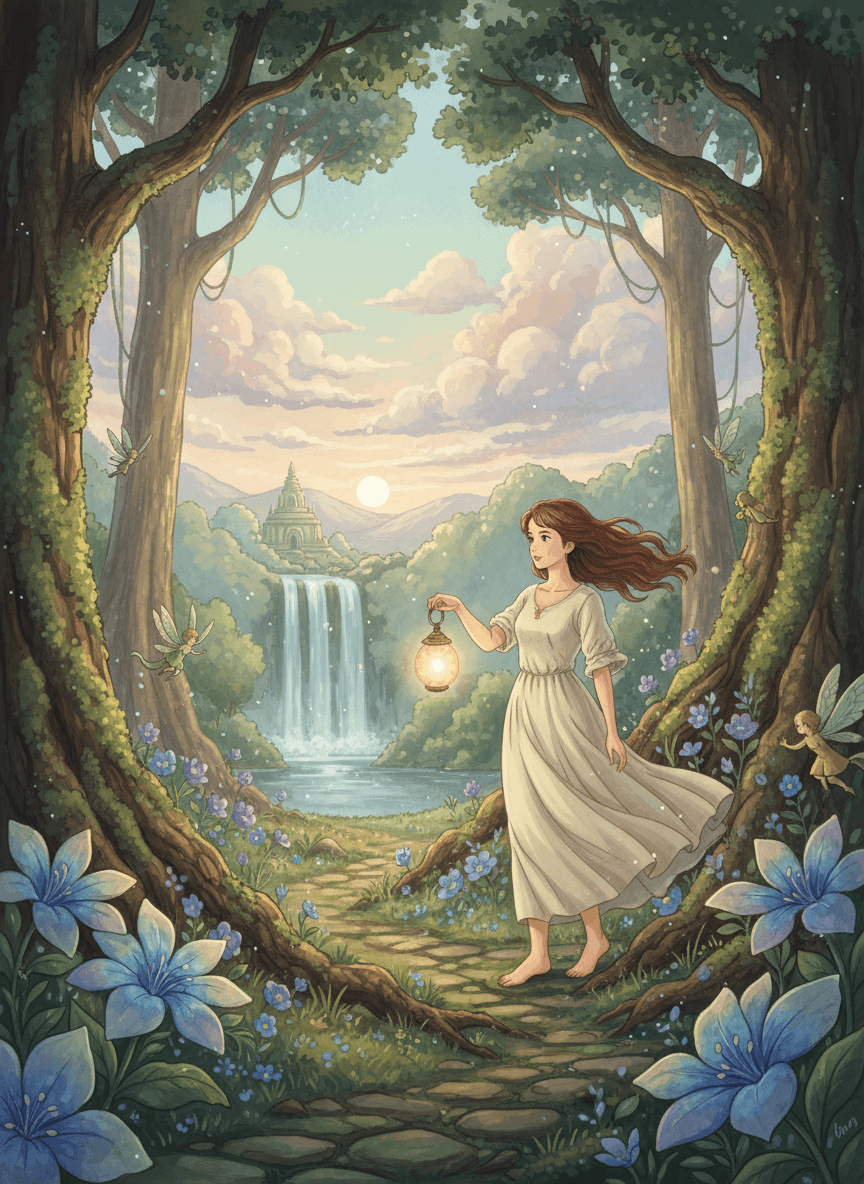
Input: A young woman with long brown hair standing outdoors in jeans and a T-shirt, photographed on a plain sidewalk under an overcast sky with no strong background details. The result looks similar to the image at the top of this page.
Style applied: hand-drawn anime, inspired by classic Japanese animation
The plain sidewalk becomes a mossy stone path threading through tall trees, with pale blue lilies and small glowing fireflies added along the edges. The AI went well beyond restyling: the jeans and T-shirt became a long cream peasant dress, she's now barefoot and mid-stride, and she carries a glowing lantern nobody asked for. Her hair streams in the wind with a warm highlight, as if lit by a low sun. A waterfall and a distant temple-like tower fill the background, and three tiny winged fairies hover among the trees. There's also a small scribbled signature in the bottom corner; ask for "no signature or text" if you'll print it.
Expect the pose and outfit to change unless you tell it to keep them ("keep my clothes and standing pose"), and check the face closely: anime restyling can round out features, change the eye shape, or soften the jawline more than expected. Hands and fine details like jewelry are the parts most likely to come out simplified or slightly off, so look there before you use the result anywhere.
How it works
- 1
Upload a photo with a clear subject
A portrait, a full-body shot outdoors, or a pet photo all work. Simple backgrounds translate better than busy, cluttered ones because the AI has to repaint everything in the frame.
- 2
Describe the mood or setting in the instruction
Say what you want: a forest path, a rainy window, a countryside field, warm evening light. Naming a setting gives the AI something concrete to paint instead of guessing.
- 3
The AI repaints the scene
It replaces photographic detail with soft brushwork, simplified shading, and rounded shapes, while trying to keep your subject's pose and the composition recognizable.
- 4
Review the result and adjust
Check the face and any text in the frame, then rerun with a tweaked instruction if the mood, colors, or setting need adjusting. Each run uses credits.
Use cases
Profile pictures with a distinct look
A hand-painted version of your photo stands out on social profiles or messaging apps without looking like every other filtered selfie.
Pet portraits as keepsakes
Turn a photo of your dog or cat into a soft, illustrated scene, useful for a printed gift or a phone wallpaper.
Travel photos reimagined
A landscape or landmark shot repainted with warm color and simplified detail can work well as a memory piece from a trip.
Concept art for hobby projects
Writers and hobbyist game designers use it to sketch out how a character or setting might look before commissioning real artwork.
Tips for better results
- Add a specific setting (forest, rooftop, train platform) to the instruction; otherwise the default's "whimsical scene" lets the AI invent a full fantasy background.
- Front-facing or three-quarter portraits keep facial proportions more recognizable than extreme angles.
- Avoid photos with a lot of small text or logos in frame, since the AI can distort or misspell them when repainting.
- If the first result feels too plain, add color or lighting words to the instruction, like warm sunset light or blue evening tones.
- Keep your original photo, since this tool creates a new illustrated image rather than editing the source in place.
Limitations
This generates a new illustration inspired by the hand-drawn look of classic Japanese animation films; it isn't meant to copy any specific studio's characters, logos, or artwork, and results shouldn't be described as official Ghibli art or sold as such. It's a generative rewrite of your photo, not a precise likeness tool, so faces, hands, and small details can shift more than you'd expect. Check the output before sharing it anywhere your likeness matters.
Frequently asked questions
Does this create real Studio Ghibli artwork?
No. It generates art inspired by the hand-drawn look of classic Japanese animation films: soft colors, painterly shading, and whimsical detail. It isn't affiliated with or licensed by any studio, and it isn't meant to reproduce their characters or films.
What kind of photo works best?
A clear, well-lit photo with one main subject and a simple background gives the AI the least to guess at. Busy backgrounds, low light, or extreme close-ups tend to produce messier results.
Can I control the setting or mood of the result?
Yes, through the instruction box. Describe a setting, time of day, or color mood and the AI works that into the repainted scene rather than picking one at random.
Will my face look the same in the result?
It usually keeps your overall look and pose, but anime-style repainting rounds out features and simplifies detail, so exact likeness isn't guaranteed. Always check the face before using the image somewhere it needs to look like you.
Can I upload more than one photo?
Yes, the tool uses all your images as references for a single repainted result (credits are charged per image), which is useful if you want to combine a subject photo with a reference for the background or mood.
Why does the background look different from what I expected?
The AI invents new background detail rather than tracing your original photo pixel by pixel. If you want a specific setting, describe it directly in the instruction instead of leaving it to guesswork.
Plans start at $9 a month. See pricing