Professional Retouching
Give a portrait the kind of polish a retoucher would spend an hour on, in one pass.
What the Professional Retouching does
A retoucher's job on a magazine shoot isn't to change who's in the photo, it's to clean up what the camera happened to catch: uneven lighting, a stray blemish, color that's slightly off. This tool aims for that same kind of pass. Upload a portrait and it evens out skin texture, corrects lighting and color, and applies the kind of subtle grading you'd see on a finished editorial photo, while aiming to keep the face recognizably yours. It's for headshots, portfolio shots, and any portrait that's a good photo but needs the last ten percent of polish before you'd want to share it.
See a sample result
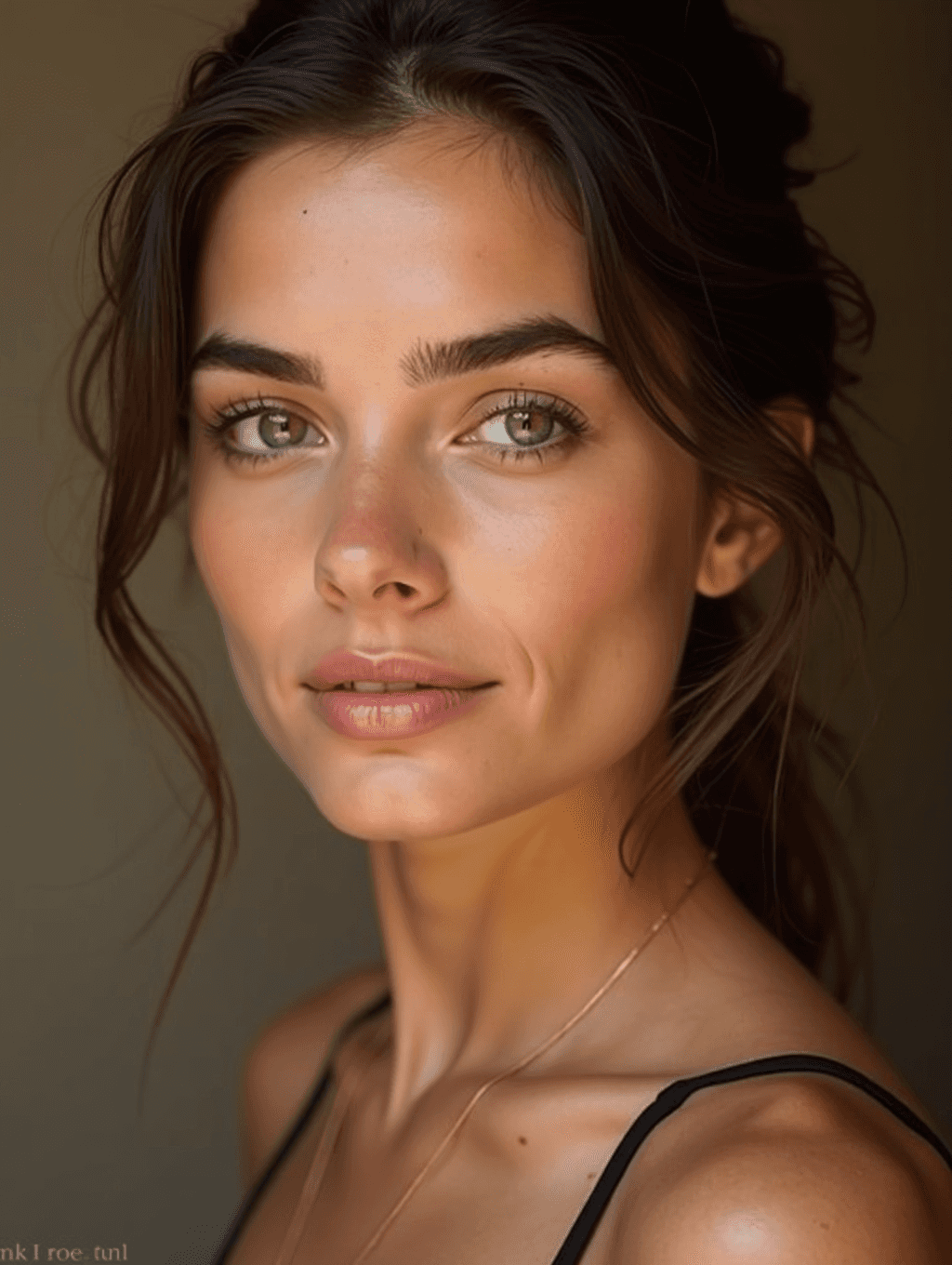
Input: A close portrait of a woman with dark hair pulled back loosely, shot indoors with mixed lighting, visible under-eye shadow, and a slightly warm color cast from the room. She wears a thin gold necklace and a black strap top. The result looks similar to the image at the top of this page.
Style applied: Magazine-style portrait retouch
The uneven indoor lighting was balanced across the face, softening the harsher shadow under one eye without flattening the natural contours of her features. Skin texture was smoothed while keeping visible pores and fine lines, so the result reads as a well-lit, well-rested version of the same photo rather than an artificial, plastic finish.
What changed
- Under-eye shadow and uneven exposure balanced across both sides of the face
- Skin evened out for tone while texture and natural detail were kept
- Warm color cast corrected toward a neutral, true-to-life skin tone
- Overall contrast and clarity increased slightly for a crisper, more finished look
What stayed the same: Facial structure, expression, hairstyle, and the necklace and clothing in the original photo were preserved. This is a generative edit, so check fine details like jewelry and stray hairs against the original before using the result somewhere exact accuracy matters.
How it works
- 1
Upload a portrait with a visible face
A photo where the face is reasonably sharp and well lit gives the retouching pass more to work with. Extremely dark, blurry, or heavily filtered photos limit how much can be improved.
- 2
Add notes for a specific finish
You can edit the instruction to state a preference, like keeping more texture, warming the tone, or focusing on lighting rather than skin, and the edit follows that alongside the default retouching style.
- 3
The AI evens skin, lighting, and color
It smooths texture without erasing it, balances lighting across the face, corrects color casts, and grades the overall tone toward a clean, polished look, similar to a finishing pass in editing software.
- 4
Download the retouched version
You get back a polished version of the portrait. Because the edit is generative, compare the face, jewelry, and hair with your original before you use it.
Use cases
Polishing a headshot before it goes public
A headshot you're about to put on a resume, speaker page, or company site benefits from the same finishing pass a studio would give it.
Fixing uneven lighting from a casual shoot
Not every portrait gets shot with proper lighting equipment. This corrects the unevenness that comes from a single window or a mismatched indoor light source.
Preparing a portfolio image
Models, actors, and creatives building a portfolio want a consistent, polished look across a set of otherwise different photos.
Cleaning up a portrait for print
Photos destined for print, like a program bio or a printed card, show more flaws than the same photo viewed on a phone screen, so a finishing pass matters more.
Giving an existing good photo its final polish
You already like the shot, the pose, and the moment. This is for the last step, not a full re-edit, tightening up skin, light, and color rather than changing the composition.
Tips for better results
- Start with a portrait where the face is sharp and clearly lit, since retouching refines what's already there rather than fixing a badly blurred or dark photo.
- If you want more texture kept in the final result, say so directly in the instruction box, since the default leans toward a smoother finish.
- Photos with mixed or uneven lighting sources tend to see the biggest improvement from a retouching pass.
- Avoid photos that are already heavily filtered, since stacking a retouch on top of an existing filter can push the result too far from natural.
- Check jewelry, glasses, and fine details like flyaway hairs against your original, since a generative edit can occasionally redraw small details incorrectly.
- If the result feels overly smoothed, try again with a note asking to preserve more natural skin texture.
Limitations
This is a generative edit, so it can smooth skin more than you asked, shift small facial features, or redraw jewelry and hair. It won't recover detail from a badly blurred or very dark photo. Retouched portraits are fine for profiles and portfolios, but some uses expect an unaltered photo (IDs, some casting calls, dating apps with verification), so use the original there.
Frequently asked questions
Will retouching make me look like a different person?
It shouldn't, but it can drift. The goal is to refine lighting, skin, and color, not to change who's in the photo. Because the AI redraws the image, though, eye color, lip shape, or the jawline can shift slightly, so compare the result with your original and run it again if it no longer looks like you.
Can I ask it to keep more skin texture instead of a smooth finish?
Yes. Add a note in the instruction box asking to preserve texture or go lighter on smoothing, and that preference is applied alongside the default retouching style.
Does it fix bad lighting completely?
It balances and evens out lighting significantly, but a photo shot in very poor or extremely uneven light has less usable detail to work with than a reasonably well-lit source photo.
Is this the same as what a professional retoucher does for magazines?
It aims for a similar direction, evening skin, light, and color rather than changing identity, but a human retoucher works frame by frame with full manual control. This gives you a fast, automated pass at that same kind of finish.
Can I upload more than one photo?
Yes, the tool accepts multiple images per run, so you can retouch a small batch rather than one at a time.
Will jewelry, tattoos, or clothing details stay accurate?
Mostly, but since this is a generative edit rather than a simple filter, small fine details can occasionally shift. Check anything where exact accuracy matters, like a specific tattoo design, against your original.
How many credits does a retouching run cost?
Each run uses credits from your plan like any other edit tool on the site. Check your account balance if you're planning to retouch several photos in one session.
Plans start at $9 a month. See pricing