Product Photo Enhancer
Turn an ordinary product photo into a clean, listing-ready image.
What the Product Photo Enhancer does
Most product photos taken on a phone have the same problems: uneven light, a cluttered background, or a color cast that makes the item look off. Upload that photo and the AI rebuilds it as something closer to what a studio setup would produce: a clean white or neutral backdrop, lighting that shows the product's true color and texture, and a composition that keeps the item as the clear focus. It's built for sellers who need listing-ready images without renting a lightbox, and you can add an instruction to steer the background tone or framing.
See a sample result
Input: A phone photo of a stainless steel water bottle sitting on a cluttered kitchen counter, uneven overhead light creating a hot spot on the metal, a dish rack and mail visible in the background, and the bottle slightly off-center in the frame.
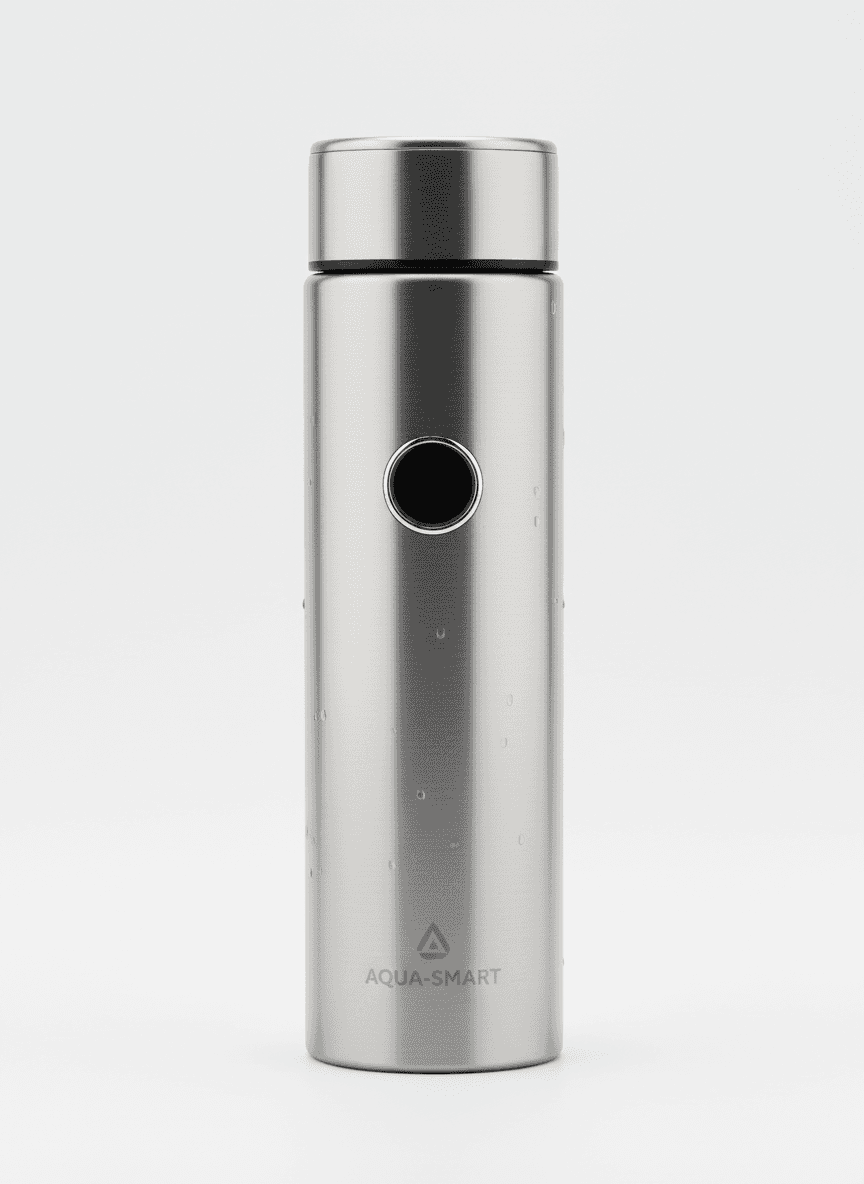
The result places the same stainless steel bottle against a smooth, light gray studio backdrop with soft, even lighting from the front, removing the hot spot and the cluttered counter entirely. The metal's brushed texture and the etched logo near the base are now clearly visible instead of washed out by the earlier overhead glare, and the bottle is centered and upright in the frame. The small printed logo came through legible here, but it was redrawn along with everything else, so compare it with the real bottle. The result looks similar to the image at the top of this page.
How it works
- 1
Upload a photo of the product
A shot where the item is mostly in frame and in focus works best, even if the background is cluttered or the lighting is uneven; that's what gets fixed.
- 2
Add an instruction if you have a preference
Note something like 'pure white background' or 'keep the wood surface' if you want a specific look instead of the default neutral studio backdrop.
- 3
The model rebuilds lighting and background
It replaces the background with a clean, neutral surface, adjusts lighting to reduce shadows and color cast, and sharpens focus on the product's details.
- 4
Download the enhanced photo
You get an image built for a listing page. If a detail looks off, run it again with a more specific instruction or a sharper source photo.
Use cases
Preparing listings for a marketplace
Turn a quick phone photo into a clean-background shot without a studio setup. Amazon's main image, for example, needs a pure white background, so write "pure white background" in the instruction and check the marketplace's own rules.
Batch-processing an inventory shoot
Run photos from a single quick session through the tool one at a time to get a consistent, cleaned-up look across a full catalog.
Fixing a photo taken in poor lighting
If a shoot happened under mixed lighting or in a dim room, use the tool to correct the color cast and shadows after the fact instead of reshooting.
Creating a consistent look across a storefront
Run every product photo through the same style of instruction to keep backgrounds and lighting consistent across an entire shop page.
Improving photos before running ads
Clean, well-lit product shots look more at home in a social or shopping feed than a cluttered counter photo, so tidy the image before you build the ad around it.
Tips for better results
- Get the product mostly in focus in the original photo; the tool enhances lighting and background, not blur.
- Fill a reasonable portion of the frame with the product rather than shooting from far away.
- Mention a specific background preference in the instruction field if pure white or a colored backdrop matters for your listing.
- Photograph any text or labels straight-on if legibility matters, since angled text can be harder to keep sharp after enhancement.
- Run a second pass with a more specific instruction if the first result changes something you wanted kept, like a natural wood surface.
Limitations
This is a generative enhancement, not a pixel-for-pixel edit, so small details like fine text, logos, or intricate patterns can shift slightly in the result. Check labels and branding carefully before uploading the enhanced photo to a live listing, and keep your original photo in case you need to redo a specific detail. Listing photos must show what the buyer will receive: don't let the edit hide scratches, dents or a different color, which leads to returns and marketplace complaints.
Frequently asked questions
Will it change the actual color of my product?
It aims to correct lighting-related color cast so the product's true color shows through, but always compare the result against the real item to confirm nothing shifted unexpectedly.
Can I keep my own background instead of a plain one?
Yes, type an instruction like 'keep the wood surface' or 'keep the current background' and the model will adjust lighting and focus while leaving the setting closer to the original.
Does it work for photos of multiple products at once?
It works best on a single product per photo. For a multi-item shot, the enhancement applies to the whole scene rather than isolating each item individually.
Can it fix a blurry photo?
It sharpens focus somewhat, but a badly out-of-focus photo won't come out crisp. Start with a photo where the product itself is reasonably in focus.
Is this good enough for print catalogs, not just online listings?
It's built for web and marketplace use. Print often needs higher resolution and color accuracy than a generated enhancement can guarantee, so test a sample print first.
How many credits does one enhancement cost?
Each run uses credits from your plan, and a new instruction on the same photo counts as a separate run. The pricing page shows current credit costs.
Can I upload photos of products I don't own, like for a mockup?
Yes, as long as you have the right to use and edit the image, such as your own product photos or ones you're licensed to modify.
Plans start at $9 a month. See pricing