AI Tattoo Generator
Turn a photo of your skin into a preview of a detailed tattoo design.
What the AI Tattoo Generator does
Picking a tattoo from a flat reference sheet rarely tells you how it will actually sit on your body. This tool takes a photo of the area you're thinking about, an arm, shoulder, back, or leg, and renders a tattoo design directly onto it, following the curve and shape of that specific spot. The default result is a bold, detailed piece with clean linework and shading that mimics how ink actually looks on skin, and you can rewrite the instruction to ask for a specific subject or style, like a fine-line rose or a blackwork snake. It's built for anyone deciding on placement and scale before booking a consultation, not for generating flash art from scratch.
See a sample result
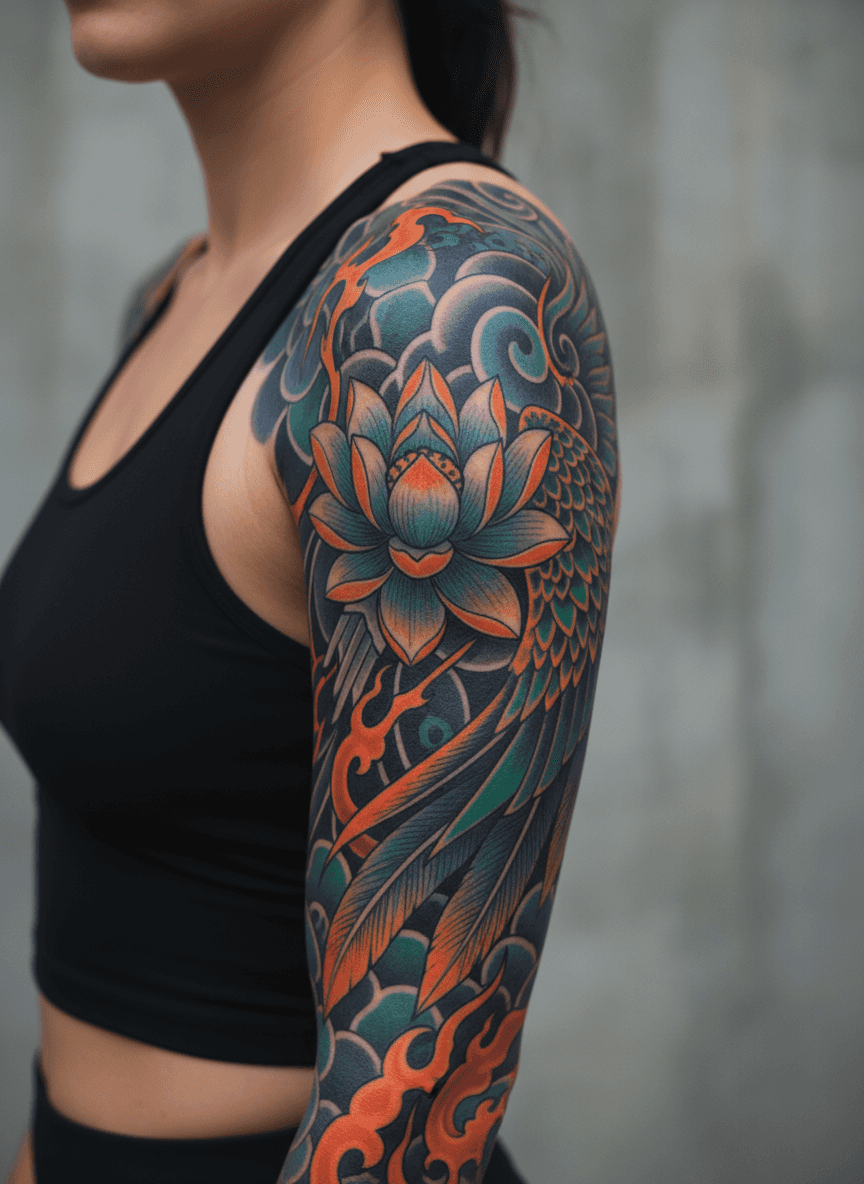
Input: A photo of a woman's upper arm and shoulder in a black tank top, shown from the side against a plain wall background, with bare skin visible from shoulder to elbow.
Design applied: Japanese-style sleeve
A full sleeve design was rendered from shoulder to upper arm, following the natural curve of the limb in the original photo.
What changed
- A large lotus flower placed at the center of the upper arm, rendered in soft orange and teal shading
- A bird in flight worked into the composition above the shoulder, wings shaded with fine linework
- Wave and cloud filler patterns in deep blue and purple connect the main elements and wrap around the arm
- Bold black outlines throughout, in the traditional Japanese tattoo (irezumi) style, so the piece reads clearly even from a distance
The design follows the muscle contour of the arm rather than sitting as a flat overlay, giving a preview close to how a sleeve like this would look once actually tattooed.
How it works
- 1
Photograph the area you want inked
Take a clear, well-lit photo of the arm, back, leg, or other spot you're considering, with the skin visible and not covered by loose clothing or heavy shadow.
- 2
The AI maps a design onto that skin
It follows the contour of the limb or body part in your photo, so the design wraps and scales the way real tattoo work would rather than sitting flat like a sticker.
- 3
Review the rendered design
You get back a detailed, bold-lined tattoo image in place on your photo, letting you judge size, placement, and how the artwork reads at a glance from a distance.
- 4
Use it as a reference, not a final plan
Save the image to bring to a consultation, where a tattoo artist can adjust linework, sizing, and detail for how it will actually heal on your skin.
Use cases
Deciding on placement before a consultation
See how a design scales across your specific arm or back shape before you're in the chair, so you can bring a clearer reference to your artist.
Comparing styles side by side
Generate a few different photos or areas to compare how a similar design idea reads on different placements, like forearm versus full sleeve.
Showing family or a partner an idea
A rendered preview is easier to talk about than a verbal description or a flat design sheet, especially for a first tattoo.
Starting a conversation with your artist
Bring the image as a mood reference for composition and placement, then let the artist refine the actual linework for your skin and healing.
Tips for better results
- Use a photo where the skin area is fully visible and not partly covered by sleeves or hair.
- Even, natural lighting shows the contour of the limb better than a harsh flash.
- Try a couple of angles of the same body part to see how the design wraps differently.
- Treat the output as a placement and style reference, not a tattoo-ready stencil.
- Zoom in on the generated image to check how fine details hold up before showing an artist.
Frequently asked questions
Can I actually get this exact design tattooed?
Treat it as a starting reference. A tattoo artist will need to redraw the linework so it heals well and fits your skin, but it's a strong way to communicate scale and placement.
What body parts work best for this tool?
Arms, shoulders, backs, and legs work well because they have visible curved surfaces. Flatter areas like the forearm's underside also render cleanly.
Does it design custom tattoos or just apply existing styles?
It renders a detailed design directly onto your photo based on the style it's guided toward, so each result is generated fresh for your specific image rather than pulled from a fixed catalog.
Will the colors and shading look like a real tattoo?
The tool aims for a realistic ink look with bold lines and shaded color, but actual tattoos vary based on ink saturation, skin tone, and how the piece ages over time.
Can I use this for a black-and-white or minimalist design?
Yes. The default instruction asks for a bold, detailed piece, so edit it to describe what you want, for example "small fine-line black moon on the inner wrist", before you run it.
Can I try different designs on the same photo?
Yes. Each run uses credits from your plan, and running the same photo with a few different descriptions is the easiest way to compare concepts before deciding on one.
Plans start at $9 a month. See pricing