Lens Flare Effect
Turn a flat photo into a backlit, cinematic shot with warm streaks of light and glare.
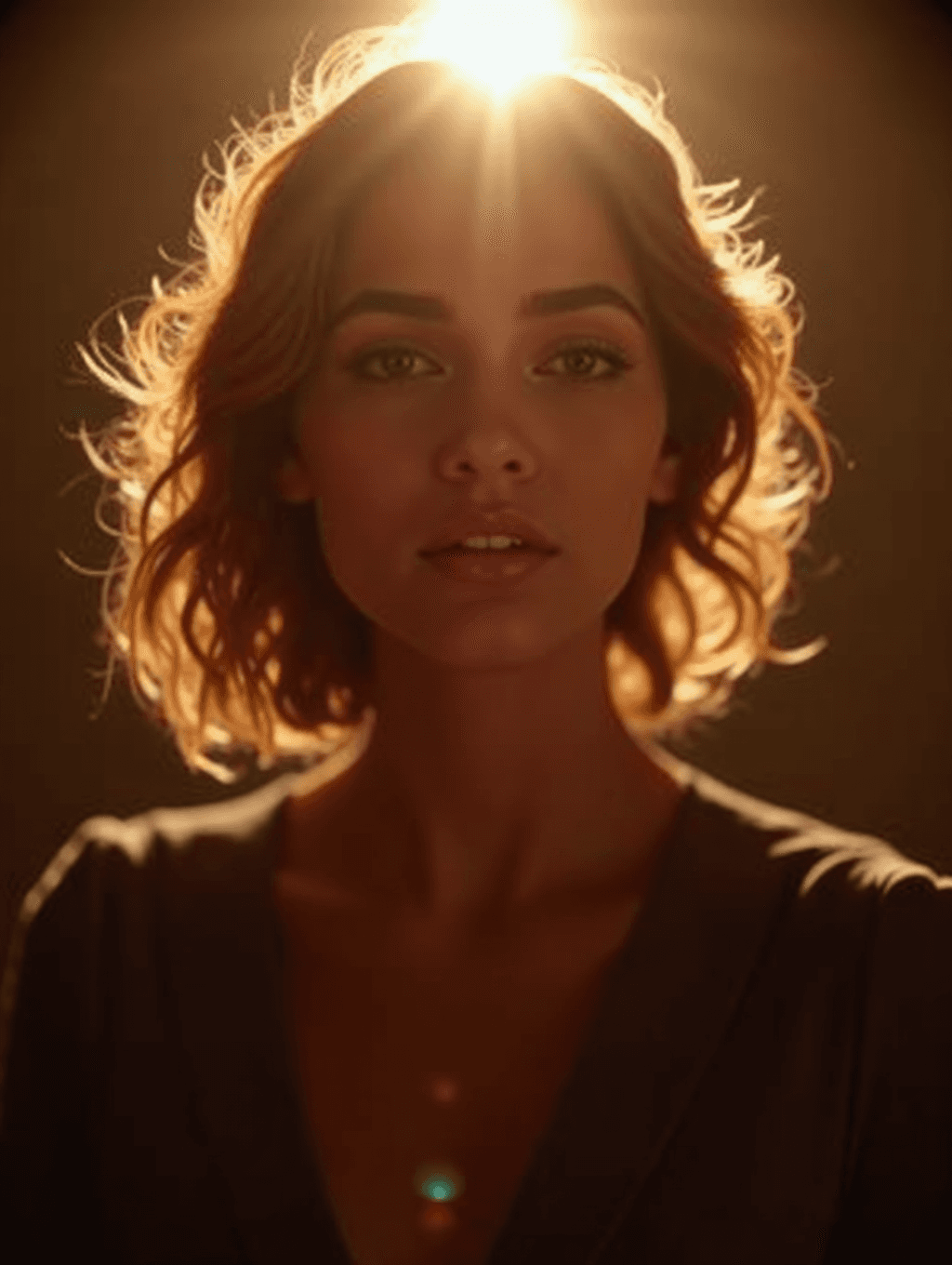
What the Lens Flare Effect does
A well-placed flare of light can turn an ordinary portrait into something that looks pulled from a film. Upload a photo and the AI adds cinematic lens flare, streaking light and a warm glow, the kind of look you get from shooting straight into a low sun with a real camera lens. You can describe where you want the light to come from and how strong it should feel, and it relights the scene to match. Because it's a generative edit, the rest of the photo gets redrawn too, so expect some shift in color and small details. It works on portraits, outdoor shots, and product photos alike.
See a sample result
Input: A portrait of a woman with shoulder-length wavy auburn hair and a dark top, facing the camera, shot indoors in flat, even light against a plain dark wall, with no flare or glare.
The edit places a bright, warm light source behind and slightly above the subject's head, sending a vertical streak of light down through the hair. Soft golden rim lighting now wraps the edges of the hair and shoulders, and two small glare orbs, one warm orange and one faint teal, sit lower in the frame where a real lens would catch stray light. The overall color grade shifts warmer, with deeper shadows across the face and clothing to sell the backlit look. Her expression and hair texture were redrawn along with the light, so compare the face with the original. The result looks similar to the image at the top of this page.
How it works
- 1
Upload the photo you want to edit
Portraits with a visible light source, like a sun, window or streetlight in frame or just out of it, tend to give the most convincing result, though it can add flare to almost any shot.
- 2
Describe the flare you want
Use the instruction field to say where the light should come from, how intense it should look, or the color tone you want, like a warm golden flare or a cooler blue-white streak.
- 3
The AI generates the lighting effect
It adds light streaks, glow and small lens artifacts like glare orbs, positioning them to match the light source and composition of your photo.
- 4
Download the edited image
Review the result, check faces and any text in the frame for artifacts, and download the finished photo.
Use cases
Portrait photography with a cinematic mood
Add a filmic, backlit look to a portrait that was shot in flatter light than you wanted on the day.
Album covers and promotional images
Musicians and creators use a strong flare effect to give a plain photo a more dramatic, poster-like feel.
Wedding and event photo touch-ups
Add warm, golden-hour style light to shots that were taken indoors or under overcast skies.
Social media posts that need a stronger visual hook
A flare effect can make an otherwise ordinary photo stand out more in a feed of flat, evenly lit images.
Product photography with a glamorous edge
Adding a subtle flare behind a product shot can give it a more premium, editorial feel for marketing use.
Tips for better results
- Photos with an actual bright area, like sky or a window, in or near the frame give the AI a natural place to anchor the flare.
- Describe the flare's direction and intensity specifically rather than leaving the instruction blank.
- Ask for a subtler effect if the first result feels too strong for the photo's mood.
- To give a set of photos the same look, reuse the exact same instruction on each photo in separate runs.
- Check faces and any visible text after the edit, since generated light effects can occasionally blur fine details near them.
Limitations
This is a generative edit, not a physical filter, so the AI is creating new light and glow rather than simulating an exact optical effect. It can shift color balance and shadow across the whole image, and it may soften small details near strong light streaks, like eyes, jewelry or text, so it's worth checking those areas in the result before using it.
Frequently asked questions
Can I control where the flare appears in the photo?
Yes. Describe where you want the light source in your instruction, such as "flare from the top right" or "light behind the subject's head," and the AI will place it accordingly.
Will it change anything else in my photo?
Usually the subject and composition stay close to the original, but it's a generative edit: faces and small details can be redrawn, and adding a strong light source can shift the overall color grading and shadow contrast across the image to make the flare look natural.
Does it work on photos without any bright light source?
Yes, it can add a flare and a plausible light source even to a flatly lit photo, though results tend to look most natural when there's already some directional light in the original shot.
Can I edit more than one photo with the same effect?
Run each photo separately with the same instruction. You can add more than one image to a run, but they're combined into a single result, not edited as a batch.
Is this the same as a real camera lens flare?
It's a generated approximation of the look, not an optical simulation, so fine details of how a specific lens would flare aren't replicated exactly.
Does each edit use credits?
Yes, each run uses credits from your plan, so it's worth refining your instruction before running it repeatedly on the same photo. The pricing page shows current credit costs.
Plans start at $9 a month. See pricing