What the Wedding Photo Generator does
Picturing yourself in a wedding dress before an actual event, or wanting a romantic styled photo without booking a shoot, is a common enough reason to reach for a tool like this. It takes a photo you upload and restyles it into a wedding portrait: a gown, a softer romantic setting, and warmer, more flattering light than a typical snapshot. It's meant for previewing a look, not for anything you'd submit as a real ceremony photo, and it works from a single clear photo of you rather than requiring a studio setup. Upload an image, and you get back one styled portrait built around it, ready to compare against the original or use as a starting point for other ideas.
See a sample result
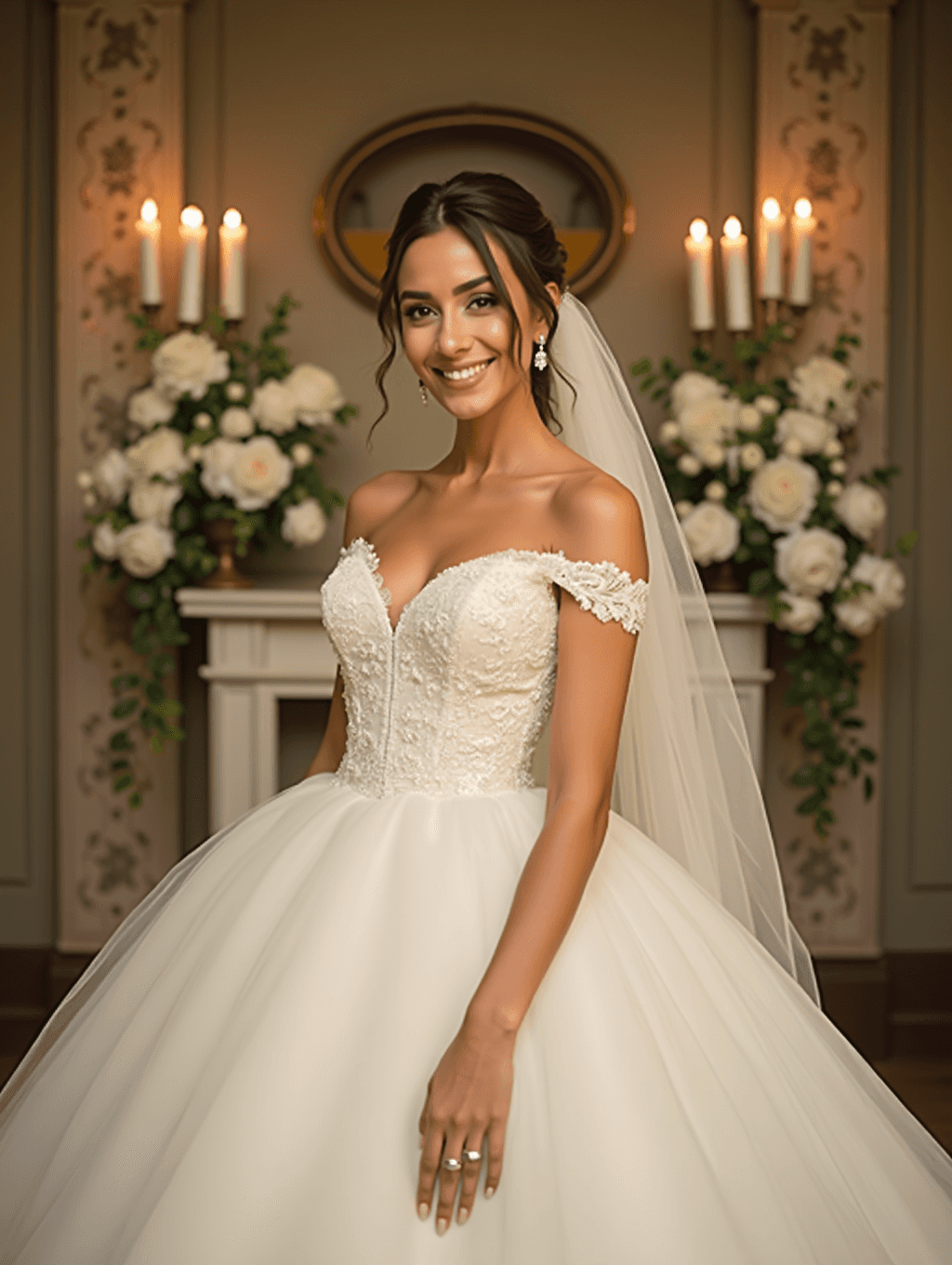
Input: A casual selfie of a woman with dark hair pulled back in a low bun, wearing a plain gray top, taken indoors with ordinary overhead lighting. The result looks similar to the image at the top of this page.
The plain top is replaced with an off-the-shoulder wedding gown with a beaded lace bodice and lace cap sleeves, flaring into a full tulle skirt, and a sheer veil is added, falling from an updo built from her original low bun. Drop earrings are added, and so is a ring on her hand, a detail the AI invented on its own. The plain indoor background is replaced with a warmly lit room featuring tall candles on either side of an oval mirror, a pale fireplace mantel, and large arrangements of white roses and greenery, with soft, flattering light across her face that reads more like golden-hour or candlelight than the original overhead lighting. Her expression shifts to a wide, open smile, and her pose turns slightly to one side with one arm relaxed at her side, a change from the straight-on selfie angle she started with.
How it works
- 1
Upload a clear, front-facing photo
A photo with your face and shoulders (or more of your body) visible in decent light gives the AI the most to work with when it adds the gown and reworks the setting.
- 2
The AI adds a wedding gown and styling
Expect an elegant dress, often with lace or beaded detail, along with hair and makeup that reads more polished and formal than a typical photo.
- 3
The setting shifts to something romantic
Backgrounds tend to move toward candlelit rooms, floral arrangements, or soft-focus venues, with warmer, gentler lighting than the original photo likely had.
- 4
You get back one styled portrait
Compare it to your original, and if the dress style or setting isn't what you pictured, edit the instruction and run it again with more specific direction.
Use cases
Previewing a dress style before shopping
Get a rough sense of how a particular gown silhouette, like a ball gown or a sheath cut, might look on you before booking dress fittings.
Engagement or save-the-date content ideas
Generate a styled photo idea to share with a partner or photographer while planning the actual look and feel of wedding photos.
Themed photo shoots and creative projects
Photographers, stylists, or hobbyists building a bridal-themed portfolio or concept board can use a styled photo as a quick visual reference.
Anniversary or milestone photo ideas
Couples marking an anniversary can turn a current photo into a wedding-styled portrait as a nostalgic keepsake or gift idea.
Tips for better results
- Use a photo with even, front-facing light so the gown detail and skin tone render clearly rather than in heavy shadow.
- A simple original outfit and background tend to restyle more cleanly than a busy pattern or cluttered room.
- If you have a dress style in mind, name it directly in the instruction, like a mermaid cut or an off-shoulder neckline, instead of relying on the default.
- A photo with your shoulders and upper body visible gives the AI more room to add gown detail than a tight close-up.
- Check the face and any added jewelry or text closely afterward, since generative edits can shift small details you'll want to catch before sharing.
Limitations
This is a generative restyle, not a real photoshoot or a preview of an actual wedding day. It can change your face, pose, or proportions more than expected, and any added rings, jewelry, or embroidery details are invented by the AI rather than reflecting a real product. Treat the result as a creative preview, not a stand-in for professional wedding photography or a real dress fitting.
Frequently asked questions
Will it keep my face looking like me?
It aims to keep you recognizable while changing the outfit, hair styling, and background. Because it's a generative edit, small shifts to your expression or features can happen, so use a clear, well-lit, front-facing photo for the best likeness.
Can I choose the dress style myself?
Yes. The instruction is editable, so you can ask for a specific silhouette, neckline, or color instead of the default gown style the AI picks.
Can I upload a photo of a couple instead of just one person?
The tool is built around a single clear subject and gives its most consistent results that way. Photos with two people may still process, but the styling can land unevenly across both people.
Is this a real preview of what I'd look like at my wedding?
No, treat it as a styled, generative preview rather than an accurate prediction. Lighting, dress fit, hair, and makeup on an actual wedding day will look different from an AI-generated version.
Can I use this for real wedding invitations or announcements?
You can, but be upfront that the image is AI-generated if you're sharing it publicly, since the gown, jewelry, and setting are all invented rather than real products or venues.
Can I upload more than one photo?
You can add more than one image, but they all feed into one result, for example your photo plus a reference picture you want the AI to copy. Say in the instruction what each image is for. To compare different source photos, run them one at a time; each run uses credits.
Plans start at $9 a month. See pricing