AI Vampire Generator
Upload a photo and get a gothic, vampire-styled version of it back.
What the Vampire Generator does
Fangs, pale skin, dramatic makeup, and lighting pulled from a moodier corner of the color wheel: that's the direction this tool takes a photo you already have. Give it a clear picture of yourself or a friend and it reworks the skin tone, adds fanged teeth, and restyles hair and clothing toward a gothic or elegant vampire look. Expect it to take liberties: it may tilt the head, change the neckline or smooth the face, so check the result against your original. It's built for Halloween costume previews, character art, or just seeing a familiar face pushed into a completely different mood.
See a sample result
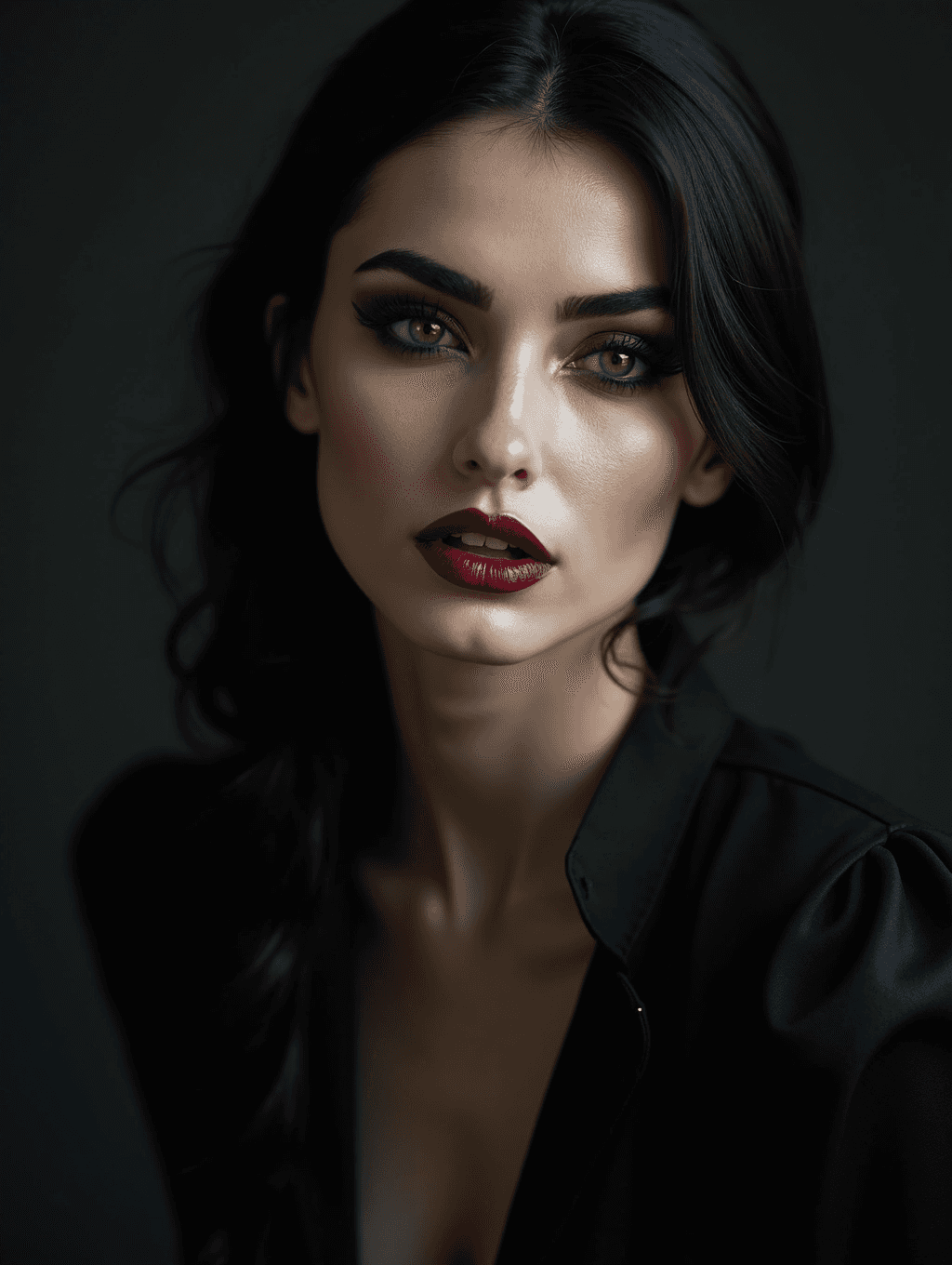
Input: A daylight phone photo of a woman with long dark hair and a light, natural complexion, taken from the chest up in a gray sweater against a pale living-room wall. The result looks similar to the image at the top of this page.
The photo becomes a dark, moody vampire portrait. Skin is paled with a cool, luminous sheen, the eyes get heavy smoky shadow and sharply defined black brows, and the lips turn a deep wine red, slightly parted. The sweater is replaced by a black blouse with a puffed shoulder and a deep open collar, and the living room disappears into a near-black backdrop lit from one side.
What to check: in this result the fangs never actually appear, because the lips stay nearly closed, so if fangs are the point, add "mouth slightly open, fangs visible" to the instruction. The AI also chose on its own a lower neckline, a sultry head tilt and a heavily smoothed, idealized face with thinner cheeks, so compare the eyes, nose and jaw with the original before sharing it as you.
How it works
- 1
Upload a clear, front-facing photo
A well-lit shot with your face and shoulders visible gives the AI the clearest base to rework skin tone, eyes, and clothing around.
- 2
Set the specific style in the instruction
Name a direction, such as elegant Victorian vampire, modern gothic, or classic pale-and-fanged, instead of leaving the look to a default.
- 3
The AI applies the transformation
It pales the skin, adds fangs and a darker, more dramatic eye and lip styling, and adjusts lighting toward a moody, high-contrast look.
- 4
Check the face closely
Look at the teeth, eyes, and jawline for small inconsistencies, since adding fangs and reshaping features is a generative edit and can shift fine detail.
Use cases
Halloween costume preview
See how a vampire look might suit you, your hair, and your coloring before committing to makeup, contacts, or a full costume.
Character art and tabletop games
Generate a quick visual for a vampire character in a D&D campaign, a fan fiction project, or an online avatar built around that theme.
Themed social media posts
Create a striking, one-off image for a spooky season post or a gothic aesthetic account without a full photoshoot.
Gothic or dark-fashion styling reference
Preview dramatic makeup or a dark, structured wardrobe direction before booking a real photoshoot or makeup session.
Party invitations and group photo themes
Turn photos of friends into matching vampire portraits for a themed party invite or group photo set.
Tips for better results
- Use a photo with your mouth closed or slightly open and visible, since the fangs are added to the upper teeth and need a clear starting point.
- Name a specific style in the instruction, like Victorian-elegant or modern-gothic, to move away from a generic default look.
- Good, even lighting in the original photo makes the pale-skin and shadow effects look more deliberate rather than washed out.
- If you want a specific eye color or makeup style, describe it directly in the instruction rather than leaving it to chance.
- Review the fangs, eyes, and jawline in the final image, since those are the details most likely to need a second look after a generative edit.
Frequently asked questions
Can I control how dramatic the vampire look is?
Yes, describe the intensity you want in the instruction, from a subtle pale-skin-and-fangs look to a full dramatic gothic makeover with darker styling throughout.
Will the fangs look realistic?
Not always. The prompt asks for fangs, but if the lips end up closed, as in the example above, they may not show at all. Ask for an open mouth with visible fangs in the instruction, and check the teeth closely, since generated teeth can look uneven.
Will it still look like me?
Usually the overall look carries over, but this is a heavy generative edit. It can slim the face, change the expression and pose, and alter the neckline. Say "keep my face, pose and neckline" in the instruction if likeness matters, and compare with the original.
Can I pick a specific vampire aesthetic, like modern or period style?
Yes. Name the era or style you want, such as Victorian, modern gothic, or classic horror-movie vampire, in the instruction.
Does it work on photos with more than one person?
It works best with a single clear subject. Group photos can produce less consistent results since the AI is transforming multiple faces at once.
Can I use a photo of someone else?
Only with their permission. The result can look sultry as well as spooky, so don't use it on photos of children or on anyone who hasn't agreed to be turned into a vampire portrait.
Plans start at $9 a month. See pricing