Style Transfer
Turn a regular photo into a painting, sketch, or any artistic style you describe, with visible brushwork and new color grading.
What the Style Transfer does
Some photos just want to look like something else: a portrait that reads like an oil painting, a landscape reimagined as a pencil sketch, a product shot pushed into watercolor. This tool takes a photo and repaints it in an artistic style, adding visible brush strokes, texture, and color grading instead of a flat filter over the top. You write what you want in the instruction, from a specific movement like impressionism to a looser description like a soft pastel sketch, and the AI reworks lighting, edges, and color to match. The output keeps the subject recognizable while changing how it's rendered, so the same photo can come back looking like a museum piece or a quick charcoal study depending on what you ask for.
See a sample result
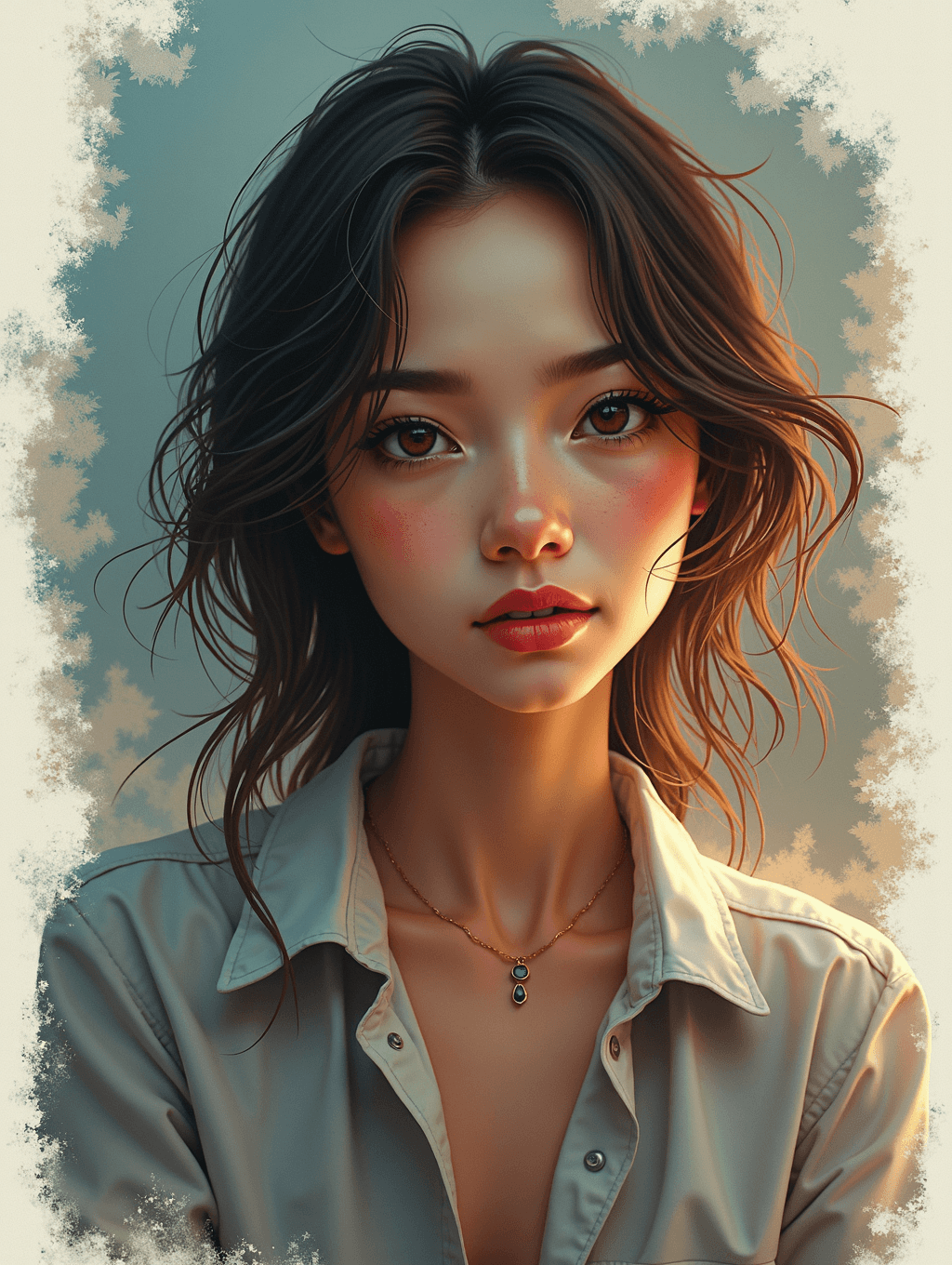
Input: A plain phone photo of a young woman with dark wavy hair, taken from the shoulders up, wearing a light-colored collared shirt and a thin gold necklace, against a plain indoor background. The result looks similar to the image at the top of this page.
The photo now reads as a digital painting rather than a photograph: visible brush-like strokes build up the hair in loose, directional layers instead of sharp individual strands, and the skin has soft painterly blending with warm highlights along the cheekbones and nose. The plain background is replaced with a muted, textured backdrop in dusty blue-green tones, with a rougher, sketch-like border framing the edges of the whole image, similar to a canvas or watercolor paper edge. Color grading shifts warmer overall, pushing golden light across the face and collar while keeping the shirt's pale tone recognizable. The necklace and collar details are simplified slightly, a normal tradeoff in a painterly style, so fine jewelry or text on clothing may lose crispness. The pose stays close to the original, but the face is repainted too, and painterly styles tend to idealize eyes, lips, and skin, so compare the likeness before you print or share it.
How it works
- 1
Upload the photo you want to restyle
Portraits, landscapes, pets, and product shots all work. A photo with clear subject separation from the background tends to translate more cleanly into painted brushwork.
- 2
Write the style you want in the instruction
Name a specific movement like watercolor, oil painting, or charcoal sketch, or describe a mood like soft and painterly, then run the edit.
- 3
The AI repaints lighting, texture, and color
It adds visible brush strokes or line work, shifts the color grading to match the chosen style, and softens or sharpens edges depending on the technique.
- 4
Review the result and adjust the instruction if needed
If the style leans too far from what you pictured, edit the instruction with a more specific reference and run it again rather than settling for the first pass.
Use cases
Turning a portrait into wall art
Restyle a favorite photo of yourself, a pet, or a couple into a painted look worth printing and framing instead of leaving it as a plain photo.
Building a consistent art style for a project
Illustrators and content creators run several photos, one per run, through the same instruction to get a matching painted or sketched look across a set of images.
Mood boards and concept art references
Quickly see how a scene or subject would look in a specific art movement before committing to a full illustration or painting from scratch.
Gifts and personalized prints
Turn a photo of a person, a pet, or a home into a painted-style print for a birthday, anniversary, or housewarming gift.
Tips for better results
- Name a specific style or artist movement in the instruction rather than just 'artistic', since specific references produce more consistent results.
- Use a photo with decent lighting to start, since brushwork and color grading amplify whatever contrast and detail is already there.
- If small details like text, jewelry, or patterns matter, check the result closely, since painterly rendering tends to simplify fine detail.
- Try the same photo with two or three different style instructions to compare which one fits the subject best before picking a final version.
- For portraits meant to be recognizable, keep the instruction focused on rendering style rather than asking for major changes to the face or pose.
Frequently asked questions
Can I choose a specific art style, like watercolor or oil painting?
Yes, name the style directly in the instruction, such as 'watercolor' or 'oil painting with visible brush strokes', and the edit will aim for that specific look rather than a generic painterly effect.
Will it keep my face and pose recognizable?
It aims to keep the subject and composition close to the original while changing how it's rendered, but this is a generative edit, so check the result for small changes to features before using it somewhere the likeness matters.
Does it work on landscapes and objects, not just portraits?
Yes, landscapes, pets, product photos, and interiors all restyle well, though the best style for a landscape often differs from what works on a portrait.
Can I upload more than one photo at once?
You can add more than one image, but they all feed into one result, for example your photo plus a reference picture you want the AI to copy. Say in the instruction what each image is for. To compare different source photos, run them one at a time; each run uses credits.
Why does text or fine detail look different in the result?
Painterly and sketch styles simplify fine detail as part of the technique. If exact text or small patterns matter, put them in quotes in the instruction and check the output carefully.
Can I get a specific size or aspect ratio for printing?
The output follows the shape of your uploaded photo rather than a fixed print size, so crop or upscale it separately if you're printing at a specific dimension.
Plans start at $9 a month. See pricing