Renaissance Aesthetic Photo Generator
Upload a photo and get it restyled into a museum-style Renaissance portrait.
What the Renaissance Photo Generator does
Picture yourself as the sitter in an oil portrait from a Florentine workshop: that's the whole idea here. The generator takes a photo you upload and restyles it with Renaissance-era clothing, warm dramatic lighting, and the layered brushwork look of a 15th or 16th century portrait. People use it for social posts, gifts, wall art mockups and just curiosity about how their own face would sit inside a museum frame. The result is a single styled image per run, generated from your photo, not a real historical portrait, so treat it as a creative reinterpretation rather than an exact likeness in period dress. It works from one uploaded photo at a time and gives you back one finished portrait, ready to download, print, or share.
See a sample result
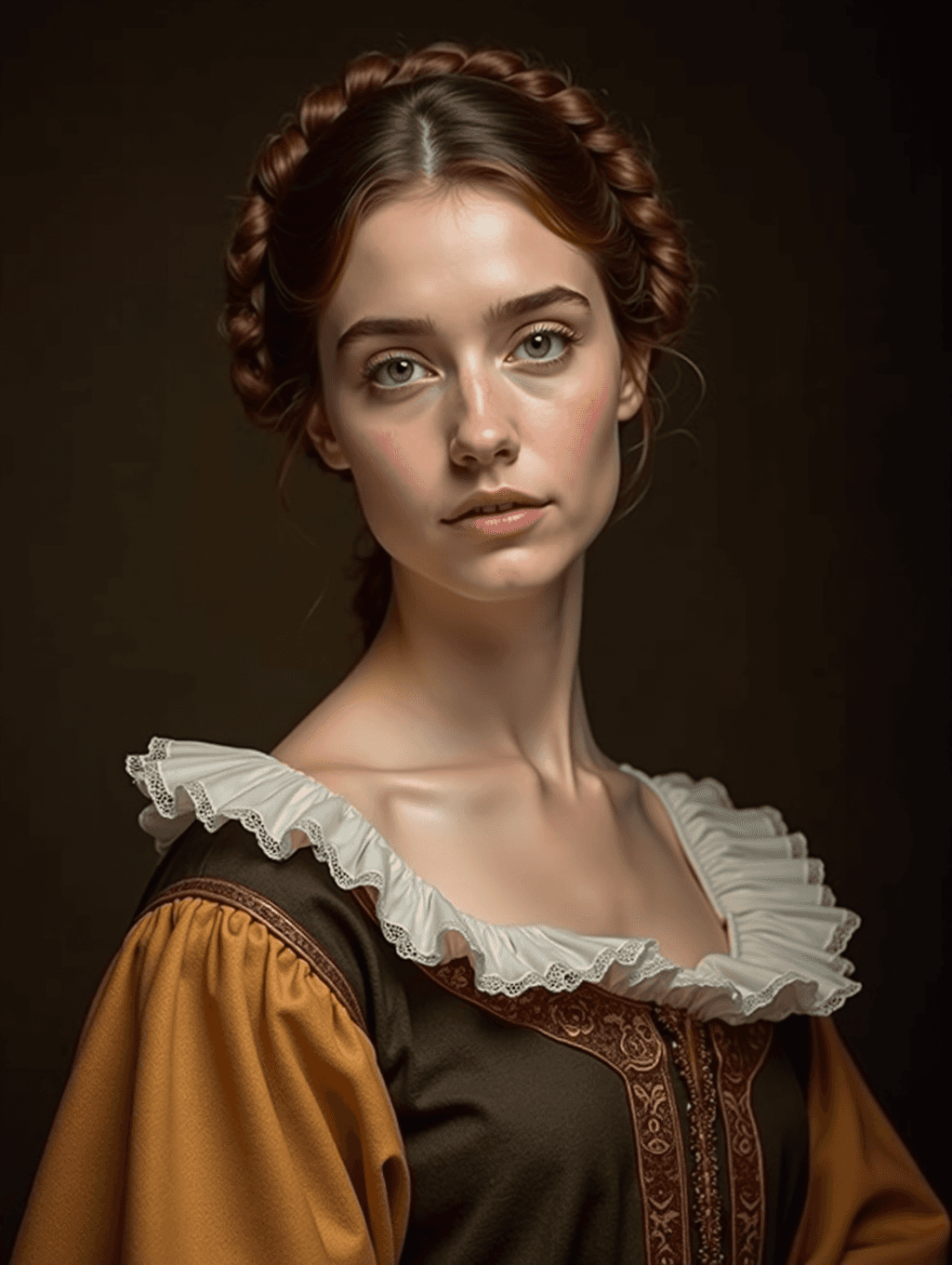
Input: A front-facing phone photo of a young woman with auburn hair in a loose bun, wearing a gray T-shirt, taken against a light wall in even daylight. The result looks similar to the image at the top of this page.
The result reworks the photo into a moody Renaissance-style portrait against a dark, almost black background lit from one side, in the manner of a museum oil painting. The subject wears a dark brown bodice with red embroidered trim, full mustard-yellow sleeves, and a wide, ruffled white lace collar around an open neckline. Her hair is restyled into a braided crown around her head. The lighting is warm and painterly, but the skin and eyes stay close to photographic sharpness, so the result reads more like a costume photo lit like a painting than a brushed canvas; add "visible oil brushwork and craquelure" to the instruction if you want it to look painted. The face comes out smoothed and a little idealized. Check the face for over-smoothing and check that the collar's lace pattern doesn't blur into a solid shape, since fine fabric detail is one of the first things a generative edit can lose.
How it works
- 1
Upload a clear portrait photo
A front-facing or three-quarter shot with visible shoulders works best, since the clothing and collar detail render around that area.
- 2
Adjust the instruction for a specific look
The default asks for period clothing, rich fabric and a classical painting style. You can edit it to request a specific era detail, like a ruffled collar, a particular fabric color, or a darker or lighter background.
- 3
Generate the portrait
The AI reworks your photo into the painted style in one pass. Each run uses credits and produces one result.
- 4
Check the details
Look closely at the face, hands and any jewelry or embroidery, since generative style transfers can smooth out or invent small details.
Use cases
Novelty portraits and gifts
Create a Renaissance-style version of a photo as a personalized gift or keepsake print.
Social media and profile art
Post a period-style portrait as a change of pace from ordinary photos.
Themed party or invitation art
Use it for Renaissance-fair or costume-party invites and decor mockups.
Creative and mood-board reference
Illustrators and hobbyists can use the result as a quick visual reference for painterly lighting and period costume shapes.
Tips for better results
- Use a photo with visible shoulders and neckline so the collar and clothing detail have room to render.
- Name a specific fabric color or accessory in the instruction, like 'deep red velvet' or 'a pearl necklace', for a more personal result.
- Expect the AI to invent embroidery patterns and lace texture rather than copy anything exact, so treat fine detail as decorative, not literal.
- If the face looks too smoothed or painterly, try a sharper source photo or mention 'visible skin texture' in the instruction.
- Try both a plain, evenly lit photo and one with more directional light; the dramatic side-lighting of Renaissance portraiture often suits a photo that already has some contrast.
- If you want a specific sitter's pose, like hands folded or a slight turn of the head, describe it in the instruction rather than expecting the default result to match.
Frequently asked questions
Will it turn my exact clothes into Renaissance clothing?
No, it replaces your clothing with generated period-style garments; it doesn't reshape or recolor the clothes you're actually wearing.
Can I ask for a specific historical detail, like a particular headpiece?
Yes, edit the instruction to name what you want, such as a veil, a specific collar style or a certain fabric color.
Does the result look like a real oil painting?
It aims for a painterly look with warm lighting and rich fabric texture, but it's a generated image, not an actual painting, so brushwork and texture are stylized approximations.
Will my face stay recognizable?
It usually keeps your overall look, but painterly style transfers can smooth features, so check the result before using it anywhere important.
Can I upload a full-body photo instead of a headshot?
Yes, a half-body or full-body photo works too; the clothing and setting will adapt to the visible frame.
How many images does one run produce?
One. If you upload several photos, the tool uses them all as references for a single styled result rather than producing one output per photo, and credits are charged per image. Run each portrait separately.
Plans start at $9 a month. See pricing