Background Replacer
Cut a subject out of its original photo and drop it onto a clean, neutral backdrop.
What the Background Replacer does
Great subject, wrong room: that's the photo a background replacer is for. It keeps the person or object and swaps whatever is behind them, by default for a plain, even backing, or for any scene you describe in the instruction. It's built for the kind of photo you took on a phone in a normal room and now need to look like it came out of a small studio: a product shot for a listing, a headshot for a resume, a portrait you want cleaned up before printing. Send in a photo and you get back the same subject and pose in front of a fresh background instead of the couch, wall, or clutter that was originally there.
See a sample result
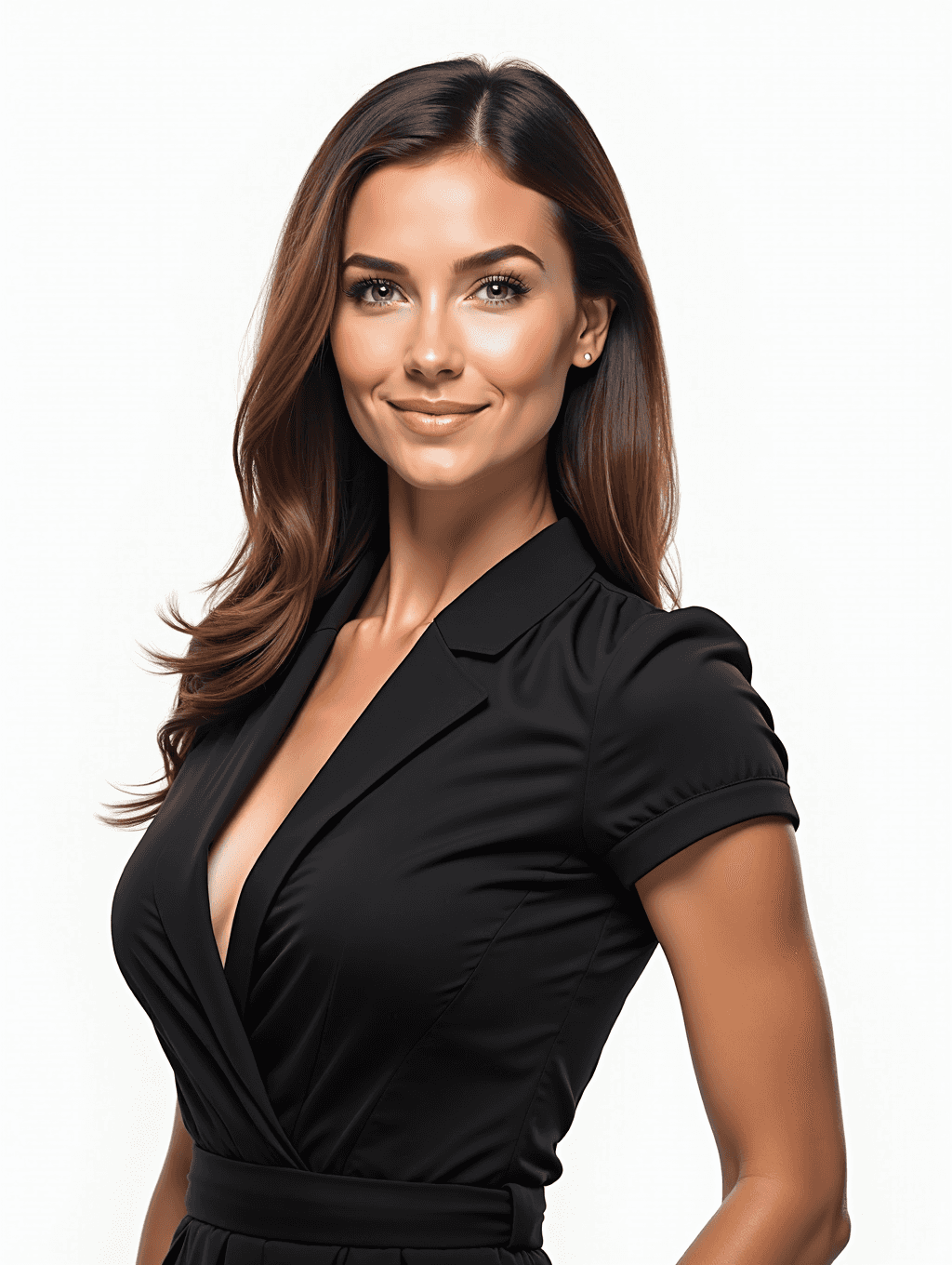
Input: A phone photo of a woman with long brown hair, wearing a black wrap top, shot indoors with a cluttered bookshelf and a doorway behind her. The instruction was left at its default. The result looks similar to the image at the top of this page.
Background swapped to a clean white studio backdrop.
Same pose, same smile, same black top. Everything behind her is now a flat, even white with no visible seam around her outline. Because the image is regenerated, compare the face, the hairline, and the neckline with your original: small features can shift.
Edges to check: the loose strands of hair near her shoulders and the gap under her jaw, both places where a background swap tends to leave faint fringing if the original photo was low-contrast against its backdrop.
This result is ready to use as-is for a headshot, a dating profile photo, or a product page where the model needs a plain background instead of the original room.
How it works
- 1
Upload a photo with a clear subject
Pick a photo where the person or object is fully visible and not cut off at the edges. A plain original background isn't required; the tool works fine on cluttered rooms, outdoor scenes, or busy fabric behind the subject.
- 2
The AI redraws the image around your subject
There's no manual masking. The image model regenerates the photo with the subject kept and the background changed, which is why hair and fingers usually blend in without a hard, pasted outline.
- 3
The old background becomes the one you asked for
Left as is, the instruction asks for a clean white or neutral backdrop. Edit it to ask for 'light gray studio', 'blurred office', or 'beach at sunset' instead. For scenes, mention the light direction so the subject doesn't look pasted in.
- 4
Download the result
You get back a version with the new backdrop applied, ready to drop into a listing, a resume, a printed portrait, or a social profile.
Use cases
Product photos for online listings
Marketplaces like reselling apps and small storefronts want a plain background, not your kitchen counter or bedroom floor. Shoot the item anywhere with decent light, then replace the background before you post it.
Headshots for a resume or LinkedIn
A photo taken at home rarely has a professional backdrop. Swap it for a plain white or gray background so the photo reads as a headshot instead of a casual snapshot.
Portraits you want to print or frame
If the original background is distracting or dated, replacing it lets you keep the pose and expression while giving the whole image a cleaner look.
Profile photos for apps and social accounts
A consistent, plain backdrop across your profile photos looks more deliberate than a set of photos each with a different room behind you.
ID-style or badge photos
Company badges, team pages, and directories usually ask for a plain background. This gets you there without a second photo session.
Tips for better results
- Use a photo where the subject isn't overlapping or touching other people or objects, which makes it harder for the AI to tell where the subject ends.
- Good, even light on the subject makes the new backdrop look more natural, especially a plain one, where harsh shadows on a face look out of place.
- Avoid photos where hair or clothing is nearly the same color as the original background; low contrast there is the most common source of rough edges.
- If you need the backdrop for a specific size (like a passport or badge photo), crop the result afterward rather than before, so the subject isn't cut off during processing.
- Flash photos with harsh shadows on the wall behind the subject can leave a faint shadow outline even after the background is replaced; softer, diffused light avoids this.
Limitations
This is a generative edit, not a hand-masked cutout. Fine, wispy hair, motion blur, glasses reflections, and busy patterns right behind the subject are the situations most likely to leave a soft edge or a small artifact where the old background meets the new one. Semi-transparent objects like veils or sheer fabric are also hard to separate cleanly. The subject itself can also change slightly, so check faces, hands, and any text on products at full size before using the result somewhere it will be scrutinized, like a printed headshot or a listing.
Frequently asked questions
Does the background replacer work on photos of objects, not just people?
Yes. It keeps whatever the main subject is, whether that's a person, a product, a pet, or an item you're photographing for a listing.
Can I choose a specific color for the new background?
Yes. There's no color picker, but the instruction is editable: write 'solid navy blue background' or 'soft pastel pink backdrop' and the result follows it. The default is clean white or neutral.
Will the subject stay exactly the same?
Close, not exact. It's a generative edit, so lighting on the subject can be adjusted to match the new background, and small details like a face, jewelry, or printed text can shift. For product photos, check that logos and labels still read correctly.
What kind of photo works best for a clean result?
A photo with the subject fully in frame, decent lighting, and some contrast between the subject and its original background. Busy hair against a busy wall is the hardest case for any background tool, this one included.
Can I use this for a passport or ID photo?
Not for the official submission. The US State Department rejects photos that have been digitally altered, and many countries have similar rules. Use it for things like a company badge or a directory photo, and get passport photos taken to your country's specs.
Does it work on photos taken in low light?
It can, but the edge between subject and background is harder to read in dim or grainy photos, so you may see softer edges around hair or fine details. A photo taken in normal indoor or daylight light will usually give cleaner edges.
Can I replace the background more than once on the same photo?
Yes. Each run uses credits, and it's best to run the original photo again with a new instruction rather than stacking edits on an already-edited copy.
Plans start at $9 a month. See pricing