AI Sketch Drawing Generator
Turn a photo into a pencil-drawn sketch with realistic shading and line work.
What the Sketch/Drawing Generator does
Some photos deserve to look hand-drawn instead of photographed, whether it's for a gift, a print, or just a different way to see a familiar face. This tool takes a photo and redraws it as a pencil sketch: visible pencil strokes, cross-hatched shading, and the softer, more textured look of a drawing rather than a photo filter laid on top. Upload a photo, then use the instruction box to set the level of detail, the type of paper texture, or which parts of the image should stay sharp. The result is one generated sketch-style image, useful for prints, profile pictures, and gift art, though it won't hold up as a substitute for a hand-drawn commission if exact linework matters.
See a sample result
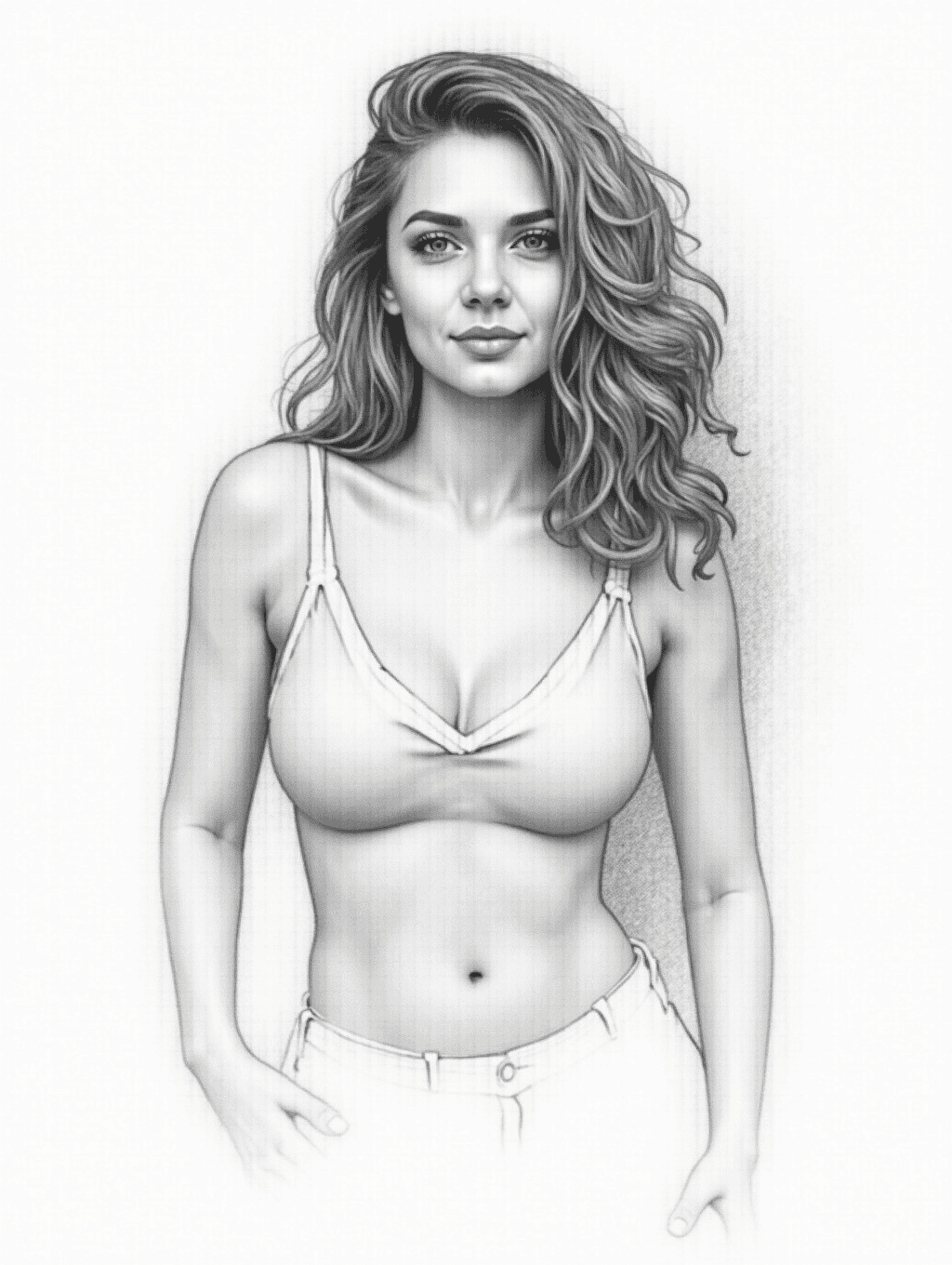
Input: A clear, front-facing photo of a woman from the hips up: wavy hair falling past the shoulders, a cropped top, light jeans, arms relaxed at the sides, taken against a plain wall in even lighting. The result looks similar to the image at the top of this page.
What changed
The photo is redrawn as a graphite pencil sketch on a lightly textured off-white background. The wavy hair is rendered in loose, flowing pencil strokes with darker shading where strands overlap, and the face keeps soft, careful shading around the eyes, cheekbones, and lips rather than hard outlines. The cropped top and jeans are drawn with a few fold lines, and a grainy smudge of tone sits behind one shoulder to suggest the wall.
Style notes
- The skin is shaded with smooth, blended graphite rather than visible cross-hatching, so it reads closer to a polished portrait drawing than a rough sketch; ask for "visible hatching and loose strokes" if you want a more hand-drawn feel
- Fine details like eyelashes or fabric stitching are simplified into a few lines
- The figure comes out slimmer and more idealized than a typical phone photo, so compare the face and body with your original
- The background stays a plain, lightly grained paper texture so the subject remains the clear focus
How it works
- 1
Upload a clear photo of the subject
A well-lit photo with defined features, whether a face, a pet, or an object, gives the AI clearer edges and shadows to translate into pencil lines.
- 2
Set the sketch style in the instruction
Say whether you want loose, quick line work or dense, detailed cross-hatching, and mention any part of the image, like the eyes or a specific object, that should stay the sharpest.
- 3
The AI redraws the photo as a sketch
It replaces photographic detail with pencil strokes, shading built from layered lines, and a paper-like texture in the background, aiming for the look of a drawing made by hand.
- 4
Check proportions and fine detail
Look at the face, hands, and any small objects in frame, since converting a photo's fine detail into pencil lines is where a sketch can shift slightly from the original.
Use cases
Personalized gifts and prints
Turn a favorite photo of a person or pet into a sketch-style print or card for a birthday, anniversary, or memorial gift.
Profile pictures with an artistic feel
Use a sketch version of a photo as a distinct profile picture for a personal account, portfolio site, or forum.
Reference art for illustrators
Get a quick sketch-style pass on a photo as a starting reference before doing a full hand-drawn illustration.
Wedding, pet, or family keepsakes
Create sketch-style keepsake art from an existing photo without commissioning a portrait artist.
Tips for better results
- Use a well-lit photo with visible facial features for the clearest, most recognizable sketch result.
- Specify a shading style in the instruction, like loose gestural strokes or dense cross-hatching, for a more distinct look.
- If a pet or object is the main subject, mention it directly so the AI keeps the focus and detail there.
- Avoid busy backgrounds in the source photo; a simple background sketches more cleanly than a cluttered scene.
- Check facial proportions and fine details like jewelry or small text after generating, since sketch conversion can simplify or shift them slightly.
Frequently asked questions
Can I control how detailed the sketch looks?
Yes, describe it in the instruction box, for example a loose quick sketch or a highly detailed, densely shaded drawing, and the AI aims for that level of finish.
Does this work on photos of pets or objects, not just people?
Yes, any clear photo with a defined subject works, whether it's a person, a pet, a building, or an object you want drawn in pencil style.
Will it keep my exact facial features?
It usually keeps your overall look, but sketch conversion simplifies fine detail, so small proportions or features can shift slightly from the original photo.
Can I get a color sketch instead of black and white?
Mention it in the instruction if you want colored pencil shading rather than classic graphite; otherwise the default leans toward a traditional grayscale pencil look.
What size or format does the sketch come out in?
The output follows the shape of your uploaded photo rather than a fixed print size, so crop or resize it afterward if you need a specific format for printing.
Can I upload more than one photo at once?
You can add more than one image, for example two people you want combined into one sketch, but they merge into a single result rather than producing separate sketches. Credits are charged per image.
Plans start at $9 a month. See pricing