Runway Aesthetic Generator
Turn a photo into a couture-style runway shot with fashion week lighting and staging.
What the Runway Photo Generator does
Editorial fashion photos rely on a stage, a crowd of photographers, and clothes most closets don't have, which is exactly what this tool builds around a photo you upload. It restyles the photo as a runway moment: a lit catwalk, an audience with cameras raised, and a dramatic pose that reads as couture rather than a snapshot. Describe the garment, color palette, or designer mood you want in the instruction box, and the AI generates one styled image. It's suited to mood boards, style inspiration posts, and fashion-themed content, not a substitute for an actual fashion shoot or a real designer collection.
See a sample result
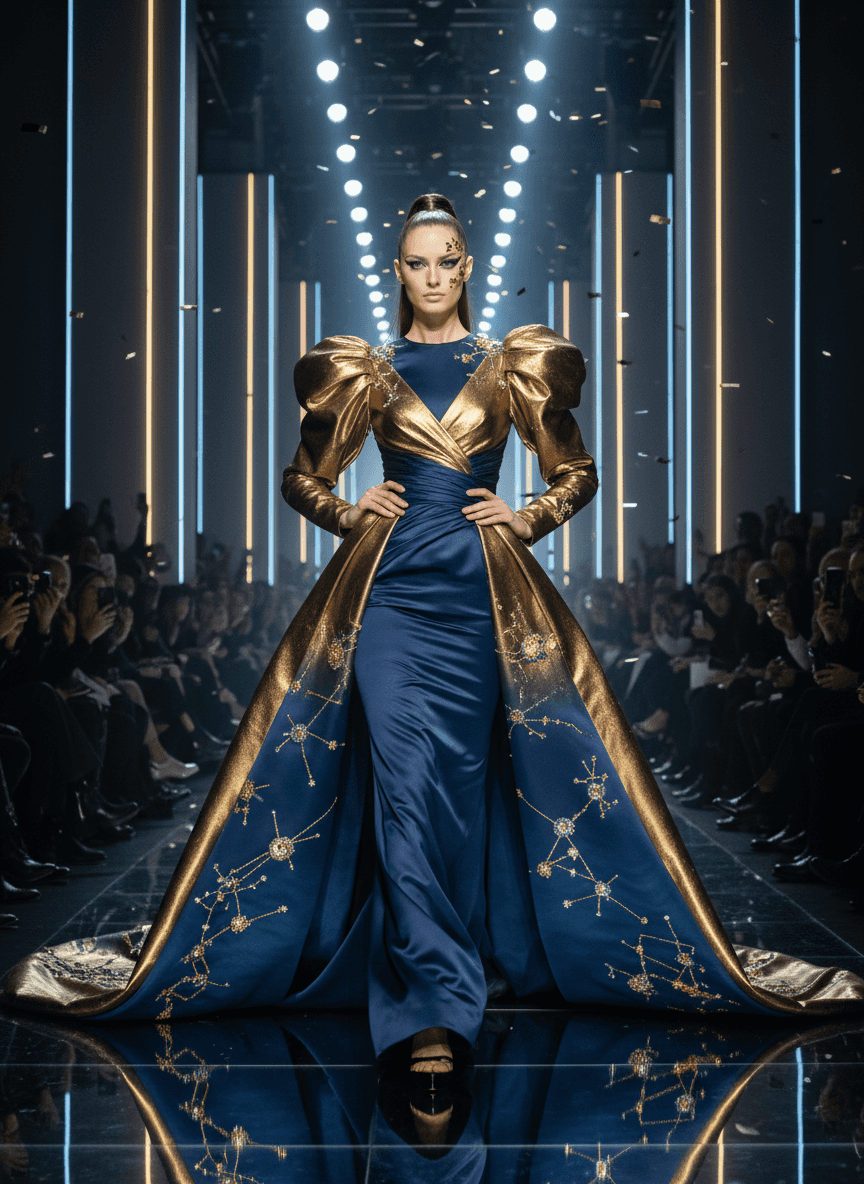
Input: A plain full-length photo of a woman with long dark hair standing in jeans and a sweater against a white wall, hands at her sides, under flat overhead lighting, with no runway or audience visible. The result looks similar to the image at the top of this page.
What changed
The white wall becomes a lit runway stretching into the distance, framed by tall vertical light strips, a reflective black floor and a seated audience holding up phones and cameras on either side. The outfit is replaced with a structured couture gown: a metallic gold bodice with dramatic puffed sleeves over a deep navy satin skirt embroidered with a constellation pattern in gold thread. The gown ends in a long train, and the pose shifts to a still, confident stance with hands on the hips and chin level. The hair is pulled into a sleek high ponytail, and the AI added gold leaf-style decoration on one temple, which you may want to remove through the instruction.
Style notes
- Lighting comes from overhead spotlights lined up along the runway, giving strong highlights on the fabric and a slight rim light around the hair
- Small confetti-like flecks are scattered in the air, adding to the fashion week atmosphere
- The audience stays soft-focus so the garment and pose remain the clear focus of the image
- The face comes out sharply contoured and idealized, so compare it with your original if you want it to still look like you
How it works
- 1
Upload a full-body or three-quarter photo
A standing photo where your posture and outfit shape are visible gives the AI the clearest base for building a runway pose and gown or suit silhouette around you.
- 2
Describe the garment and mood
Name the style you want: a structured gown, an avant-garde silhouette, a metallic finish, or a specific color story. Mention the designer era or aesthetic you're picturing, like minimalist or maximalist couture.
- 3
The AI builds the runway scene
It replaces the background with a lit catwalk, adds a seated audience with cameras, and restyles the outfit and pose toward the confident, still-mid-stride look of an actual runway walk.
- 4
Review the garment and hands closely
Fabric folds, jewelry, and hand positions are where a generated couture look is most likely to show small inconsistencies, so check those before using the image anywhere public.
Use cases
Fashion mood boards
Generate a runway-style visual to pair with a design concept or color palette before commissioning an actual photo shoot.
Style inspiration posts
Post a couture-styled photo to a fashion account or personal feed as a stylized, editorial-feeling image.
Costume and design concepts
See how a garment idea might read on a runway stage before a designer or stylist builds the physical piece.
Themed party or event invitations
Create a high-fashion image for a fashion-week-themed party invitation or promotional graphic.
Tips for better results
- Describe the garment in specific terms, like fabric, color, and silhouette, since a vague instruction gives the AI more room to guess.
- Use a full-body photo with a straight posture for the most convincing runway walk pose.
- Name a designer era or aesthetic, such as 1990s minimalism or maximalist avant-garde, to steer the overall look.
- Check the fabric details and any embroidery or pattern the AI adds, since generated texture can look slightly inconsistent up close.
- If you want a specific audience or venue style, like an outdoor tent show instead of an indoor stage, say so directly in the instruction.
Frequently asked questions
Can I choose the outfit style, like a specific designer look?
Yes, describe the silhouette, fabric, and color you want in the instruction box, and the AI builds the garment around that direction rather than picking one at random.
Will it turn a casual photo into a full couture look?
Yes, the outfit is one of the things the AI changes as part of the transformation, so you don't need to already be dressed formally in the source photo.
Is this based on real designer garments?
No. The AI generates its own interpretation of a couture style and isn't meant to reproduce a specific designer's collection. If a result looks close to a known design, don't present it as that designer's work.
Will my face and body shape stay recognizable?
The result usually keeps your overall look from the source photo, but it's a generative edit, so check the face and proportions afterward rather than assuming an exact match.
Can I use a photo of someone else, like a friend or model?
Only if they've agreed to it. The tool works best with one clear standing subject, whoever that is, and a friend should see and approve the result before it's posted.
Can I upload more than one photo?
Yes, you can add more than one image, for example a reference garment plus your photo, and describe how each should be used. You get one combined result, and credits are charged per image.
Plans start at $9 a month. See pricing