AI Cosplay Generator
Turn a photo into a cosplay-style portrait with costume, makeup and setting built around your instruction.
What the Cosplay Generator does
Building a full costume takes fabric, patience, and often money you would rather spend elsewhere. Skip the sewing and get a cosplay-style version of a photo instead: detailed costume pieces, character makeup, and a matching setting generated around the person in the picture. Upload a clear photo, then use the instruction to name the character type or aesthetic you are going for, a fantasy elf, an armored warrior, a specific color scheme and prop. The AI rebuilds the image around that description rather than applying a filter, so the costume, hair, and background all shift together. It works well for con-season inspiration, profile pictures, or seeing how a costume idea might look before you commit to making it, though it is a generated image, not a real costume photo or a claim to any copyrighted character design.
See a sample result
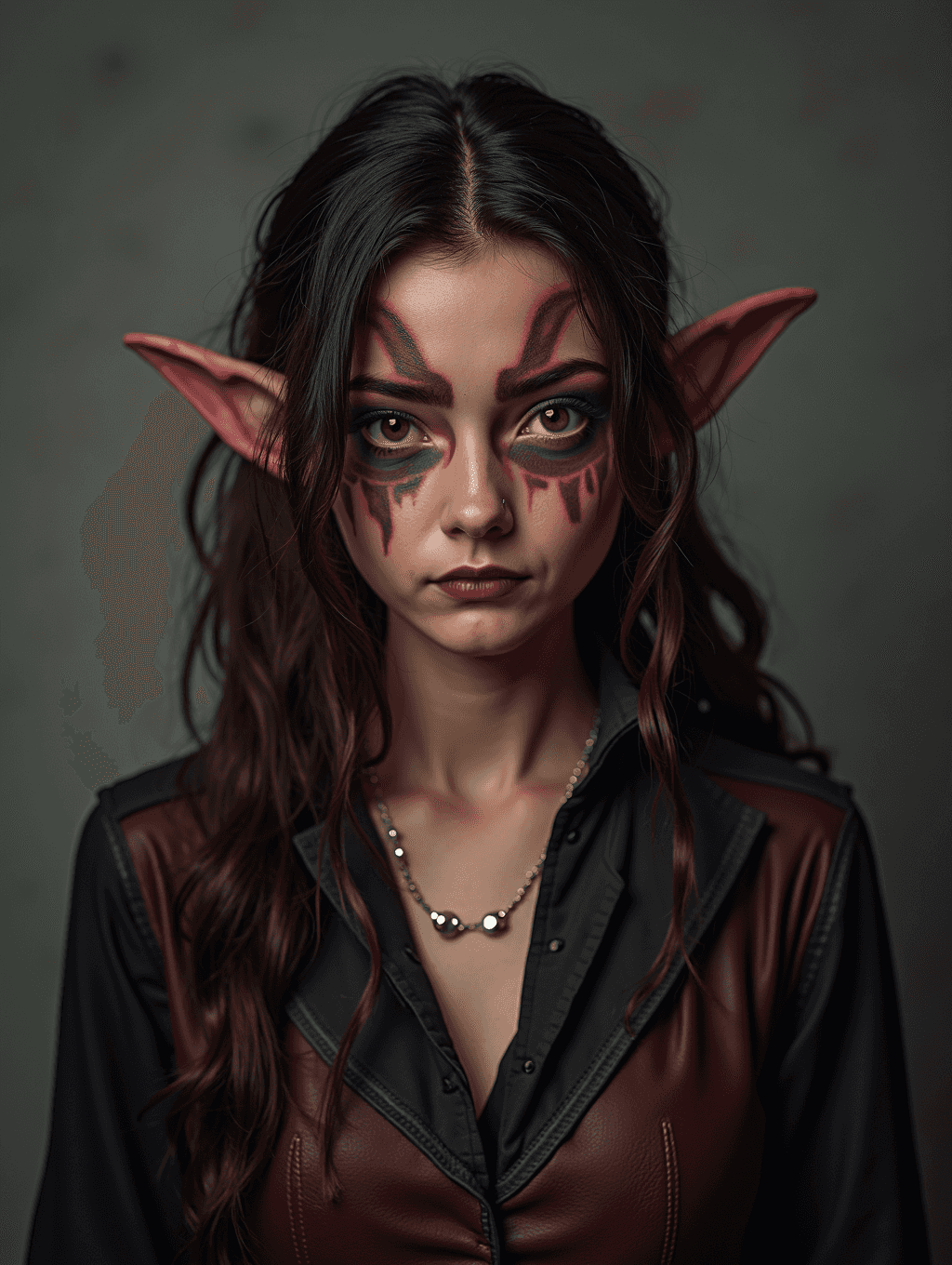
Input: A clear, front-facing photo of a woman with long dark hair from the chest up, in a plain black shirt against an evenly lit wall, with the instruction left at its default (no character named). The result looks similar to the image at the top of this page.
The result shows her as an original dark fantasy character: long, large pointed ears, and magenta and black face paint that fans out over the brows like wings and drips down under the eyes onto the cheeks. Deep plum lipstick and heavy dark eye makeup complete the look. The shirt becomes a fitted burgundy leather vest with black panels over an open-collared black shirt, with a beaded chain necklace, against a dim, mottled gray backdrop with soft directional light, like a con photo booth portrait.
What to check: because the default instruction names no character, the AI invented one, so name a character type, colors and props if you have something specific in mind. The expression turned serious and slightly sullen, and the hair got longer and wavier. The face paint edges look clean at normal size but soften up close; compare the face with your original before you post it.
How it works
- 1
Upload a clear, front-facing photo
A photo with the face and shoulders visible in even light gives the AI the clearest base to build a costume and makeup around. Side angles or low light tend to make the transformation look less convincing.
- 2
Describe the character or aesthetic
The default instruction asks for a detailed costume and character styling. Edit it to name a specific archetype, fantasy, sci-fi, historical, a color palette, an accessory like a weapon prop, or a mood like dark and moody versus bright and playful.
- 3
The AI builds the full look
The model generates costume pieces, makeup or face paint, hair styling, and a setting that fits the character concept, working from your photo and instruction together rather than layering effects on top of the original image.
- 4
Review details before you use it
Check the face, hands, and any small props or symbols, since intricate costume detail is where generated images are most likely to look slightly off. Adjust the instruction and generate again if a piece does not read clearly.
Use cases
Convention and costume planning
Preview a character concept, color scheme, or makeup style before spending money on fabric, wigs, or prosthetics for an actual costume.
Original character portraits
Generate a visual reference for an original fantasy, sci-fi, or game-inspired character you are designing for a story, tabletop campaign, or art project.
Social media and profile photos
Post a cosplay-style portrait for a themed account, a con-season profile picture, or a fun addition to a fandom-focused feed.
Makeup and styling inspiration
See how a face paint pattern or costume silhouette might look on your own face shape before practicing the look with real makeup.
Tips for better results
- Describe the character concept in specific terms: species, color palette, era, and mood, rather than just a genre.
- Name a prop or accessory directly if you want it in frame, like a staff, blade, or a particular type of headpiece.
- Use a well-lit, front-facing photo so facial features carry through clearly under the added makeup and costume.
- Avoid asking for an exact copyrighted character by name if you plan to share the result publicly; describe the aesthetic instead.
- Regenerate with small wording changes if the first costume reads too plain or the makeup is too subtle; each run uses credits.
Frequently asked questions
Can I turn myself into a specific character I like?
You can describe the aesthetic, colors, and costume details you have in mind, and the AI builds an original interpretation. It will not reliably reproduce an exact licensed character design.
Do I need an actual costume or makeup to use this?
No, upload a regular photo and the AI generates the costume, makeup, and setting around it based on your instruction.
Can I choose the costume style and colors myself?
Yes, everything from the color palette to the character type and props is controlled through the instruction box, so edit it to match what you have in mind.
Why do the face paint or prop details look slightly off?
Fine detail like intricate face paint edges, small symbols, or prop textures is the hardest part of a generated image to get perfectly clean, so check those areas before sharing.
Can I use a group photo for this?
You can, but results are more consistent with one or two clear faces. Larger groups sometimes get uneven costume detail across people at the edges of the frame.
Can I use the generated image commercially?
The image is generated from your photo and instruction, but if you describe a specific licensed character, treat the result as a personal, informal image rather than something to sell or brand commercially.
Plans start at $9 a month. See pricing