AI Vintage Filter
Upload a photo and get it restyled with film grain, faded tones, and a retro scene to match.
What the Vintage Photo Generator does
A real vintage photo isn't just faded colors; it's the grain, the slightly soft focus, the warm cast that old film stock left behind, and often the whole scene around the subject. Upload a photo and the AI reworks it into that look, adding period-appropriate color grading, texture, and, if the instruction asks for it, a setting that matches an earlier decade. Unlike a one-tap vintage filter that only shifts the colors, this is a generative edit, so it can also restyle hair, clothes and the room unless you tell it to leave them alone. It's for anyone who wants a photo that looks like it was pulled from a family album or an old roll of film, whether that's for a themed post, a keepsake, or just curiosity about how a photo would look shot decades ago.
See a sample result
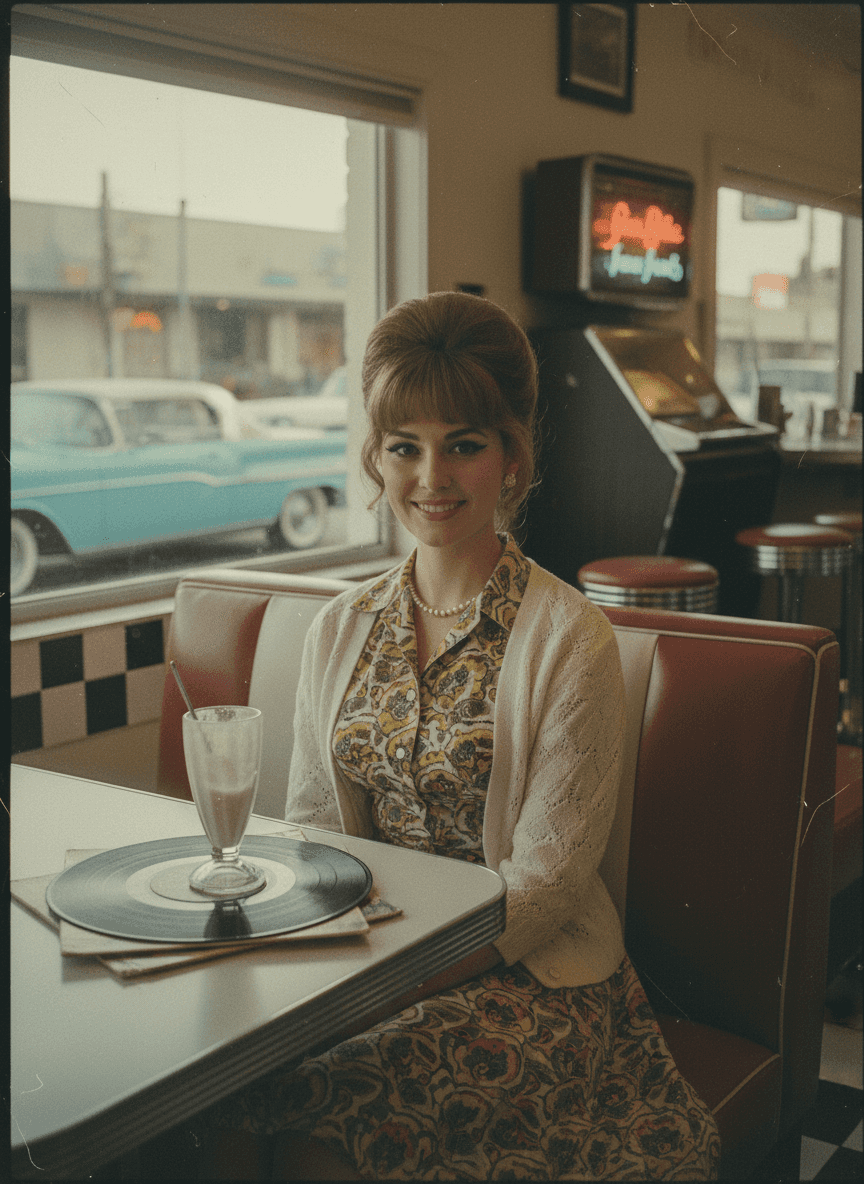
Input: A current, well-lit photo of an adult sitting at a modern kitchen table, wearing a plain sweater, with a smartphone and a coffee mug visible on the table, and the instruction asking for a 1960s look. The result looks similar to the image at the top of this page.
The result shifts the whole scene toward a 1960s diner setting rather than the original kitchen: the table becomes a laminate diner table with a checkered floor visible nearby, and a vinyl record and a milkshake glass replace the phone and mug. The sweater gains a floral print typical of the era, layered under a light cardigan, and the hair is restyled into a smoother, more structured shape. Color grading pulls toward warm reds and yellows with reduced contrast, and a visible film grain and slight edge fading run across the whole image, similar to a scanned print rather than a digital photo. Small scratches and a soft vignette at the corners complete the aged-film look.
What to check: the AI rebuilt far more than the color. The hair became a teased bouffant, pearls appeared, the kitchen turned into a diner booth with a jukebox and a vintage car outside, and the milkshake glass sits oddly on top of the record. The neon sign above the jukebox is illegible script. Check the face against your original, and if you only want the film look on your real scene, say "keep everything, only change color, grain and fading" in the instruction.
How it works
- 1
Upload a clear photo
A portrait or a photo with a visible subject and background gives the model the most to work with when applying grain, fading, and period styling.
- 2
Name a decade or style in the instruction
The instruction is editable, so you can ask for a specific decade's look, like 1960s diner tones or 1970s warm oversaturation, instead of a general vintage default.
- 3
The model applies film-style grading and texture
It shifts color balance toward the warmer, lower-contrast look of aged film, adds grain and light scratches or fading, and can adjust clothing, hair, or background details to fit the requested era.
- 4
Download the result
You get back one photo styled like an old film print, in the same shape as your upload. Crop or upscale it before printing.
Use cases
A themed profile or cover photo
Swap a modern photo for a vintage-styled one for a nostalgic social media profile or a themed post series.
A personalized keepsake or gift
Turn a current photo of a parent, partner, or friend into a vintage-look portrait as a sentimental, low-effort gift.
Content for a retro or nostalgia brand
Generate consistent vintage-styled imagery for a blog, shop listing, or social account built around a specific decade's aesthetic.
Previewing a decade before a themed shoot
See roughly how a vintage look might read on you before booking an actual film-style photo session or costume shoot.
Tips for better results
- Name a specific decade in your instruction (1950s, 1960s, 1970s) if you want a targeted look instead of a general vintage default.
- Use a photo with a visible background if you want the setting restyled along with clothing and color.
- Plain or simple source photos let the grain and color-grading effect read more clearly than busy, cluttered scenes.
- Expect clothing, hair, and sometimes the setting to change, since this reworks the whole scene, not just the color tone.
- Try more than one source photo if the first result doesn't land on the period feel you had in mind.
Limitations
This is a generative restyling, not a simple color filter, so it can change clothing, background, and small details well beyond fading the colors, and it may alter facial details slightly while it works. It's meant for a fun, nostalgic look, not a historically verified recreation of any specific era, photographer, or film stock, so treat details like exact clothing styles or objects in the scene as an approximation rather than a documented reference.
Frequently asked questions
Will it just fade the colors, or change more than that?
It changes more than color. Because this is a generative edit, clothing, background, and sometimes small facial details can shift along with the color grading and grain.
Can I ask for a specific decade, like the 1970s?
Yes, the instruction box is editable. Naming a specific decade steers the color grading, clothing, and scene toward that era instead of a general vintage default.
What kind of source photo works best?
A clear, well-lit photo with a visible subject and some background gives the model the most to restyle. Very cropped or dark photos leave less for it to work with.
Is the result trying to look like a specific real photographer's work?
No, it's a general, stylized interpretation of period film photography, not a recreation of a specific photographer, studio, or historical print.
Can I upload more than one photo?
You can upload several, but they are combined into one result rather than filtered one by one. For a set of photos, run each separately; each run uses credits.
Is this the same as a vintage filter in a photo app?
Not quite. An app filter only changes color and adds grain, and your scene stays the same. This AI edit can also restyle clothes, hair and background. If you want the filter-only version, say so in the instruction: "keep the scene, only add faded color, grain and light scratches."
Plans start at $9 a month. See pricing