Oil Painting Effect
Repaint a photo with the texture and richness of a classic oil portrait.
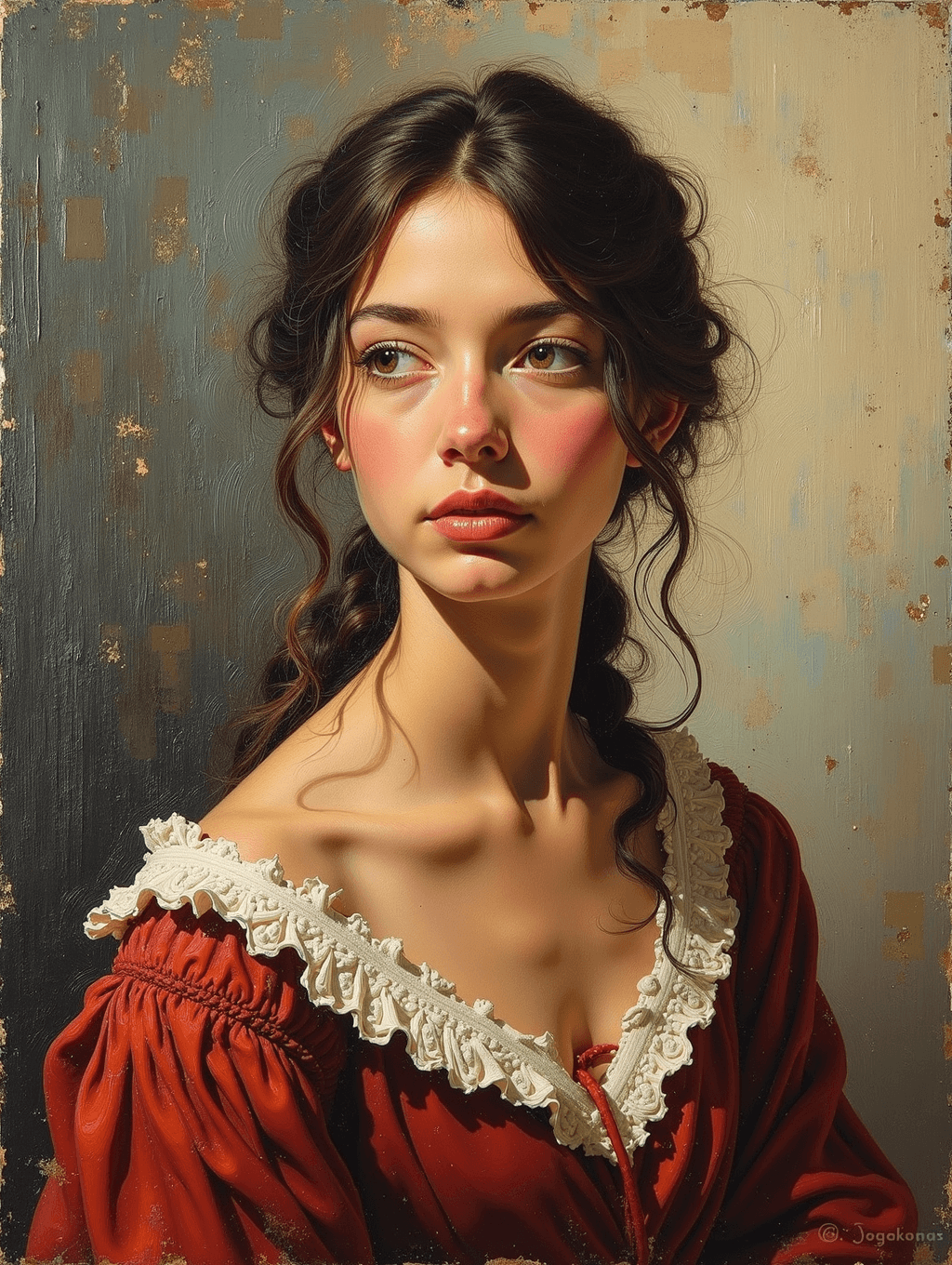
What the Oil Painting Effect does
Some photos deserve to look like they belong in a frame above a mantel rather than in a camera roll. Upload a photo and the AI repaints it as an oil painting: raised brush texture, layered color, and the warm, directional lighting associated with classic portraiture. It works well for a formal photo you want reimagined as heirloom art, a pet you'd like painted rather than photographed, or a scene you want to feel older and more deliberate than a snapshot. Because the process is generative rather than a filter laid over your pixels, small details can shift as the painting is built, so treat the result as a new artwork inspired by your photo rather than an exact copy of it.
See a sample result
Input: A phone photo of a young woman with long dark hair loosely pinned up, looking off to one side, wearing a plain dark red sweater and standing near a window with light coming from one side.
The photo becomes a portrait built from visible, directional brush strokes rather than smooth photographic gradients. Skin tones carry warm, layered undertones with soft shadow modeling along the cheek and jaw, in the style of a classic studio portrait rather than a flat photo edit. The sweater was reinvented as an off-the-shoulder red dress with a cream lace ruffle, a period touch the default instruction tends to add; name your real clothing in the instruction if you want it kept. The background loses its photographic detail entirely, replaced by a mottled, aged canvas look in muted gold and teal tones with subtle craquelure, as if the piece has hung for decades. Fine details like individual hair strands and lashes simplify into broader painterly shapes, while the overall pose and expression stay recognizable. The AI also painted a small signature-like scrawl in the bottom corner, which you can crop out or ask it to leave off. The result looks similar to the image at the top of this page.
How it works
- 1
Upload a clear portrait or scene photo
A single subject with decent lighting gives the model the most to work with. Group shots and busy scenes work too, though fine detail on each face will simplify more.
- 2
Adjust the instruction for a specific look
The default pushes rich oil texture and visible brush strokes. Edit the wording to ask for a particular era, a darker or lighter palette, or a rougher versus smoother finish.
- 3
The AI builds the painting
This is a repaint, not an overlay, so the model reconstructs the image with layered brushwork and canvas texture rather than stamping a pattern on your existing photo. Faces, text and fine patterns can shift slightly in the process.
- 4
Review, adjust and download
Compare the painted result to your original photo and rerun it with a revised instruction if the color balance or brush texture isn't what you wanted. Each generation uses credits, so refine the wording before trying again.
Use cases
Portraits as heirloom-style gifts
Turn a favorite photo of a parent, partner or child into a painted portrait meant to be framed rather than scrolled past.
Pet portraits with a classic feel
Repaint a pet photo into something closer to a formal animal portrait than a phone snapshot, suitable for printing.
Themed or historical photoshoots
Push costume or period photoshoot photos further into the era they're referencing by adding painted texture and old-master lighting.
Distinct branding or profile art
Use a painted version of a headshot when a photo feels too literal for a personal brand, book jacket, or creative portfolio.
Memorial or tribute pieces
Turn a cherished photo into a painted keepsake for a memorial print or a tribute gift, when a photographic reproduction feels too plain.
Tips for better results
- Choose a photo with clear, directional light; flat lighting gives the model less shadow information to paint with.
- Name a specific artistic period or palette in the instruction if you want a particular historical feel.
- Keep busy backgrounds to a minimum if you want the subject's brushwork to stay the visual focus.
- Review faces and any jewelry or text closely, since the repaint process can alter fine detail as it works.
- Use a tighter crop on portraits so the face retains enough resolution once canvas texture is applied.
Limitations
This is a generative rebuild of the image, not a texture layer placed over your original photo, so it can change small details such as facial features, jewelry, patterns or text while restyling the scene. It won't precisely replicate a named historical artist's technique, and very large prints deserve a close check of fine detail before ordering. Look over faces and any text in the finished piece before using it for something important.
Frequently asked questions
Does it copy a specific famous painter's style?
No. It aims for a general classic oil painting look with visible brushwork and canvas texture, not a reproduction of any named artist's technique.
Will the painting look exactly like my original photo?
Close, but not identical. Pose and overall composition usually hold, while fine details like jewelry, patterns or background objects can shift as the image is repainted.
Can I control how thick or textured the brush strokes look?
Yes, edit the instruction to ask for heavier impasto texture or a smoother, more blended finish, and run it again to compare results.
Does it work on landscapes and not just portraits?
Yes, upload any photo you'd like repainted, though subjects with clear shapes and lighting tend to translate into oil texture more convincingly than very busy scenes.
Can I upload multiple photos in one run?
You can add several images, but a run combines them into a single painting, so extra images work best as references, such as a painting whose style you like. To repaint several photos, run each one separately.
Is this good enough to print and frame?
Many results print well, but check resolution and fine detail around faces and text at your intended print size before ordering anything large.
Plans start at $9 a month. See pricing