Pop Art Generator
Upload a portrait and get it reworked into a bold, high-contrast pop art piece.
What the Pop Art Generator does
You've seen the Warhol-style portraits: flat color blocks, punched-up contrast, a screen-print edge to everything. Upload a photo and the AI reworks it into that look, replacing natural skin tones and backgrounds with saturated, high-contrast color while aiming to keep your features recognizable. It's aimed at anyone who wants a portrait with graphic punch for a profile picture, a print, or just to see themselves rendered in a different visual language. Upload one clear photo, add a style note if you want, and the result comes back in the pop art treatment.
See a sample result
Input: A front-facing portrait of a young woman with short curly reddish-brown hair, wearing a red-orange crew-neck top and a thin chain necklace, shot against a simple background with even studio-style lighting.
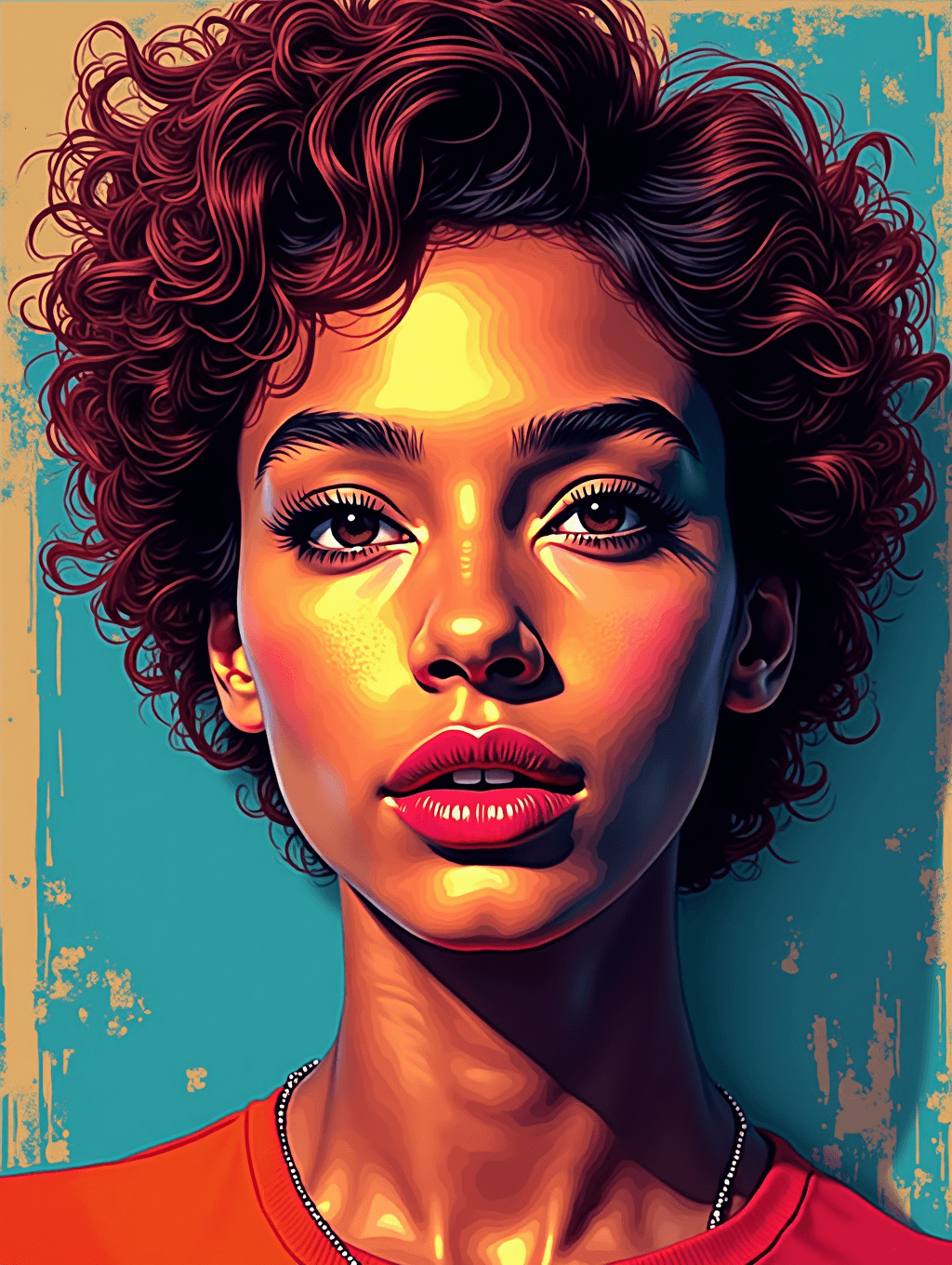
The result renders the portrait in a bold Warhol-inspired palette: a teal and mustard-yellow background split behind the subject, skin tones flattened into warm gold and amber blocks with hard-edged shadow shapes rather than soft gradients. The curly hair keeps its shape but reads as a solid dark red-brown mass with graphic highlights instead of individual strands. Lips are pushed to a saturated red, eyebrows and eyeliner rendered as crisp black shapes, and the background picks up a scratchy, distressed print texture, giving the whole image the flat, poster-like finish associated with classic pop art prints. The result looks similar to the image at the top of this page.
How it works
- 1
Upload a clear portrait
A front-facing or three-quarter shot with even lighting works best. Simple backgrounds translate more cleanly into flat color blocks than busy, cluttered ones.
- 2
Add an instruction if you want a specific look
The prompt box is editable, so you can name a color scheme (teal and orange, hot pink and yellow) or reference a specific pop art mood if you don't want the default palette.
- 3
The model repaints the image
It pushes contrast up, flattens tones into bold color regions, and applies a screen-print texture across the portrait while keeping your general likeness intact.
- 4
Download the result
You get back a stylized portrait ready to use as a profile image, a print, or a starting point for further edits.
Use cases
A bold profile picture
Swap a plain headshot for a graphic, high-contrast portrait that stands out in a grid of avatars.
Gift art from a favorite photo
Turn a photo of a friend, a partner, or a pet into a printable pop art piece for a birthday or housewarming gift.
Social posts with visual punch
Use a stylized portrait to break up a feed of ordinary photos, especially for announcements or milestone posts.
Concept art for branding or merch
Generate a bold portrait treatment as a starting reference for a poster, sticker, or t-shirt design before refining it further in a design tool.
Tips for better results
- Use a photo with even, front-facing lighting so facial features stay clear after the style is applied.
- A simple, uncluttered background gives the color-block effect more room to read cleanly.
- Name a specific two or three color palette in the instruction box if you want something other than the default scheme.
- Higher-resolution source photos generally hold up better once heavy stylization is applied.
- To compare how the style lands on different shots, run each photo separately; each run uses credits.
Limitations
This is a generative rewrite of your photo, not a filter that only adjusts color and contrast. The model can shift small details like hair edges, jewelry, or background elements while restyling the image, so check the result against the original before using it somewhere the exact likeness matters, like an ID photo or professional headshot. It isn't a substitute for a real Warhol print or a designer's manual pop art illustration.
Frequently asked questions
Will it keep my face recognizable?
Usually. The goal is a stylized version of your actual portrait, not a generic pop art face, but heavy stylization can change eye shape, lips and skin tone, and generative edits can shift small details, so review the result before using it publicly.
Can I choose the colors used in the pop art result?
Yes, the instruction is editable. Name a color scheme like teal and orange, or black and gold, and the generator will lean toward that palette instead of the default.
What kind of photo works best for this generator?
A clear, front-facing or three-quarter portrait with good lighting and a simple background gives the cleanest result. Group shots and busy backgrounds tend to look muddier once stylized.
Can I use this on a photo of a pet or an object instead of a person?
Yes, the pop art treatment works on any clear subject, though the classic Warhol look was built around portraits, so faces tend to produce the most recognizable style.
Does it add a screen-print or halftone texture automatically?
The default instruction asks for a screen-print effect, so you'll usually get some print texture, but how much varies from run to run. Ask for "strong halftone dots" or "no texture" in the instruction to control it.
Can I upload several photos at once?
You can add more than one image, but a run combines them into a single result, so extra images work as style or color references. To stylize several photos, run each one separately.
Plans start at $9 a month. See pricing