TikTok Thumbnail Generator
Turn a photo into a bold, high-contrast cover image built to stop a scroll.
What the TikTok Thumbnail Generator does
TikTok covers live or die on the first half-second: bold color, a readable expression, and text that tells the scroller what they're about to see. This tool takes a photo and rebuilds it into that format, boosting contrast and color, restyling the composition to feel punchy, and adding text or graphic elements if you ask for them. It's aimed at creators who want a stronger cover for a video without opening a design app. Type your exact wording in quotes in the instruction, since the AI can misspell text or add wording you didn't ask for, and always check the result before it goes live on a post.
See a sample result
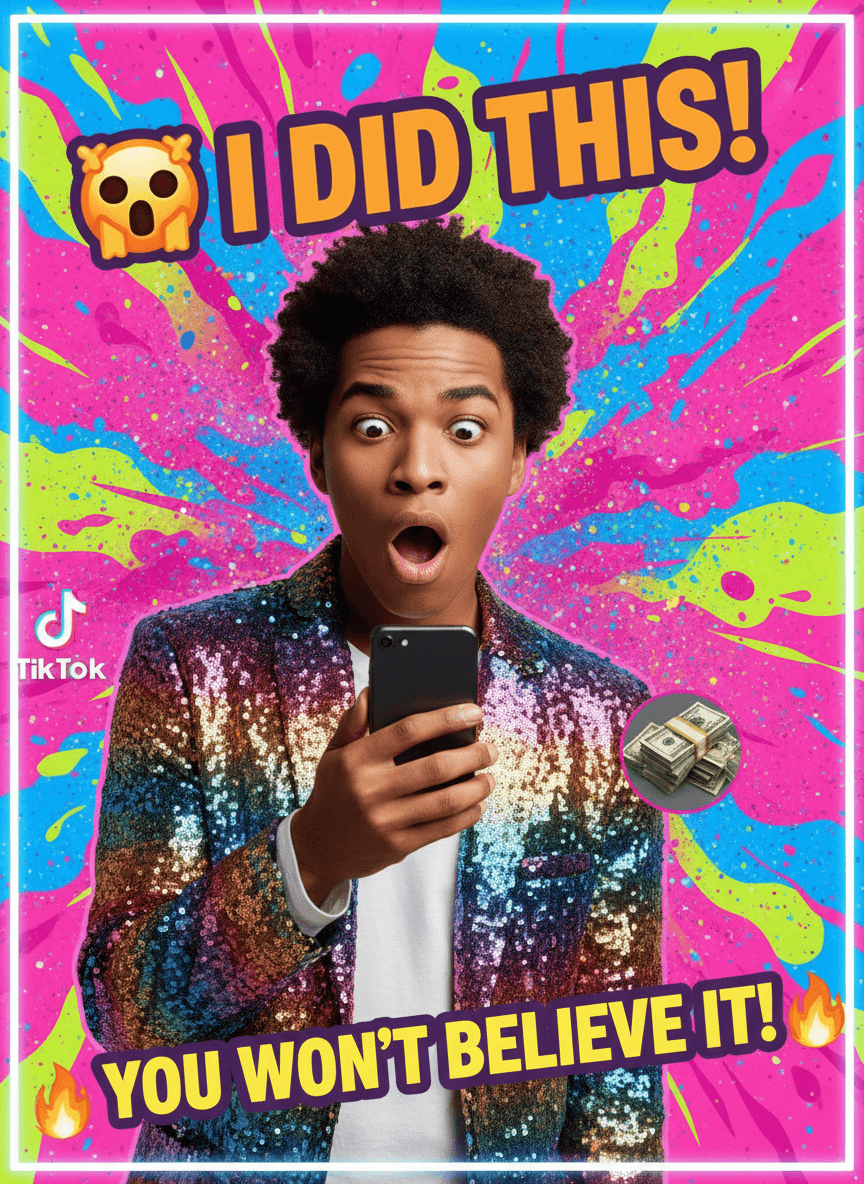
Input: A phone photo of a young man with curly hair in a plain white T-shirt, staring at his phone with wide eyes and an open mouth, shot against a living room wall. The instruction was left at its default, so no text was specified. The result looks similar to the image at the top of this page.
Style applied: bold TikTok cover
The subject's expression is kept as the focal point but the surrounding image is rebuilt with a high-saturation paint-splash background in pink, blue, and lime green, and the AI dressed him in a rainbow sequined jacket over the T-shirt, which nobody asked for. A thin glowing border frames the whole cover.
Because the default instruction allows a "text overlay", the AI wrote its own headline: "I DID THIS!" at the top next to a shocked-face emoji, and "YOU WON'T BELIEVE IT!" at the bottom in heavy yellow letters with fire emoji. It also added a TikTok logo on the left edge and a stack-of-cash icon, which invents a money story the video may not have.
Before posting, replace the invented wording with your own by putting it in quotes in the instruction, check the spelling, and ask for "no logos" so the platform mark doesn't appear on the cover. If the jacket or cash icon doesn't fit your video, say so in the instruction and run it again.
How it works
- 1
Upload a photo from your video or shoot
A clear shot of your face or the subject of the video works best; expressive faces read well at thumbnail size.
- 2
Type your exact text in quotes
If you want words on the cover, put them in quotes in the instruction, like adding "WAIT FOR IT" in bold text, so the AI knows precisely what to render.
- 3
The AI builds a bold cover
It boosts color and contrast, restyles the composition for thumbnail impact, and places any requested text or graphic elements like arrows or emoji-style icons.
- 4
Check text and details before posting
Read every word on the cover carefully. AI-generated text can be misspelled or duplicated, and it's an easy thing to miss before publishing.
Use cases
Covers for reveal or reaction videos
Build a high-energy cover with bold text like "WAIT FOR IT" for videos designed around a payoff or surprise moment.
Consistent branding across a content series
Use a similar color scheme and text placement instruction across multiple thumbnails so your videos look like a recognizable series in someone's feed.
Refreshing an underperforming video's cover
If a video isn't getting clicks, generate a bolder or more specific cover and swap it in without reshooting anything.
Quick covers for trend or challenge videos
Turn a quick phone photo into a polished-looking cover fast, which matters when posting to catch a trend while it's still relevant.
Tips for better results
- Put any text you want in quotes inside the instruction, and keep it short: two to five words reads best at thumbnail size.
- Choose a photo with a clear, expressive face; blurry or distant shots don't hold up once the AI boosts contrast.
- Ask for a specific color scheme (like "pink and lime green") if you want the cover to match your channel's look.
- Always proofread text in the result; the AI can misspell words or duplicate a line by accident.
- If the layout feels too busy, simplify the instruction (fewer icons, one line of text) and generate again.
Limitations
This tool restyles a single uploaded photo into a cover-image format; it doesn't guarantee the exact TikTok crop, aspect ratio, or safe zone TikTok uses for text overlays in-app, so leave margin around important text and check how it displays once uploaded. Text and added graphics are generated, not typed, so misspellings, extra characters, or unwanted logos can appear and need to be checked before posting. It won't verify the accuracy of any claims you put in the cover text.
Frequently asked questions
Can I control the exact text on the thumbnail?
Yes, put your exact wording in quotes in the instruction. Always double check the spelling in the result, since generated text can come out wrong.
What kind of photo works best for a TikTok cover?
A clear, well-lit shot with a visible, expressive face works best. Busy or dark original photos are harder to turn into a punchy, high-contrast cover.
Will the cover fit TikTok's thumbnail size automatically?
The output follows your uploaded photo's shape rather than a guaranteed TikTok crop. Check how it displays after uploading and crop it if needed.
Can I add my own logo or watermark?
Describe it in the instruction (like adding a small logo in a corner), but review the result closely, since the AI can place it differently than expected or add extra marks on its own.
Can I generate several cover options at once?
Each run produces one cover image. Adjust the instruction or try a different photo and run it again for another version; each run uses credits.
Does this also generate the video itself?
No, this tool only creates a still cover image from a photo. It doesn't edit or generate video content.
Plans start at $9 a month. See pricing