Victorian Aesthetic Photo Generator
Upload a photo and get back a portrait styled like a 19th-century Victorian sitting.
What the Victorian Photo Generator does
You've seen those dark, formal portraits from the 1800s, high collars, corseted bodices, a single lamp cutting through a shadowed room, and wondered what you'd look like in one. This tool takes a photo of you and repaints it into that world: period-correct clothing, an antique interior or studio backdrop, and the restrained, painterly lighting that defined Victorian photography. It's aimed at anyone who wants a costume-drama profile picture, a themed party invite, or just a curious what-if without renting a corset. The result reads as a single portrait, not a collage, so it works as a stand-alone image you can save or share.
See a sample result
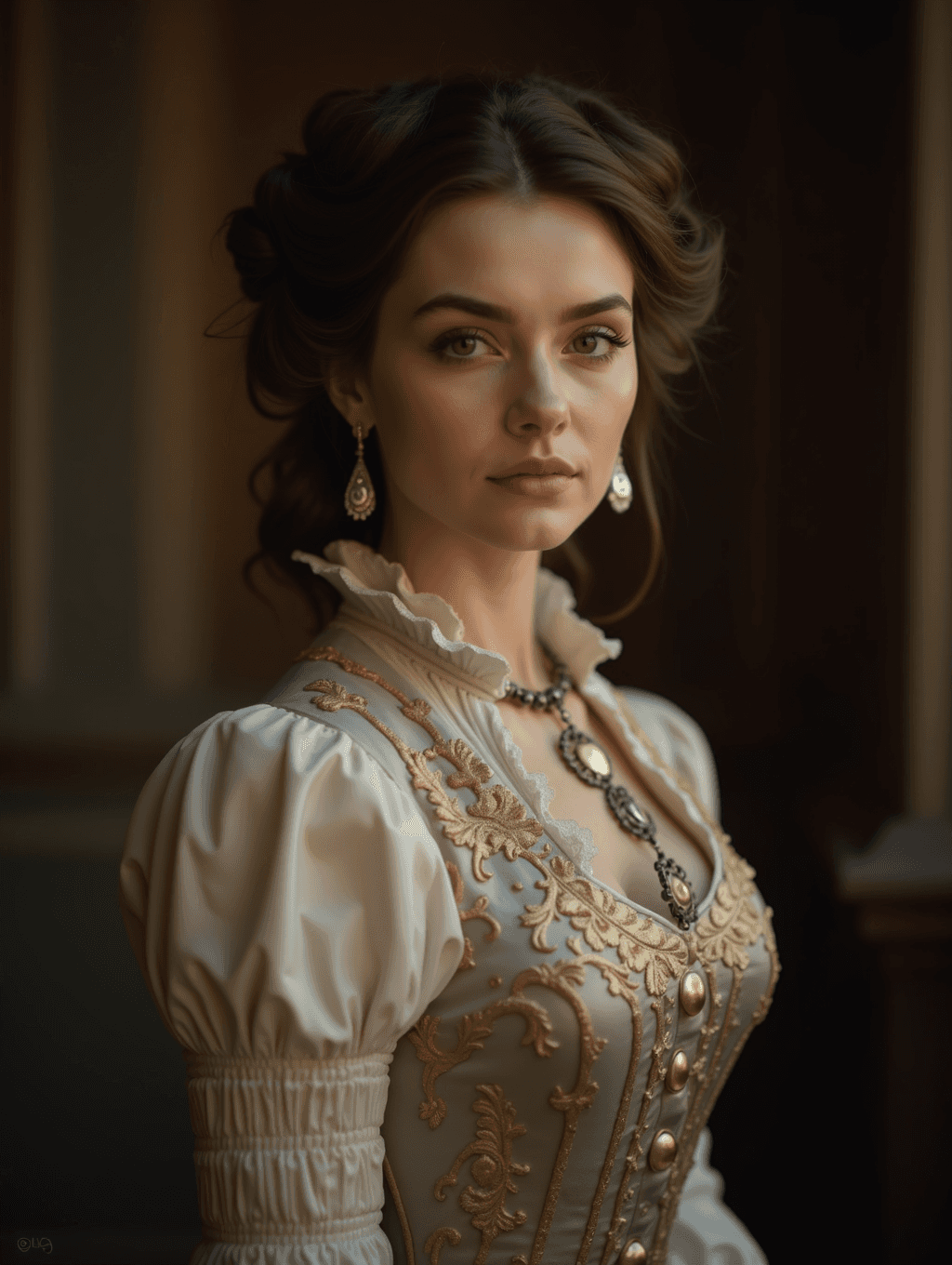
Input: A clear, front-facing phone photo of a woman in modern clothing, shoulders and face visible, taken in ordinary indoor lighting with a plain wall behind her. The result looks similar to the image at the top of this page.
Portrait style applied: The photo is restyled as a Victorian-era studio portrait. Her hair is swept into a soft, period updo, and her outfit becomes a high-collared bodice in cream and gold, with ruffled lace at the throat, puffed satin sleeves gathered at the cuff, and a row of ornate buttons down the front.
Accessories added: A chain necklace set with oval medallions hangs at her neck, paired with teardrop earrings, both consistent with formal Victorian jewelry.
Setting and light: The background shifts to a dim interior, dark wood paneling, soft ambient light from one side, echoing the restrained lighting used in 19th-century studio photography rather than a flat, modern flash.
What to check: Look closely at her hairline, ears, and any text or fine jewelry detail, since generative edits like this can slightly alter small features.
How it works
- 1
Upload a clear, front-facing photo
A photo where your face and shoulders are visible and well lit gives the model the most to work with. Group shots or photos taken from far away will lose detail in the conversion.
- 2
Add an instruction if you want a specific look
The default produces a Victorian-era outfit and setting, but you can name a color, an accessory, or a more specific role, like a governess, a gentleman in a waistcoat, or a mourning dress, and the model will follow it.
- 3
The model rebuilds the scene around you
It replaces your clothing with period-appropriate fabric and trim, adds an antique room or studio backdrop, and adjusts lighting and color to match the muted, high-contrast look of Victorian portrait photography.
- 4
Download the finished portrait
You get back one image that follows your upload's general shape; crop it if you need a set format. Faces and hands are the parts most likely to shift slightly during the transformation, so it's worth checking those before you use the result somewhere formal.
Use cases
Themed party or costume invitations
Turn a headshot into a period portrait to use on invitations for a Victorian, steampunk, or period-drama themed event.
A different kind of profile picture
Some people just want a distinctive, painterly profile photo instead of another plain selfie, and a period portrait stands out in a feed of ordinary photos.
Family tree or genealogy projects
If you're building a family history page or presentation, a period-styled portrait of a living relative can sit visually alongside real antique photos of ancestors. Label it as AI-made so nobody later mistakes it for a real family photo.
Costume and set reference
Community theater groups or hobbyist photographers use the output as a quick visual reference for Victorian costume shapes, collars, and trim before building a real outfit.
Tips for better results
- Use a photo with even, front-facing lighting; harsh shadows carry over and can look strange once the outfit and background change.
- Keep your shoulders and upper torso in frame so there's enough of the outfit visible for the model to redesign convincingly.
- Name a specific role or color in the instruction, like "dark green mourning dress" or "gentleman's waistcoat," if you don't want the default look.
- Avoid photos with other people or busy backgrounds if you want the portrait to focus on one subject.
- Check the result's hairline, ears, and jewelry before using it somewhere formal, since fine details can shift slightly during generation.
Limitations
This is a generative restyle, not a historically verified costume reconstruction. It can take small liberties with fabric, trim, and jewelry that a costume historian would flag as inaccurate for a specific decade or class, and it may occasionally alter a small facial or hand detail while rebuilding the scene around it. Treat it as a creative portrait, not a reference for building an authentic period costume.
Frequently asked questions
Can I upload a photo of more than one person?
You can, but the model works best on a single clear subject. Group photos may only convert one person convincingly or blend details between people.
Will it change my face?
It aims to keep your likeness, but because it regenerates the clothing, background, and lighting around you, small details like your hairline or ears can shift slightly. Always check the result before using it somewhere important.
Can I choose a specific Victorian outfit or accessory?
Yes, edit the instruction to name what you want, such as a specific color, a mourning dress, a gentleman's waistcoat, or a particular accessory, and the model will follow it.
Does it work on photos that aren't headshots?
Full-body or half-body photos work, but the closer the framing is to your face and shoulders, the more convincingly the model can redesign the clothing and setting.
Is the output historically accurate?
It's styled to evoke the Victorian era visually, not to reconstruct a specific year or social class accurately. Treat it as a themed portrait rather than a costume reference.
Can I upload more than one photo?
You can add more than one image, but they all feed into one result, for example your photo plus a reference picture you want the AI to copy. Say in the instruction what each image is for. To compare different source photos, run them one at a time; each run uses credits.
Plans start at $9 a month. See pricing