What the AI Selfie Generator does
Not every photo of you looks like something you'd actually post. Maybe the lighting is flat, the angle is awkward, or someone else took it from across the room. This tool takes that photo and reworks it into something that reads like a selfie: closer framing, a more natural angle, warmer light, and an expression that feels caught in the moment rather than posed. You pick the starting photo, add a line about the mood or setting you want, and get a version back that looks like you took it yourself, phone in hand, good light on your face.
See a sample result
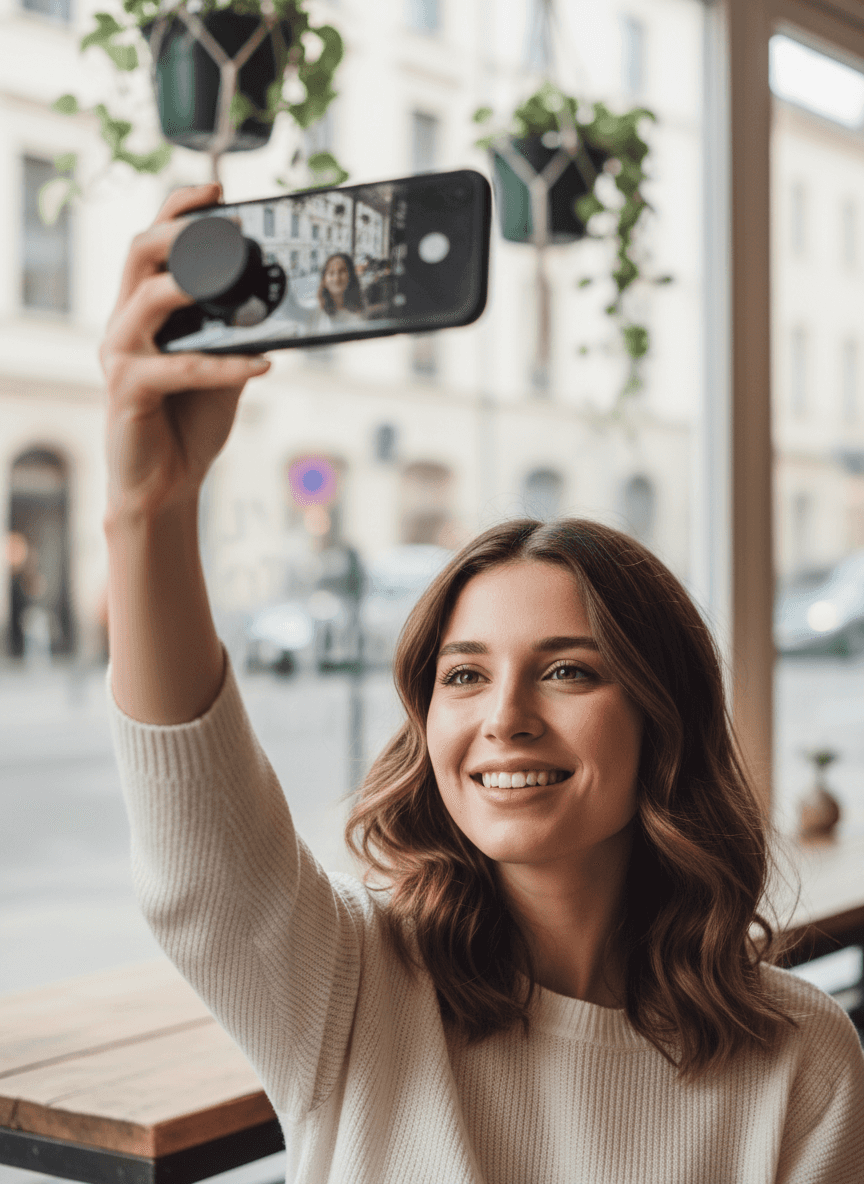
Input: A friend's photo of a woman with wavy brown hair in a cream sweater, sitting at a cafe table by a big window, taken from across the table at eye level in flat indoor light. She is looking slightly off camera with a neutral expression. The result looks similar to the image at the top of this page.
What changed
The framing tightens to a phone's-length selfie crop, with the arm and phone visible at the edge of the frame the way a real self-portrait looks. The light warms slightly to match late-afternoon sun through a window, and the expression reads relaxed rather than posed, a small natural smile rather than a held one.
Style notes
- Background stays soft and secondary: the plants and street outside are recognizable but out of focus
- Skin tone keeps its natural warmth instead of getting flattened or over-smoothed
- The angle tilts slightly upward, the way a raised phone naturally frames a face
How it works
- 1
Upload a clear photo of your face
A recent photo where your face is visible and reasonably sharp works best. Group shots and heavily cropped photos give the AI less to work with, so a solo photo is the safer choice.
- 2
Describe the selfie you want
Use the instruction box to name a setting, a mood, or a detail: 'coffee shop, warm afternoon light' or 'outdoors, golden hour.' Leave the default instruction as it is and the tool aims for natural light, a flattering angle, and a friendly expression.
- 3
The AI reworks the framing and light
It adjusts the crop, angle, and lighting to match how a phone-held selfie usually looks, while keeping your face recognizable.
- 4
Download and check the details
Look closely at your face, hands, and any text in the background before you post it. Generative edits can soften or shift small details.
Use cases
Fixing a photo someone else took
If a friend snapped a photo from an awkward angle or bad light, this turns it into something closer to a selfie you'd have taken yourself.
Dating app and social profile photos
A natural, well-lit selfie style tends to read better on a profile than a stiff portrait. Keep the result close to how you look today, since matches will meet the real you.
Matching your feed's aesthetic
Describe the light and mood you're going for (golden hour, moody indoor, bright and clean) so the result fits alongside your other posts.
Trying a look before you commit
See how a different setting or expression reads on your face before spending time trying to recreate it in person.
Tips for better results
- Start with a photo where your face is unobstructed and in focus.
- Name a specific setting in the instruction box instead of leaving it generic; 'rooftop at sunset' works better than 'nice background.'
- Avoid photos where your face is turned far from the camera; selfies read best close to eye level.
- If the first result overdoes the smoothing, add 'natural skin texture' to your instruction and run it again.
- Check the phone or hand in the frame afterward; generated hands sometimes need a second pass.
Limitations
This is a generative edit, not a camera simulation. It can shift small details like jewelry, background text, or hand position, so check those before you share the result. It works from the photo you give it and can't add information about lighting or angles it can't see, and results vary with how clear the source photo is.
Frequently asked questions
Do I need a selfie to start with?
No. You can upload any clear photo of your face, including one someone else took, and the tool reworks it into a selfie-style crop and angle.
Can I control the background or setting?
Yes. Type the setting you want into the instruction box, such as a beach, a cafe, or a specific time of day, and the tool works that into the result.
Will it look like an obvious filter?
It aims for a natural look rather than a heavy filter effect, but generative edits can still smooth skin or soften details more than you'd like. Add 'natural skin texture' to the instruction if that happens.
Can I use more than one photo?
Yes. The tool accepts more than one image, so you can add a second photo as a reference, for example a place or outfit you want in the shot. Say in the instruction what each image is for.
Why doesn't my face look exactly like the source photo?
The tool generates a new image rather than just cropping the old one, so small facial details can shift slightly. Use a clear, front-facing source photo to keep the likeness closer.
Does each attempt cost credits?
Yes, each generation uses credits, so it helps to write a clear instruction the first time rather than running several vague attempts.
Plans start at $9 a month. See pricing