Watercolor Effect
Repaint a photo as a watercolor piece, with flowing color and a painted-paper texture.
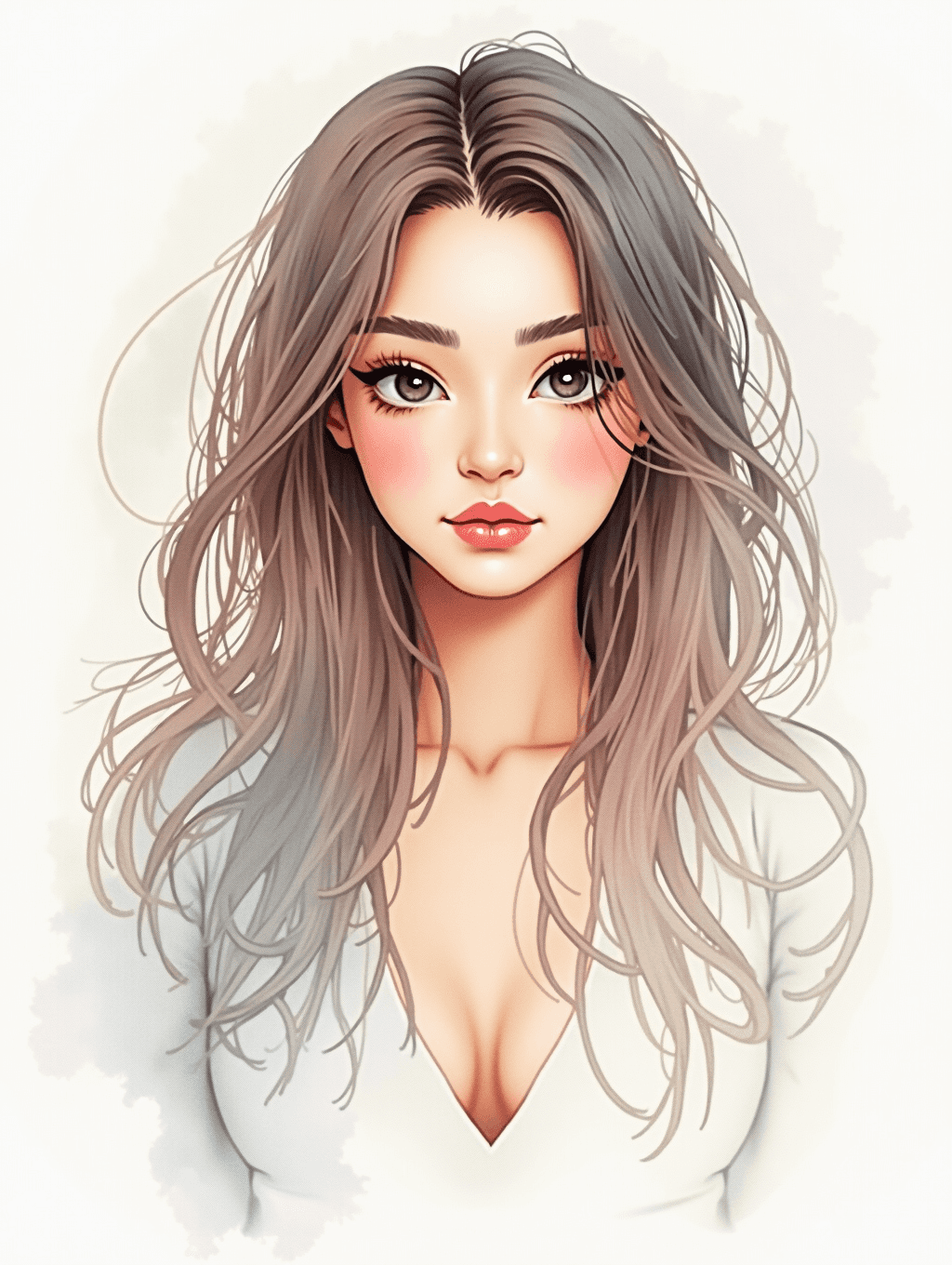
What the Watercolor Effect does
Portraits, pets and landscapes all take on a different mood once they stop looking like photographs. Upload an image and the AI repaints it as a watercolor piece: soft flowing color, translucent washes, and a watercolor-paper texture instead of sharp photographic edges. It suits anyone who wants wall art from a favorite photo, a softer profile picture, or a gift that looks hand-painted rather than printed. Because it's generative rather than a simple filter, the result can shift small details while it repaints, so the output is closest to a painting inspired by your photo rather than a pixel-for-pixel copy of it.
See a sample result
Input: A straight-on portrait photo of a woman with long, light-brown hair falling past her shoulders, wearing a white top, in soft studio light against a plain background.
The photograph gives way to soft, translucent washes where sharp photographic edges used to be. Color bleeds gently along the hairline and shoulders, the way pigment spreads on damp paper, and a visible cold-press paper grain runs across the whole frame. Individual strands of hair simplify into broader flowing shapes rather than staying crisp, and the background loosens into an abstract wash of muted tone rather than a defined studio backdrop. The default leans toward an illustrated look: the eyes come out larger and more defined, lips and cheeks get extra color, and the neckline of the top was redrawn lower. If you want a closer likeness, add "keep my face and clothing as in the photo" to the instruction. The result looks similar to the image at the top of this page.
How it works
- 1
Upload the photo you want painted
Portraits, pets and landscapes all work. A higher-resolution source photo keeps more detail once the wash effect and paper texture are applied.
- 2
Adjust the instruction if you want a specific look
The default pushes soft flowing color and visible paper texture. Rewrite it to ask for a specific palette, looser brushwork, or a particular mood, since you can edit this instruction and it changes the result.
- 3
The AI generates a new painted version
This is a repaint, not a texture overlay, so it reinterprets the photo rather than laying a pattern on top of your existing pixels. Small details, especially faces, text and fine patterns, can shift as it works.
- 4
Compare and download
Review the result next to your original and run it again with a tweaked instruction if the brush texture or color balance needs adjusting. Each run uses credits, so refine the wording before you generate again.
Use cases
Turning a portrait into wall art
Repaint a favorite photo of yourself or a family member into something that looks intentional hanging on a wall rather than a printed snapshot.
Making a pet photo a gift
Give a softer, painted version of a pet photo as a print or card, which reads as a keepsake rather than a phone picture.
Wedding or event keepsakes
Turn a favorite shot from a wedding or celebration into a painted memento that feels distinct from the rest of the event photos.
Profile pictures with a painterly look
Use a repainted version of your headshot for social profiles or a portfolio when you want something warmer than a straight photo.
Mood boards and design references
Generate a painted reference from a photo when you're pitching a soft, illustrative direction for a brand, book cover, or interior mood board.
Tips for better results
- Start with a sharp, well-lit photo; a blurry source photo mostly turns into a blurry painting.
- Simplify a busy background beforehand if you want the wash effect to read clearly.
- Rewrite the instruction with a specific palette, like dusty pastels or deep indigo, if the default result runs too muted or too saturated.
- Check faces and any visible text in the result, since a generative repaint can soften or shift fine details.
- Try a tighter crop for portraits so the face keeps enough resolution once brushwork replaces sharp photographic edges.
Limitations
This is a generative repaint, not a texture overlay, so it can shift small details such as facial features, jewelry, text or patterned fabric while restyling the image. It won't reproduce a specific real watercolor artist's technique, and results at very large print sizes may need a closer look before ordering. Check faces and any text in the output before using it for something important.
Frequently asked questions
Will it keep my photo's composition exactly the same?
Mostly, but not exactly. Because it repaints rather than overlays a filter, overall framing tends to hold while small details like hands, jewelry or background objects can shift slightly.
Can I upload more than one photo at a time?
You can add more than one image, but a run combines them into a single result, so extra images work best as style references, like a watercolor you admire. To paint several photos, run each one separately.
What if the colors come out too muddy?
Rewrite the instruction to ask for a lighter palette, more open white space, or specific named colors, then run it again. Wording changes the result noticeably.
Does it work well on group photos?
Yes, though faces tend to simplify more the smaller they appear in the frame, so a closer crop keeps more individual detail per person.
Can I print the result at a large size?
You can, but check resolution and fine details like text or small faces first, since generative results can look softer once enlarged.
How is this different from a watercolor filter app?
A filter usually overlays a texture pattern on your existing pixels. This regenerates the image as a new painting, so brush strokes, edges and color blending look closer to an actual watercolor piece.
Plans start at $9 a month. See pricing