AI Celebrity Photo Generator
Put your own photo into a red-carpet, camera-flash setting for a glamour-style portrait.
What the Celebrity Photo Generator does
Every award-show photo has the same ingredients: a dramatic gown or sharp suit, a wall of camera flashes, and lighting that flatters everything. This tool takes your own photo and rebuilds the scene around you, adding formalwear, an event backdrop, and photographer-style lighting so the result looks like a step-and-repeat portrait. It's a styling exercise, not a way to become or impersonate anyone else: upload your own photo, describe a look rather than a famous name, and expect the AI to polish your face a little along the way. Use the instruction box to describe the dress color, suit style, or era you want, then check the result for faces, hands, and jewelry before you use it anywhere.
See a sample result
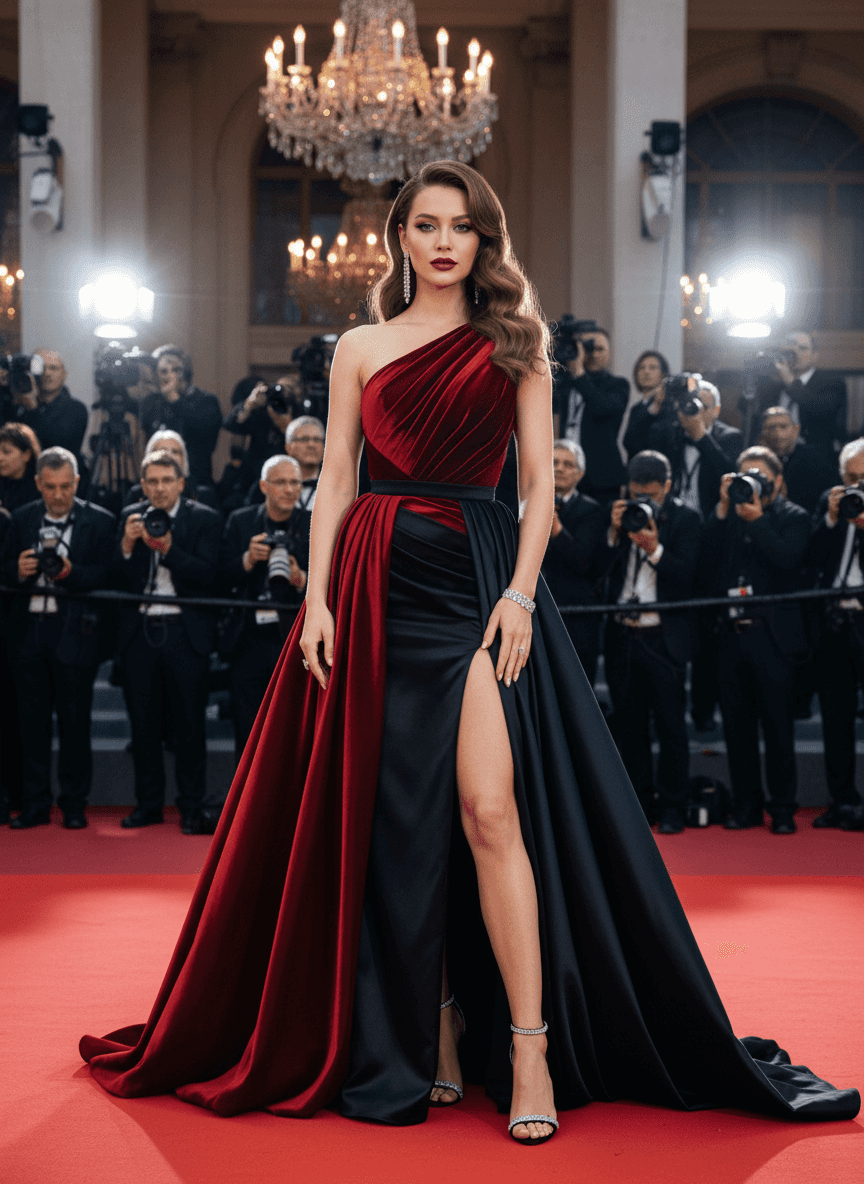
Input: A full-length phone photo of a woman with long brown hair, wearing jeans and a sweater, standing against a plain wall at home. The result looks similar to the image at the top of this page.
Style applied: red carpet glamour
The casual outfit is replaced with a one-shoulder gown in deep red velvet and black satin, with a thigh-high slit and a fitted bodice. Hair is restyled into soft, vintage-inspired waves, and makeup is intensified with a dark berry lip. The AI also added long drop earrings, a bracelet and strappy heels on its own; say "no jewelry" in the instruction if you don't want them.
The background becomes a step-and-repeat style scene: a row of photographers with cameras raised, bright flash bursts frozen mid-shot, a crystal chandelier overhead, and a red carpet underfoot. Lighting shifts to a warm, high-contrast look typical of event photography, with the subject sharply lit against a slightly dimmer crowd.
What to check: hands and finger count near the jewelry and dress folds, since generated fabric and accessories are where extra fingers or warped rings tend to show up. Also check the face: the skin comes out airbrushed and the features slightly idealized, which can make you look less like yourself, and look at the photographers in the background for any distorted equipment or faces, since crowd scenes are where the AI is most likely to invent odd details.
How it works
- 1
Upload a clear photo of yourself
A well-lit, front-facing or slight-angle photo works best. Full-body or waist-up shots give the AI more room to add the gown or suit convincingly.
- 2
Describe the look in the instruction
Name a color, era, or vibe (a black tuxedo, a deep red velvet gown, a 1990s red carpet feel). You can also add or swap images if you want a reference for the outfit or setting.
- 3
The AI builds the scene
It restyles the outfit, adds a red carpet, chandeliers or step-and-repeat backdrop, camera flashes, and event-style lighting and color grading around your likeness.
- 4
Review and download
One generated image comes back per run. Look closely at the face, hands, and any jewelry or text in the background before sharing it.
Use cases
Fun profile or cover photos
Turn an ordinary photo into a glamour-style portrait for a social media banner or a one-off post, without booking a formalwear shoot.
Party or theme-night invitations
Use a red-carpet style image as the visual for an awards-night or Hollywood-themed party invite featuring the host's own photo.
Trying outfit ideas before an event
See roughly how a gown color or suit style might look on you before committing to a rental or purchase, using the instruction box to test a few options.
Creative content for a personal brand
Content creators can generate a stylized glamour shot as a one-off visual for a video thumbnail or announcement post.
Tips for better results
- Describe the outfit specifically (color, fabric, era) rather than just "celebrity style" to get a more predictable result.
- Use a photo with good lighting and a visible upper body so the gown or suit has enough space to render.
- Describe a look, not a person: don't name a real public figure in the instruction, and only upload photos of yourself or people who agreed to it.
- Check hands, jewelry, and any background text closely, since those are the most common places small errors appear.
- If the first result feels off, adjust the instruction (a different color, a simpler backdrop) and run it again; each run uses credits.
Limitations
This tool generates a stylized version of the photo you upload. It isn't meant to recreate or imply an association with any real celebrity, so don't use it to make images of famous people or to pass a result off as a real event photo. It's a generative edit, so it can invent small details in fabric, jewelry, hands, and background crowds; check those before using the image publicly. It doesn't guarantee the final look matches any specific event, era, or exact reference photo.
Frequently asked questions
Will it make me look like an actual celebrity?
No. It restyles the person in your photo into a red-carpet setting; it isn't built to copy a public figure's face, and you shouldn't ask it to. It usually keeps your overall look but can smooth or idealize features, so compare the result with your original.
Can I choose the outfit color or style?
Yes, describe it in the instruction box, such as a specific dress color, suit cut, or decade-inspired look, and the AI will build the scene around that.
Can I upload more than one photo?
You can add multiple images, for example your photo plus a reference image for the outfit or setting, and the tool uses them all as references for one result. Say in the instruction what each image is for. Credits are charged per image.
Why do the hands or jewelry look strange in the result?
Generated fabric, rings, and background details are the parts most likely to come out slightly off. Review those areas before sharing the image.
Can I get a full red carpet photo shoot with several poses?
Each run produces one image. Upload a different photo or change the instruction and run again if you want another pose or angle.
Is this suitable for a professional headshot?
It's built for a glamour or event look rather than a corporate headshot. For a professional photo, a dedicated headshot tool with a plain background is a better fit.
Plans start at $9 a month. See pricing