What the Beach Photo Generator does
Gray skies ruined the one beach day you had, or the only good photo of you this summer was taken in the backyard. Maybe the weather didn't cooperate, the photo was taken indoors, or the vacation was months ago and you want one more shot for a caption. This tool takes a photo you already have and rebuilds the scene around you with sand, ocean, and warm daylight, matching the beach lifestyle look people usually pay for on a coastal trip. Upload a photo, edit the instruction if you want a specific time of day or coastline style, and the AI handles the setting, lighting, and mood. It usually keeps your overall look, though it may also restyle your hair, skin and pose.
See a sample result
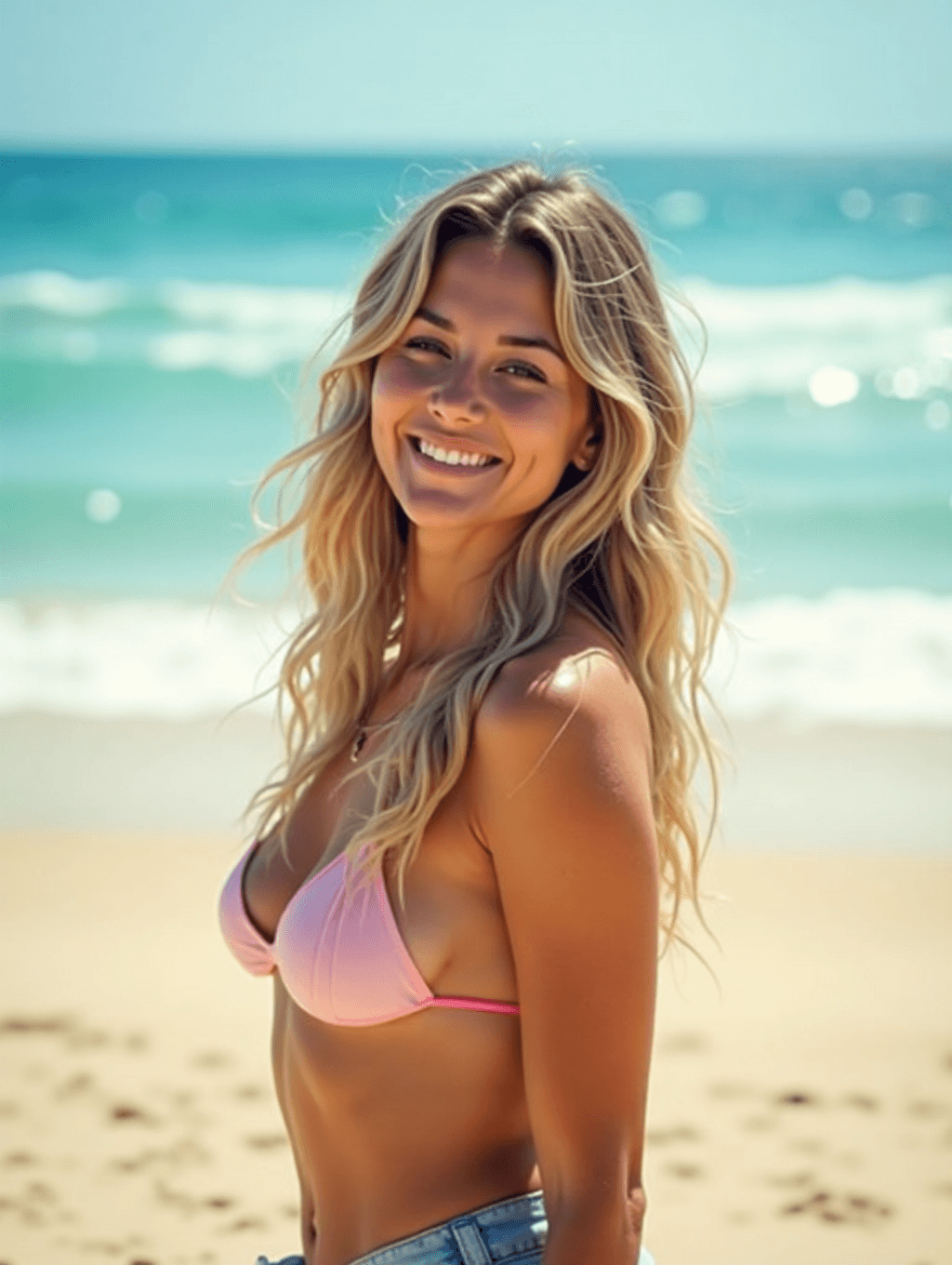
Input: A phone photo of a woman with long wavy blonde hair on a backyard patio, wearing a pink bikini top and denim shorts, with a fence and potted plants behind her. The result looks similar to the image at the top of this page.
AI beach photo result
The patio is gone, replaced with a wide stretch of sandy beach and turquoise surf under a hazy, pale sky. The bikini top and shorts carry over, and she's now turned sideways with a big open smile over her shoulder. The lighting matches bright midday sun, with warm highlights on her skin and hair and soft shadows on the sand.
Waves break in the soft-focus background and the hair looks windswept and sun-streaked, giving the photo a candid, vacation-style feel. The skin is noticeably more tanned and smoothed than a typical phone photo, and the AI added a thin necklace. The framing is waist up.
Before posting or printing this, check the edges where your body meets the sand and water, since blending a new background in can leave faint mismatches in color or focus.
How it works
- 1
Upload a photo with you clearly visible
A photo where your body and face aren't heavily blocked works best; standing or sitting shots both translate well to a beach setting.
- 2
Describe the beach you want
Use the instruction box to mention a specific look, like a tropical coastline, a rocky shoreline, or golden-hour light, instead of leaving it general.
- 3
The AI rebuilds the scene
It replaces the background with sand and ocean, adjusts lighting to a sunny, coastal tone, and blends the new setting with your existing pose and outfit.
- 4
Check the result before you use it
Look at where your body meets the new background, along with hands and hair, since generated edges and lighting can occasionally look slightly off.
Use cases
A vacation photo without the trip
Get a beach-style photo for a profile or a caption when an actual coastal trip isn't happening this season.
Fixing a photo from an overcast beach day
If your real beach trip had gray skies or flat light, this can rebuild the scene with the sunny look you were hoping for.
Travel and lifestyle content
Creators building a beach or travel theme can generate consistent coastal backdrops without shooting on location every time.
Testing a swimsuit or outfit look
See how an outfit reads in bright beach light and against sand and water before packing it for an actual trip.
Tips for better results
- Use a photo where your outline is clear against the background, so the new beach scene blends in cleanly.
- Mention a specific coastline style, like tropical, rocky, or a quiet cove, for a more distinct result.
- Ask for a particular time of day, such as golden hour or midday sun, if lighting matters to you.
- Avoid photos with busy backgrounds already in frame; a simpler original photo blends more smoothly.
- If the water or sand looks flat, try a source photo with slightly more contrast in the original lighting.
Limitations
This is a generative background and lighting swap, not a real photograph taken at the coast. The AI rebuilds the scene around your existing pose and outfit, so fine details like where your hand meets the sand, loose hair strands, or reflections in water can come out slightly imperfect. Results also depend on your source photo: a photo with a clean, simple background blends more convincingly than one with a busy or cluttered scene behind you. Treat the output as a stylized version of your photo rather than proof you visited a specific location.
Frequently asked questions
Do I need an actual beach photo to start?
No. You can upload a photo taken anywhere, indoors or outdoors, and the tool replaces the background and lighting with a beach scene.
Can I choose the type of beach or coastline?
Yes. Describe it in the instruction, for example a tropical beach, a rocky coast, or a quiet cove at sunset.
Will it keep my outfit the same?
Usually, but not always. In the example the outfit stayed and the pose changed. If the outfit matters, say "keep my outfit and pose unchanged" in the instruction, and check the result.
Can I upload more than one photo at a time?
Yes, but the tool uses every image as a reference for one beach-styled result rather than one output per photo, and credits are charged per image. Say in the instruction what each image is for.
Why does the edge around my body look slightly off?
That happens when the new background doesn't perfectly match the lighting or focus of your original photo. Check those edges before using the result.
Does every attempt use credits?
Yes, each run uses credits, so it's worth picking a clear source photo before trying different beach styles.
Plans start at $9 a month. See pricing